Import WooCommerce products, customers and orders into Odoo and send stock and order status back to the shop.
A WooCommerce shop and an Odoo database often hold the same products, customers and orders. This connector imports the shop's catalog, customers and orders into Odoo with the shop's own REST API keys, and sends stock quantities and the Completed status of shipped orders back. Imports and exports run as jobs in a queue: a job that fails is tried again later, and its reason is written to the log. Odoo talks only to the external shop address you enter.
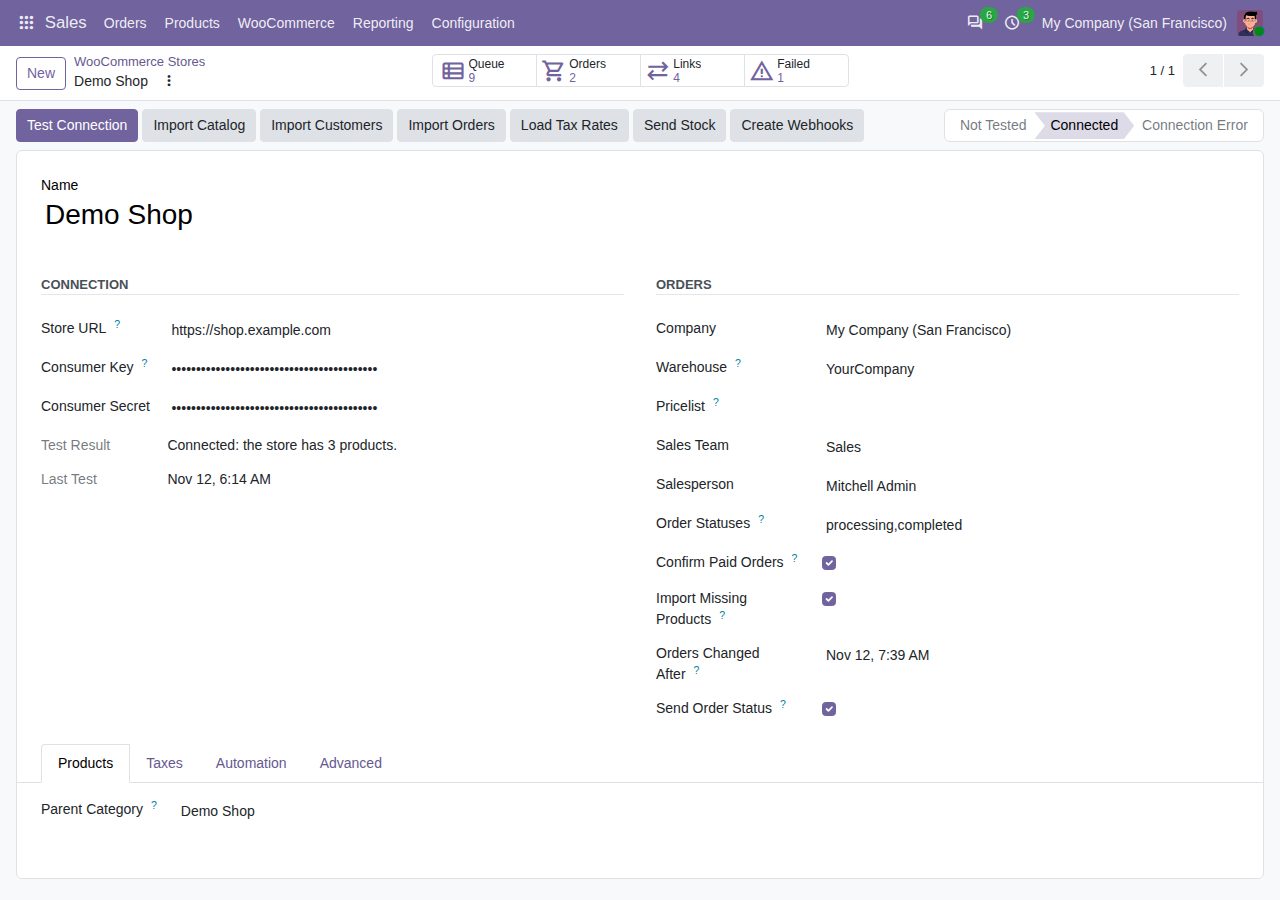
The first Import Orders reads the orders with the statuses you choose; every later run reads only the orders changed since the run before, imports the new ones with those statuses and updates the status of the orders already in Odoo. Each becomes a quotation with the product lines, the shipping method and fees as separate lines, and coupons as a discount line per tax, so amounts and taxes follow WooCommerce; an order whose total differs from the shop's by more than a cent gets a warning in the log. The order keeps its WooCommerce number, status and payment method, and the customer's note goes in the chatter.
Load Tax Rates reads the shop's tax rates and proposes, for each rate, an Odoo sales tax with the same percentage (one included in the price when the shop enters its prices with tax); you can change the choice, and loading again keeps it. An order with a rate that has no Odoo tax is retried for about 30 minutes; then its job stays Failed, with a message that names the rate, until you map the rate and click Retry.
Orders that are Processing or Completed in WooCommerce are confirmed in Odoo, so the delivery is ready in Inventory (you can switch this off). An order that is cancelled or failed in the shop cancels its quotation in Odoo, whether a webhook or the next import brings the change; a confirmed order is never cancelled automatically; a warning in the log tells you.
Create Webhooks adds two webhooks to the shop, for new and for changed orders, that point at this database. Odoo checks every call's signature against the store's own secret and refuses calls without a valid one. The order is queued once and read fresh from the shop when its job runs, so a late or repeated call never brings back an older state.
Per store, changed orders are imported and stock is sent on a schedule you choose (as often as every 5 minutes), which also picks up orders a webhook missed. A job that still waits in the queue is not queued twice, and the schedule runs only for a connected store.
Send Stock gives WooCommerce the free quantity in the store's warehouse of every linked storable product and variation, 100 per call, and only the quantities that changed since the last time. An item the shop refuses is written to the log and sent again next time.
When the last delivery of an imported order is done in Odoo, including backorders, the WooCommerce order becomes Completed and the customer gets an order note that names the deliveries. An order that was cancelled, refunded or failed in the shop by then keeps that status, and the log says so. You can switch this off per store.
Import Customers reads the shop's registered customers. The billing address, e-mail and phone go on the customer in Odoo; a different shipping address becomes a delivery address of that customer. A customer the connector imported before is found again by e-mail address, also when a guest orders without an account. Contacts made in Odoo itself (customers you entered, vendors, users, the people under a company) are never matched or changed: a shop customer with one of their e-mail addresses gets a contact of its own.
Import Catalog queues the shop's categories with their tree (under a parent category per store), its attributes with their values, and its products. A simple product becomes one product with its SKU, sales price and category; a virtual one becomes a service. A variable product gets the attributes and values its variations use, each WooCommerce variation is linked to the matching variant with its own SKU, and the lowest variation price becomes the sales price. When the store has a pricelist, each variation's own price is kept there as a fixed price for its variant; the pricelist's other rules are left alone.
Before it creates a product, the import looks for an Odoo product with the same SKU (Internal Reference) and links that one, so nothing is duplicated; a variable product is found through the SKUs of its variations. Attributes are matched by name when Odoo creates their variants instantly, and values by name within them. From then on WooCommerce is the source of the product's name, sales price and category.
When an order line names a product that is not linked yet, the connector imports that product first. A variation sold with an "Any" value finds its variant from the customer's choice on the line.
Every imported category, attribute, value, product and variant keeps its WooCommerce id per store, listed under Sales > WooCommerce > Links. A second import updates those records instead of making new ones, and products that did not change in WooCommerce since the last import are not touched.
Products are read 100 per page with one queue job per page, and every variable product gets a job of its own. A product that cannot be imported is moved to its own job with retries and a log line, so one bad product never stops the rest.
Add as many WooCommerce stores as you run, each with its own address, keys, company, warehouse, pricelist, sales team and salesperson. Stores of other companies stay hidden from users who do not work for those companies.
One button checks the address and that the keys can read the shop, by counting its products, and shows the result on the store: connected with the number of products, or the reason the call failed. Changing the address or the keys marks the store as not tested again.
Jobs run in the background one at a time, and a job that fails half-way leaves nothing behind. A failed job is tried again after 2, 4, 8 and 16 minutes and stops after five attempts; Run Now, Retry and Cancel are one click away, and every failed attempt is written to the log with its reason. Users run, retry and cancel jobs, but nobody can change what a queued job does.
Only Odoo users with WooCommerce Administrator access can read or change the consumer key and secret. Users run jobs without ever seeing them, and keys never appear in the log or in error messages.
Lists are read 100 records per page, calls are spaced by a pause you set, and when the host answers that it is busy the connector waits as long as it asks (up to a minute) before it tries again.
Odoo calls nothing but the external store address you enter, over HTTPS. Redirects are not followed. For a test site without HTTPS you can allow plain HTTP: calls are then signed with OAuth 1.0a, as WooCommerce requires, so the consumer secret is never sent. Create Webhooks does send the webhook secret to the shop; over plain HTTP it travels unencrypted.
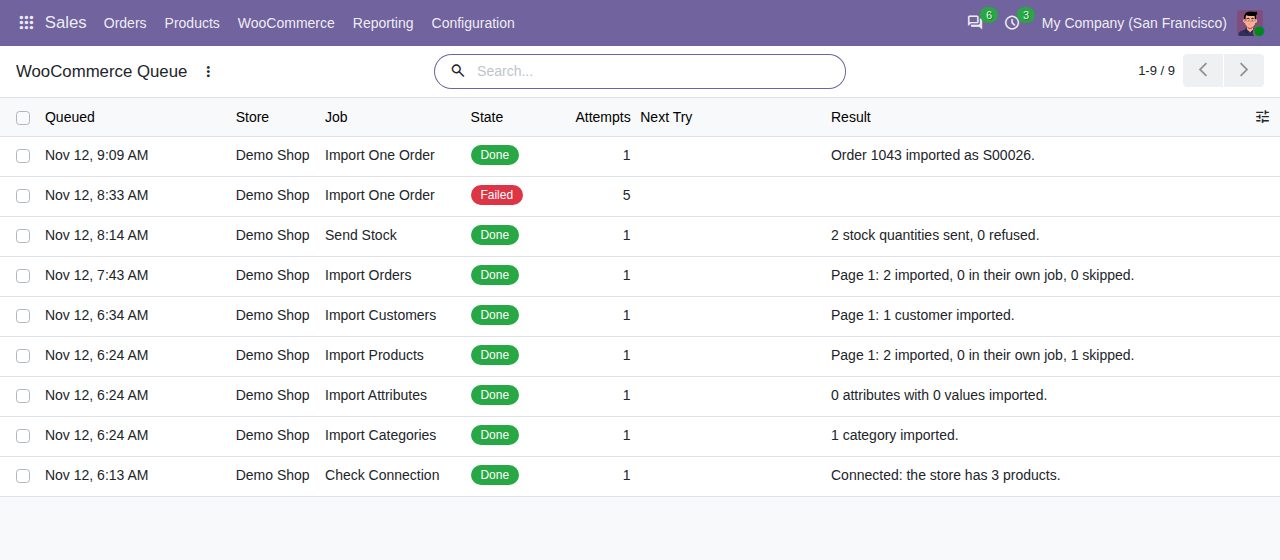
The queue, newest first: every job with its state, attempts and the result of finished jobs
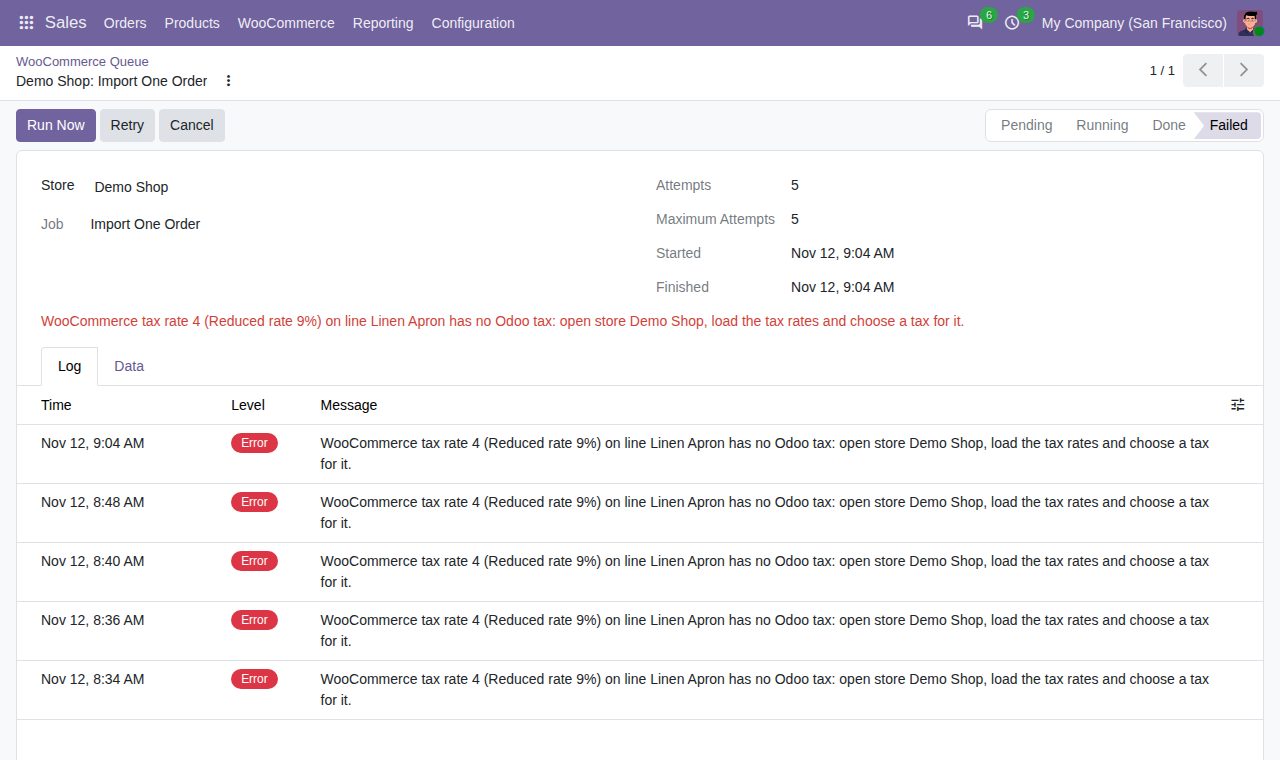
A failed job: the reason (here a tax rate without an Odoo tax), five attempts and their log lines
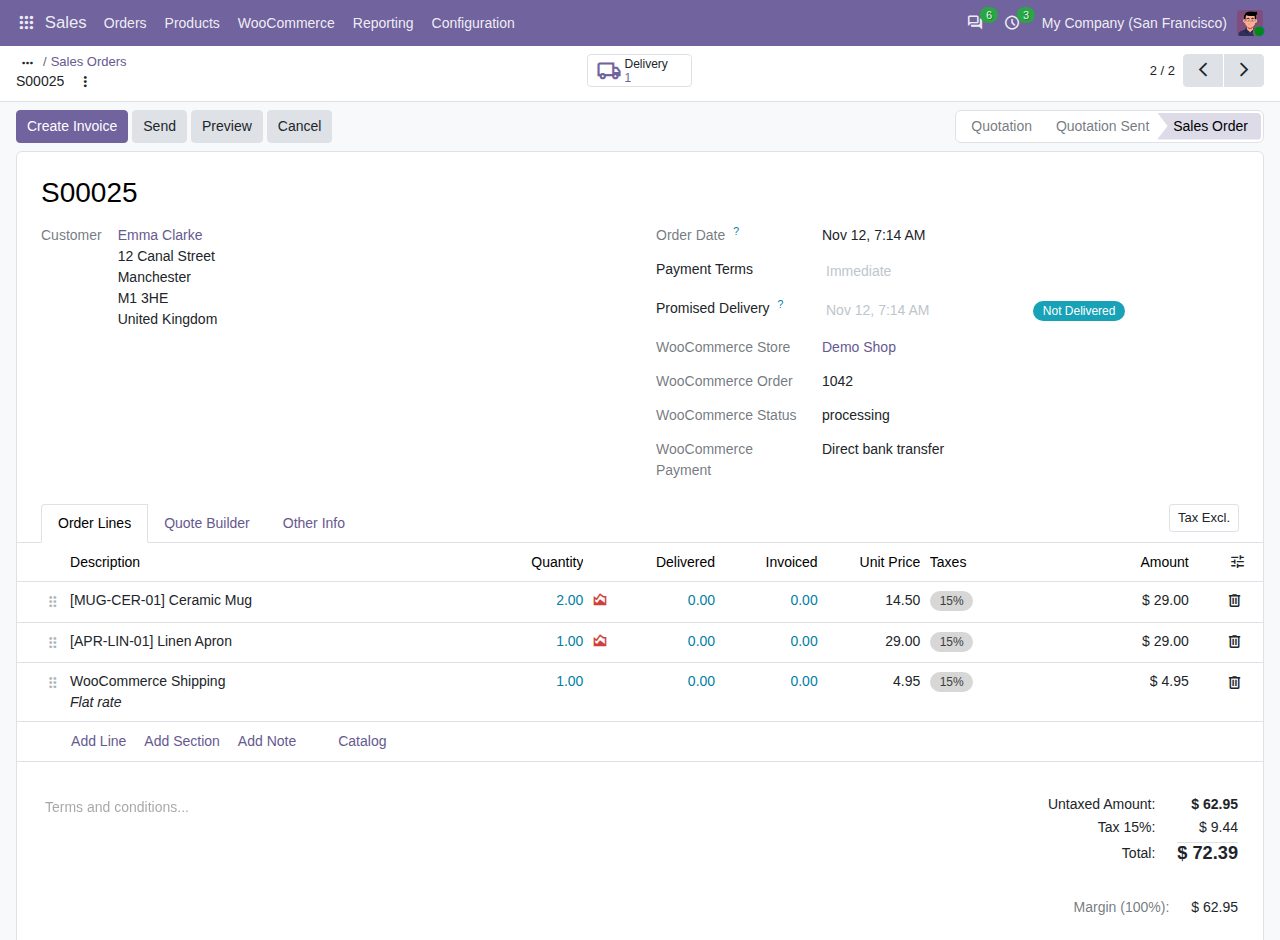
An imported order: its WooCommerce store, order number, status and payment method at the top, and the shipping as a line of its own
We build custom Odoo modules and changes to this one at a fixed price, from €950 excluding VAT. Small modules are usually delivered within five working days, tested on your Odoo version. Describe what you need to hello@bizzkitt.ai.
Bitwerf is a trade name of BizzKitt B.V., Frederikstraat 67, 3034 LD Rotterdam, the Netherlands (KvK 42149345, VAT NL869932354B01). Questions: hello@bizzkitt.ai · Support · Privacy · Terms