Give each inventory user only the warehouses and operation types of their job; other warehouses, their transfers and their stock stay out of sight.
In Odoo every inventory user sees every warehouse of the company. Warehouse Access by User lets you choose, per user, the warehouses they work in and, if you like, only some operation types there. A restricted user then sees and works only with those warehouses: their locations, operation types, transfers, stock moves, stock on hand and replenishment rules. Other warehouses can neither be read nor changed by them.
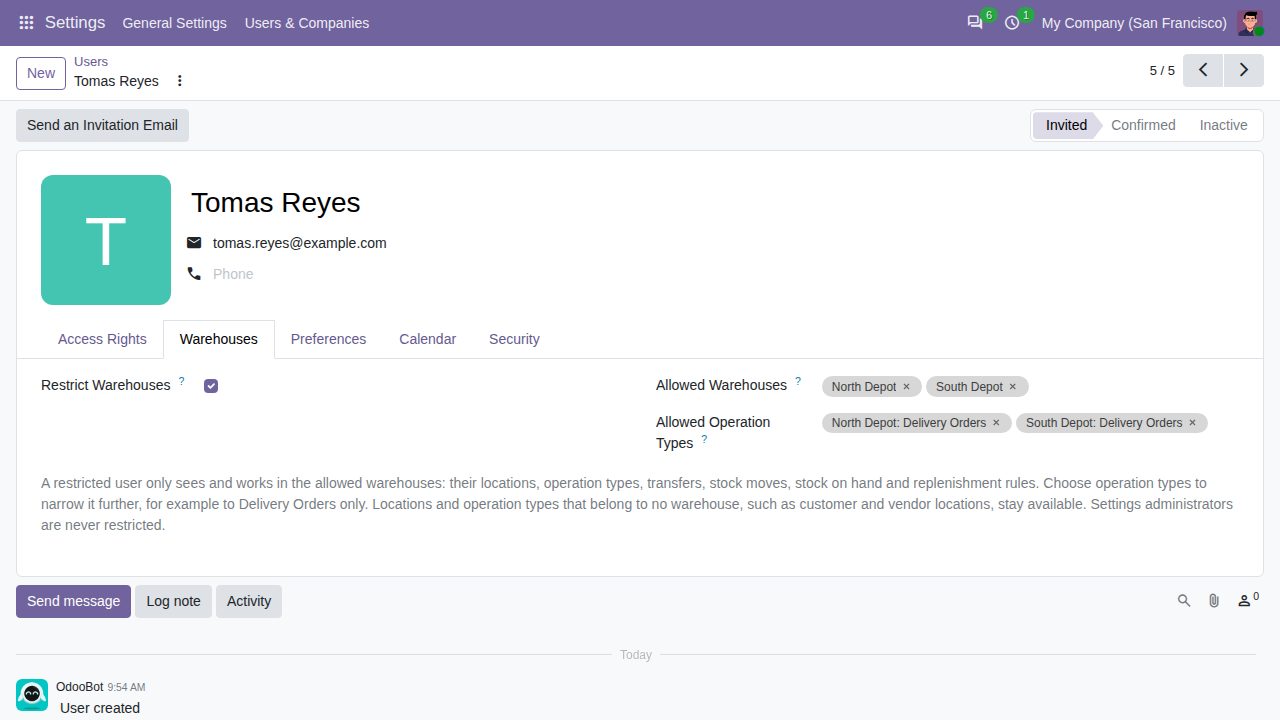
Switch on Restrict Warehouses on a user and pick the warehouses they work in. Other warehouses disappear from their lists, dashboards and fields, and cannot be read or changed.
Optionally pick operation types, for example Delivery Orders only: the user then sees just those operation types and their transfers in the allowed warehouses.
Transfers, stock moves, move lines, stock on hand, inventory adjustments, replenishment rules and the forecast report follow the same restriction. On-hand quantities count only the allowed warehouses.
Locations and operation types that belong to no warehouse, such as customer and vendor locations, stay available, so deliveries and receipts work as usual.
Set the allowed warehouses on the user, or the allowed users on the warehouse form and as a column of the warehouse list. Changes apply at once, also for new operation types.
A restricted user's default warehouse is one of their own. Users cannot change their own restriction, and Settings administrators are never restricted.
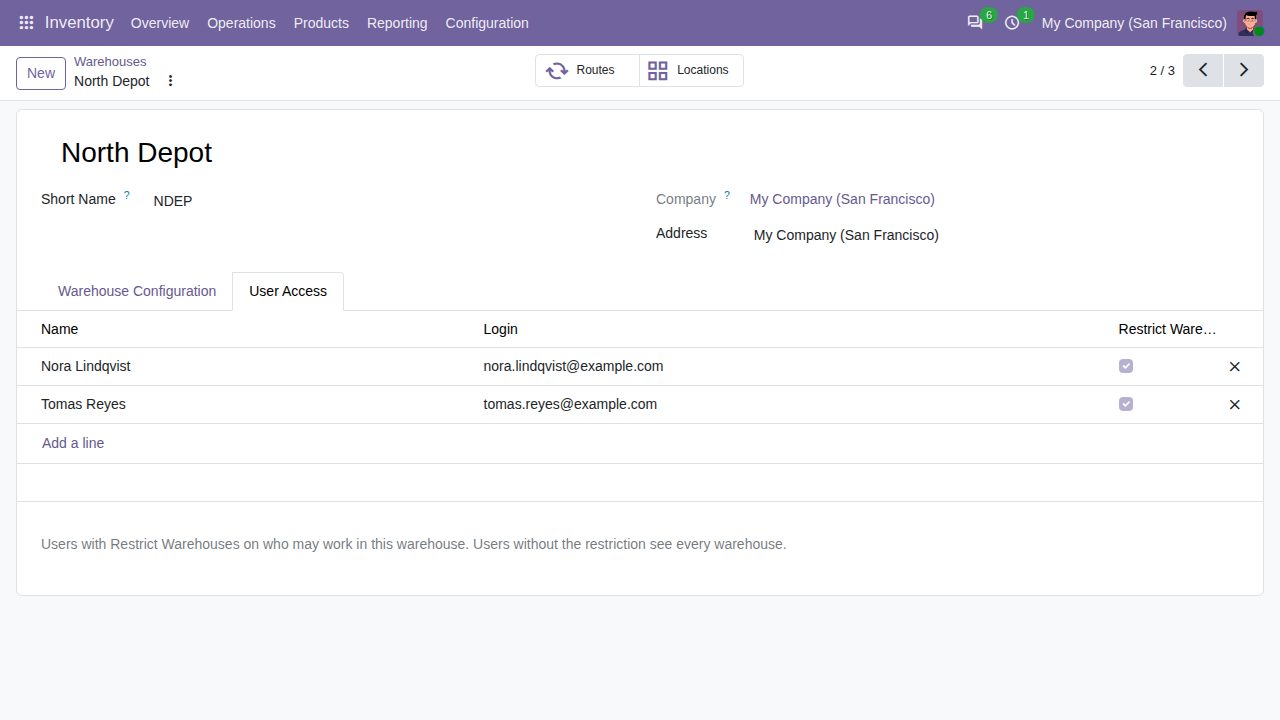
User Access tab on a warehouse: the restricted users who may work in it.
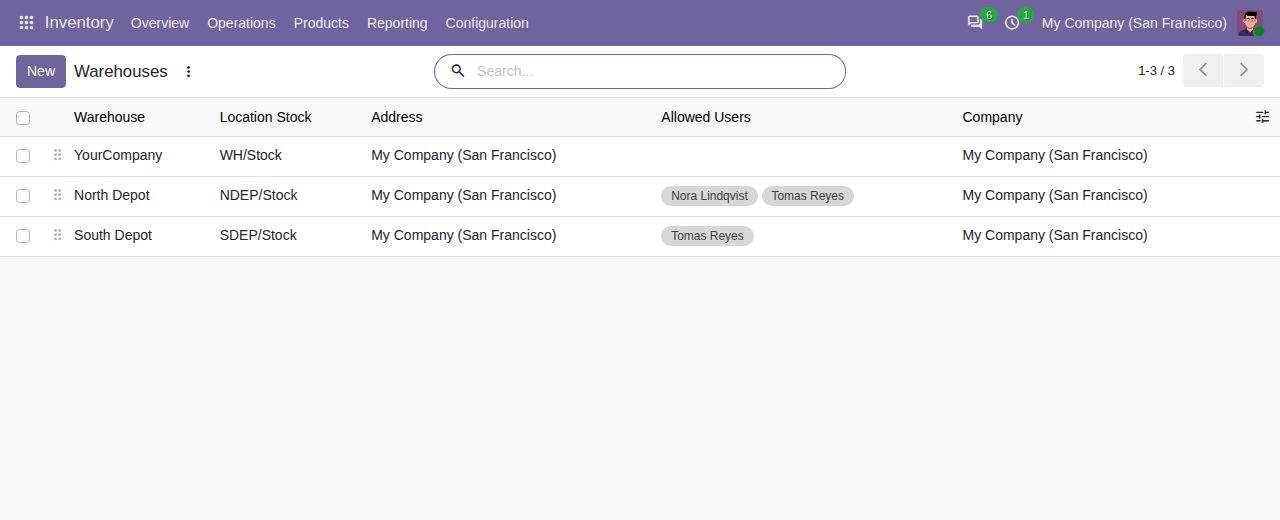
Warehouse list with the Allowed Users column.
We build custom Odoo modules and changes to this one at a fixed price, from €950 excluding VAT. Small modules are usually delivered within five working days, tested on your Odoo version. Describe what you need to hello@bizzkitt.ai.
Bitwerf is a trade name of BizzKitt B.V., Frederikstraat 67, 3034 LD Rotterdam, the Netherlands (KvK 42149345, VAT NL869932354B01). Questions: hello@bizzkitt.ai · Support · Privacy · Terms