Give each vendor its own expense account, so bill lines without a product land on the right account in every company.
Bills for rent, legal work, software or consulting are usually entered without a product, and Odoo then falls back on the journal's default account or on a guess from earlier bills. Vendor Expense Accounts lets you set the expense account per vendor and per company: new lines without a product on that vendor's bills, refunds and receipts get it straight away, mapped by the fiscal position and with the account's default taxes.
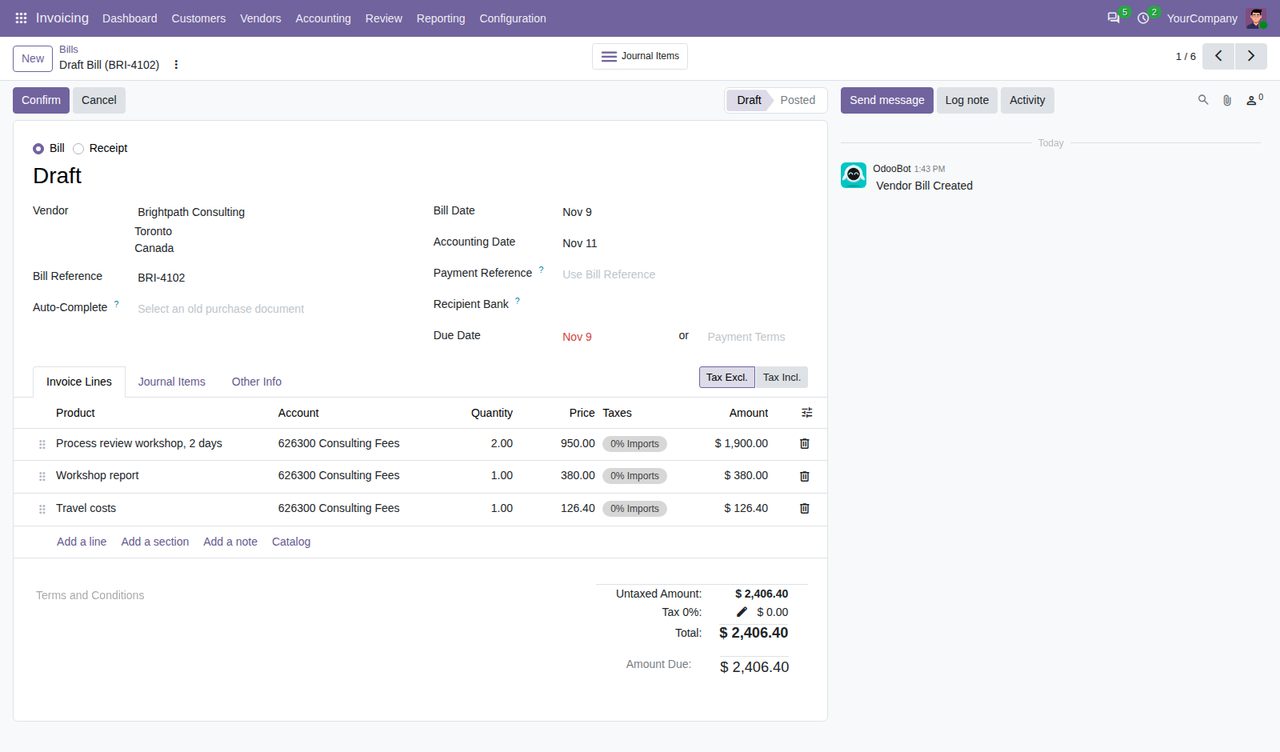
Set it on the vendor's Invoicing tab under Vendor Bills. Each company keeps its own account, and bills sent by a contact of the vendor use the account of the vendor company.
Lines without a product on vendor bills, refunds and purchase receipts get the vendor's account as soon as they are added, on screen, by import or through the API.
Lines with a product keep the product's account, and an account you pick or send with a line is kept. Customer invoices and posted bills are left as they are.
The bill's fiscal position maps the vendor's account like any other account, and the account's default purchase taxes are filled in, just as when you pick the account yourself.
Lines entered before the vendor, or still on the account Odoo chose or on the previous vendor's account, move to the new vendor's account and taxes. Lines whose account you changed stay as they are.
When you enter a bill's total amount, the line Odoo suggests takes the vendor's account and its default purchase taxes.
Vendors > Expense Accounts lists vendor companies and individuals with their account, editable in place, with filters for vendors with and without one.
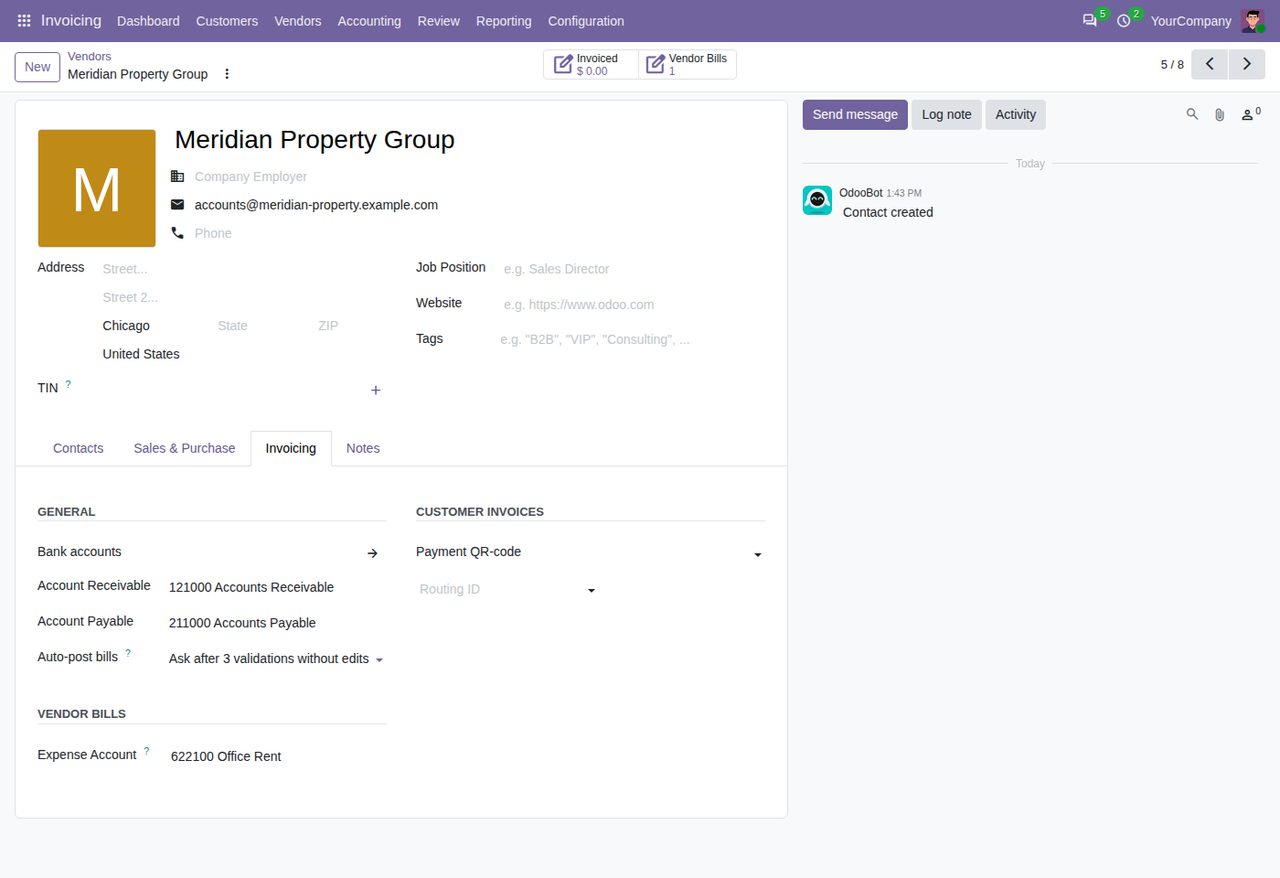
The Expense Account under Vendor Bills on the vendor's Invoicing tab, kept per company.
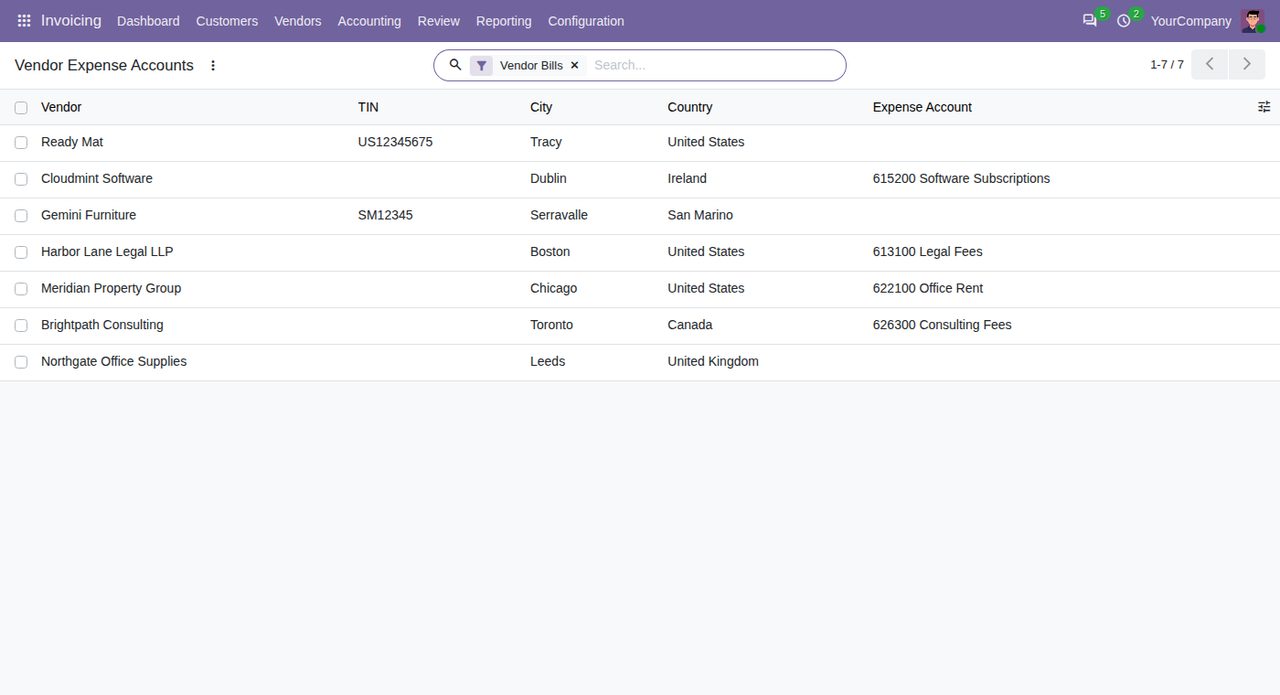
Vendors > Expense Accounts: the account of every vendor in one editable list.
We build custom Odoo modules and changes to this one at a fixed price, from €950 excluding VAT. Small modules are usually delivered within five working days, tested on your Odoo version. Describe what you need to hello@bizzkitt.ai.
Bitwerf is a trade name of BizzKitt B.V., Frederikstraat 67, 3034 LD Rotterdam, the Netherlands (KvK 42149345, VAT NL869932354B01). Questions: hello@bizzkitt.ai · Support · Privacy · Terms