Saved exports to CSV, Excel, JSON or XML: run now or on a schedule, kept in a history, sent by email.
Odoo's Export dialog makes one file at a time, by hand. This module saves an export per model with its filter, sort order and columns, also from related records, and runs it when you click Run Now or on a schedule. Every run keeps its file in a history and can send it by email.
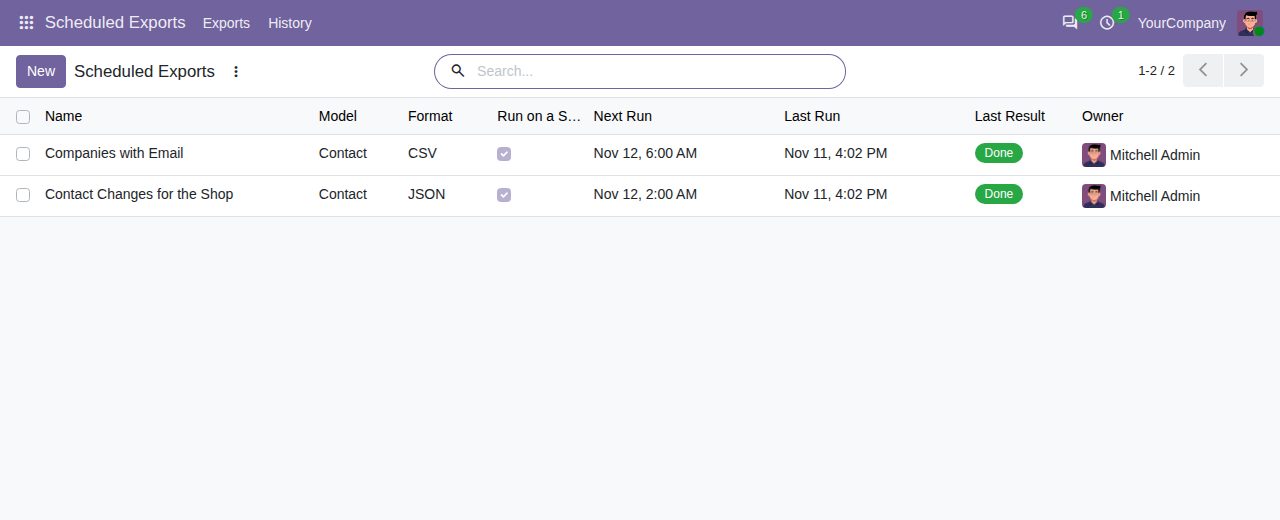
Choose the model, a filter, a sort order and a record limit. Columns are fields of the record or of related records, such as the customer's email, each with its own header. Load Columns takes a field list saved in Odoo's Export dialog.
CSV with comma, semicolon, tab or pipe, with or without a header row, UTF-8 with or without BOM. Excel with numbers and true/false as real cell values. JSON as a list of objects named by your headers. XML with one record per row.
Names of related records, labels of choices and one extra row per line for fields of lines, as in Odoo's own export. Dates are written as YYYY-MM-DD, times in the owner's time zone, translated texts in the owner's language.
The Preview tab shows the first 10 rows as the file will have them. A problem, such as a missing access right, is shown there instead of an error.
Run Now downloads the file at once. A schedule runs the export every so many hours, days, weeks or months from the date you choose; a monthly export keeps its day of the month.
Every run is kept with its file, number of records and result; older runs go after the number you choose. A run can email its file to chosen contacts through your Odoo's outgoing mail. A failed scheduled run is kept with its reason, and the other exports still run.
An export can take only the records created or changed since its previous successful run, for shops and tools that update their data every day.
An export runs as its owner, with the owner's access rights and companies. Users see and change their own exports; administrators see every export and can change its owner.
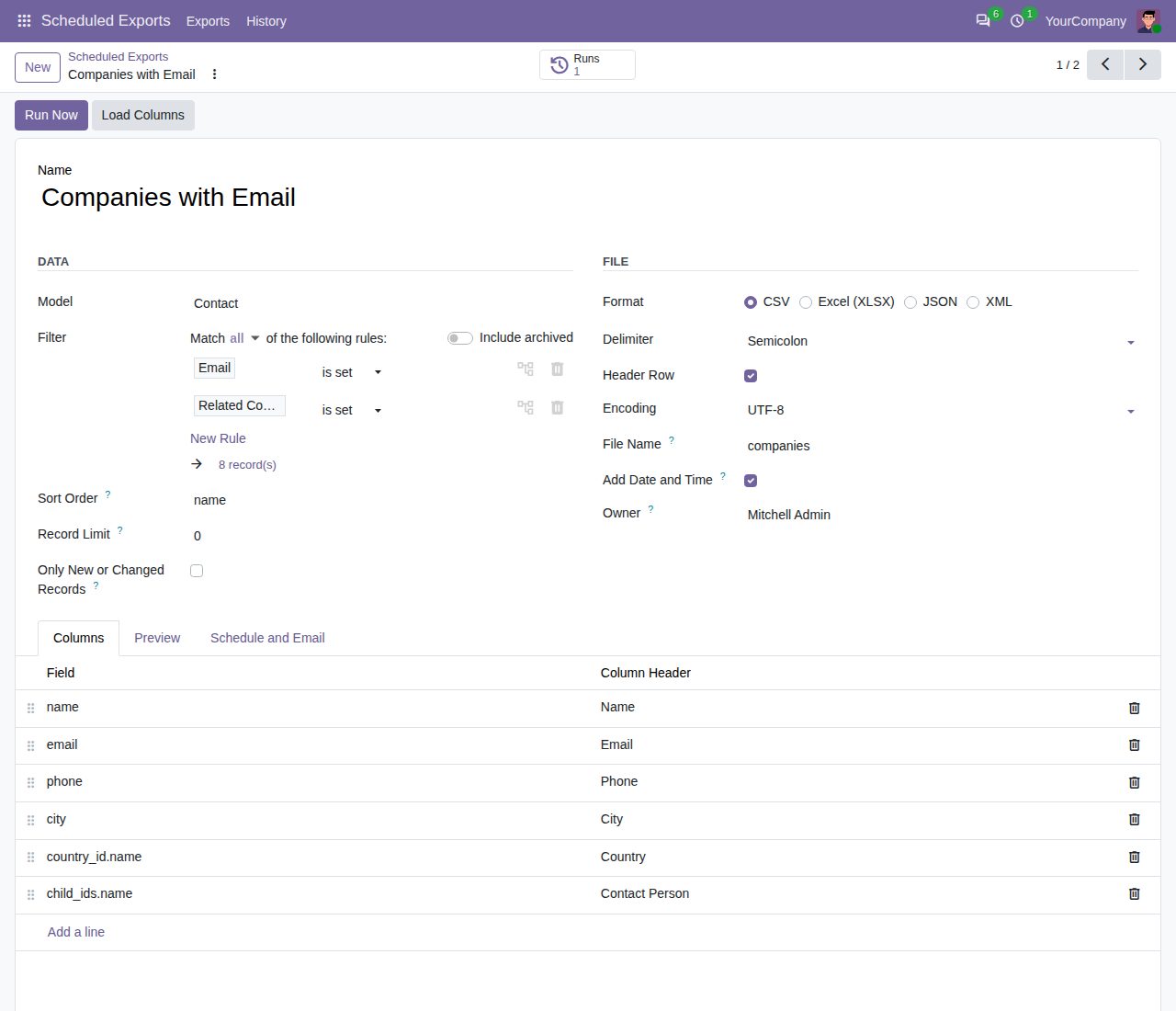
An export of companies with email: filter, sort order, CSV options and columns, including fields of related records.
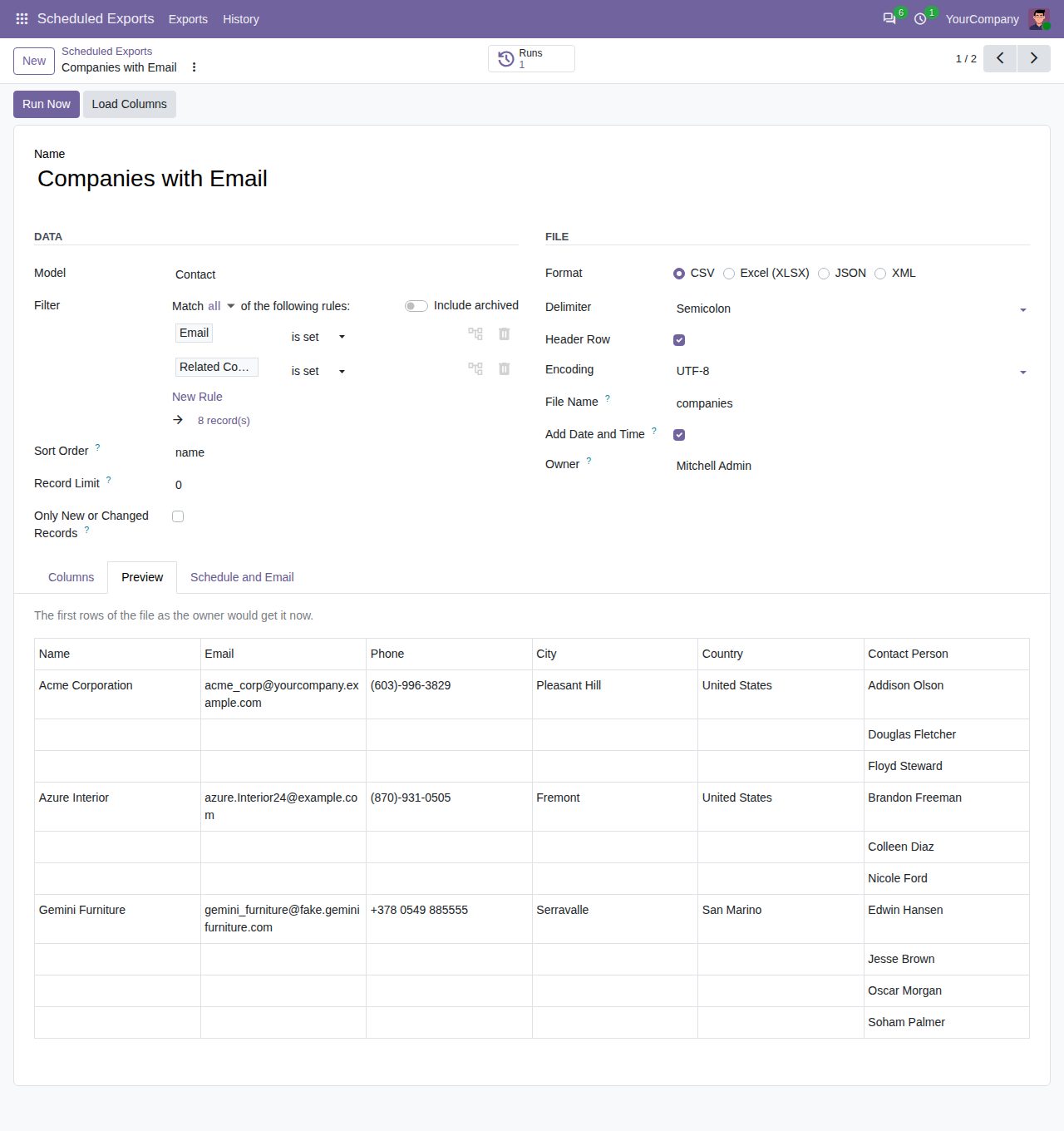
The Preview tab: the first rows as the file will have them, with one extra row per contact person.
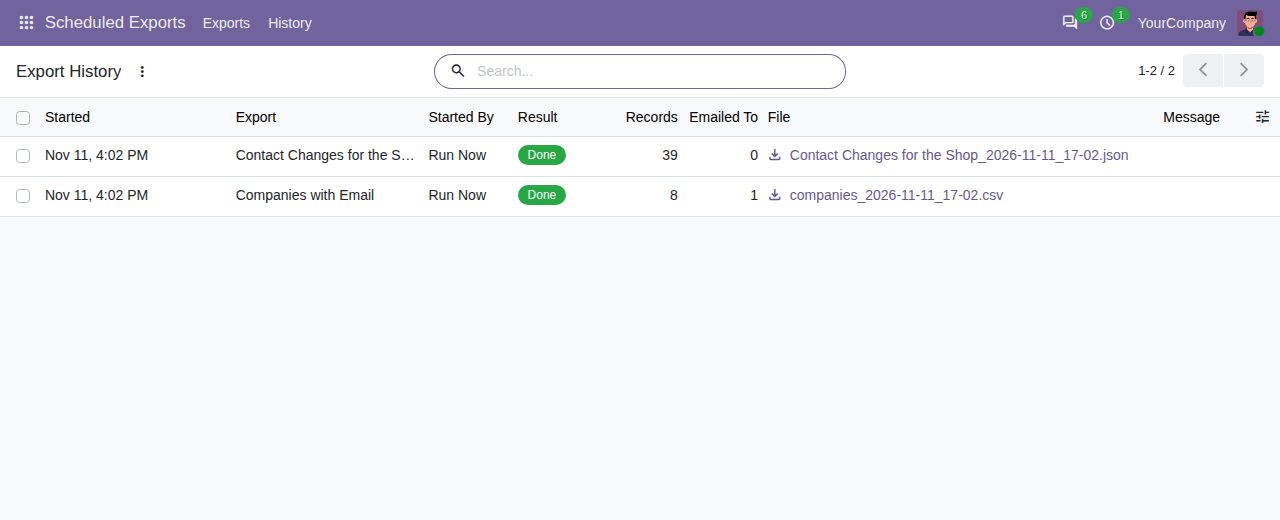
The history: every run with its file, number of records and the contacts it was emailed to.
We build custom Odoo modules and changes to this one at a fixed price, from €950 excluding VAT. Small modules are usually delivered within five working days, tested on your Odoo version. Describe what you need to hello@bizzkitt.ai.
Bitwerf is a trade name of BizzKitt B.V., Frederikstraat 67, 3034 LD Rotterdam, the Netherlands (KvK 42149345, VAT NL869932354B01). Questions: hello@bizzkitt.ai · Support · Privacy · Terms