See on every purchase order whether its vendor bills are paid, how much is still due and when the next payment falls due.
Odoo shows on a purchase order whether it is billed, but to know whether those bills are paid you open them one by one. Purchase Payment Tracking adds the payment status, the paid and open amounts and the next due date to every purchase order, worked out from its posted vendor bills and refunds, so buyers and accountants can filter, group and total orders by what is still to pay.
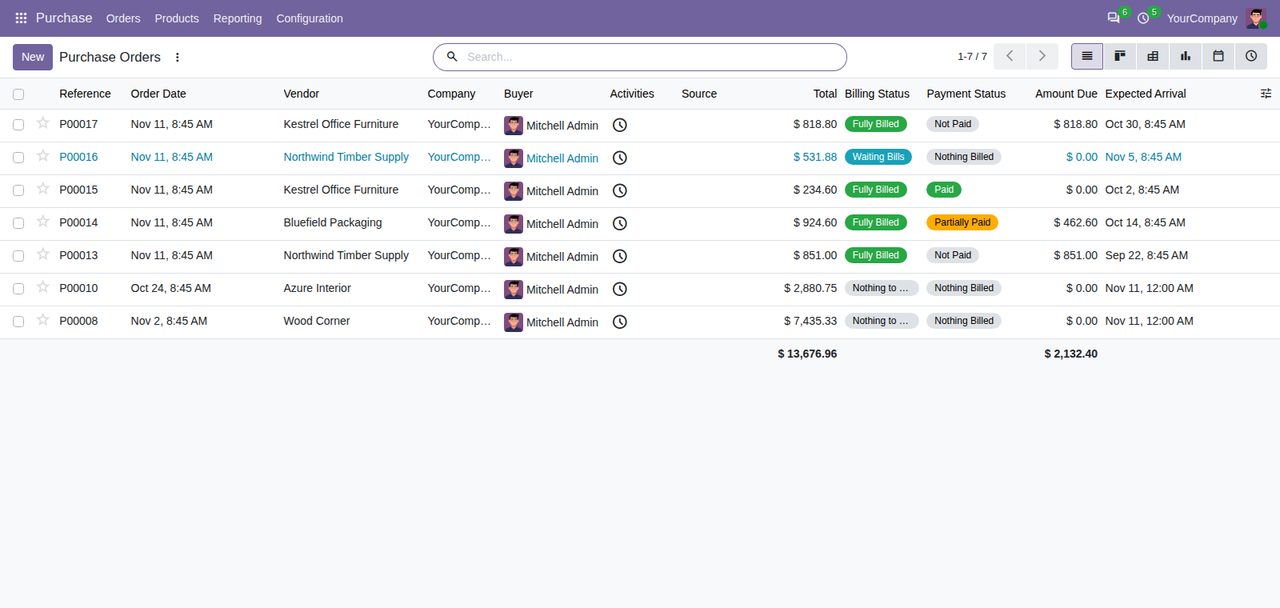
Nothing Billed, Not Paid, Partially Paid, In Payment or Paid, from the order's posted vendor bills and refunds. Draft and cancelled bills do not count.
Paid and Amount Due in the order's currency, on the order next to its payment status and as list columns with totals, plus an optional Billed Amount column. Bills in another currency are converted at the bill date.
The earliest due date of an open bill installment, on the order and as a list column, in red once it has passed.
Filter purchase orders on Not Paid, Partially Paid, Paid or Payment Overdue, and group them by payment status with the amount due per group.
Refunds lower the billed amount. A bill for several orders counts for each order with its own lines, and payments are spread over those orders in proportion.
The status changes as soon as a bill is posted, paid, refunded, reset to draft or cancelled. There is nothing to run or refresh.
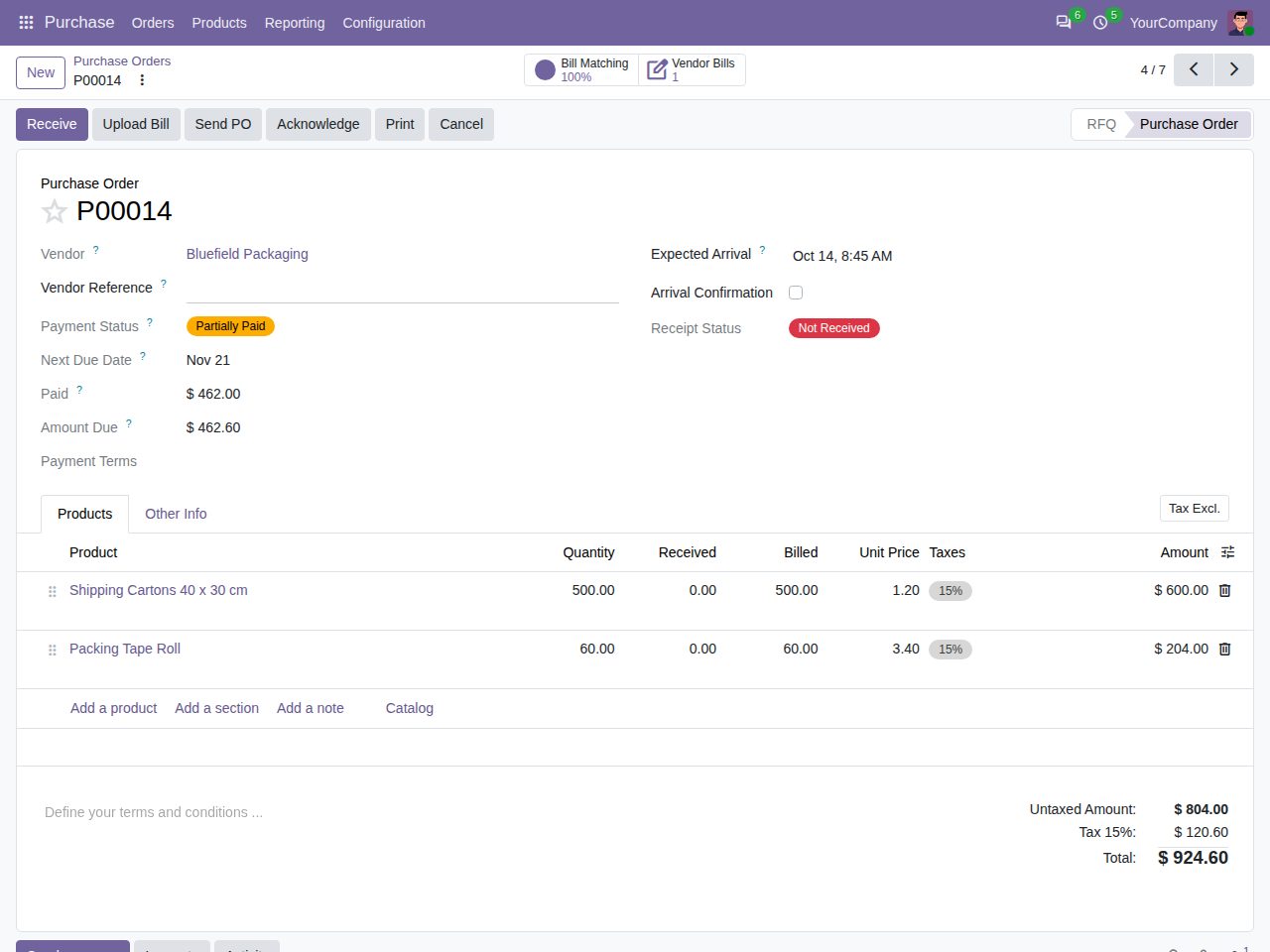
A partially paid order: payment status, next due date, Paid and Amount Due next to the vendor.
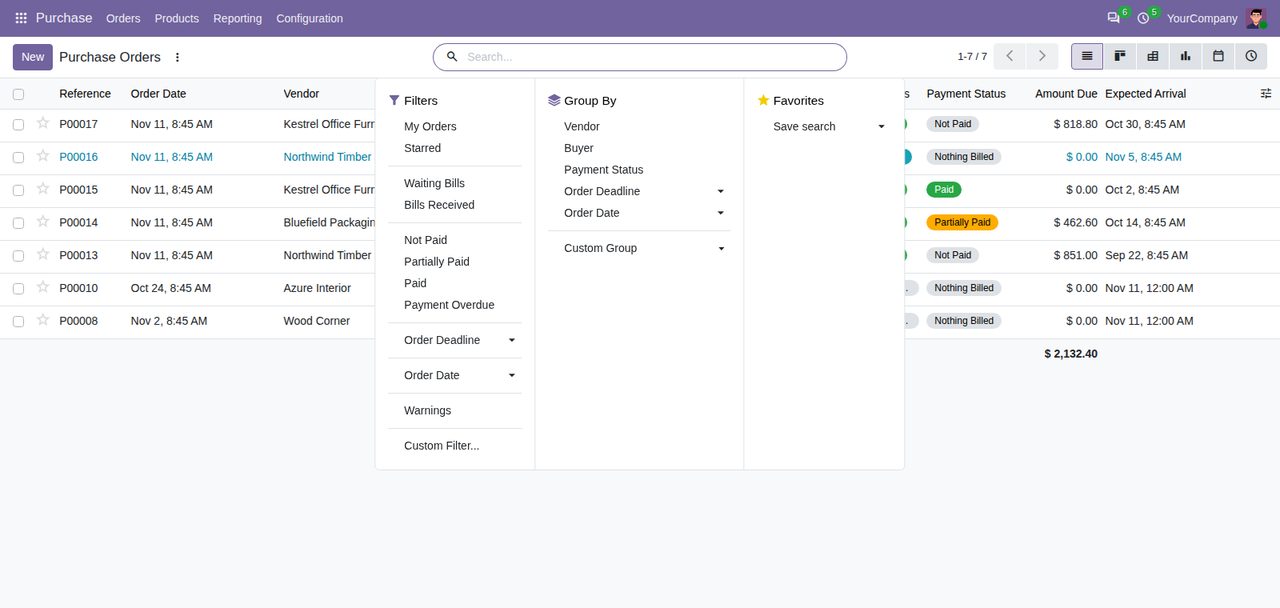
Filters for unpaid, partially paid, paid and overdue orders, and grouping by payment status.
We build custom Odoo modules and changes to this one at a fixed price, from €950 excluding VAT. Small modules are usually delivered within five working days, tested on your Odoo version. Describe what you need to hello@bizzkitt.ai.
Bitwerf is a trade name of BizzKitt B.V., Frederikstraat 67, 3034 LD Rotterdam, the Netherlands (KvK 42149345, VAT NL869932354B01). Questions: hello@bizzkitt.ai · Support · Privacy · Terms