Specifications, care advice, warranty and delivery terms as tabs on your shop's product pages, written once for many products.
A product page has one description field, so details end up crammed into it or copied product by product. Product Page Tabs keeps each topic in its own tab, written once and shown on all products, on whole eCommerce categories or on the products you pick. The shop shows the tabs under the product description in your theme's own style.
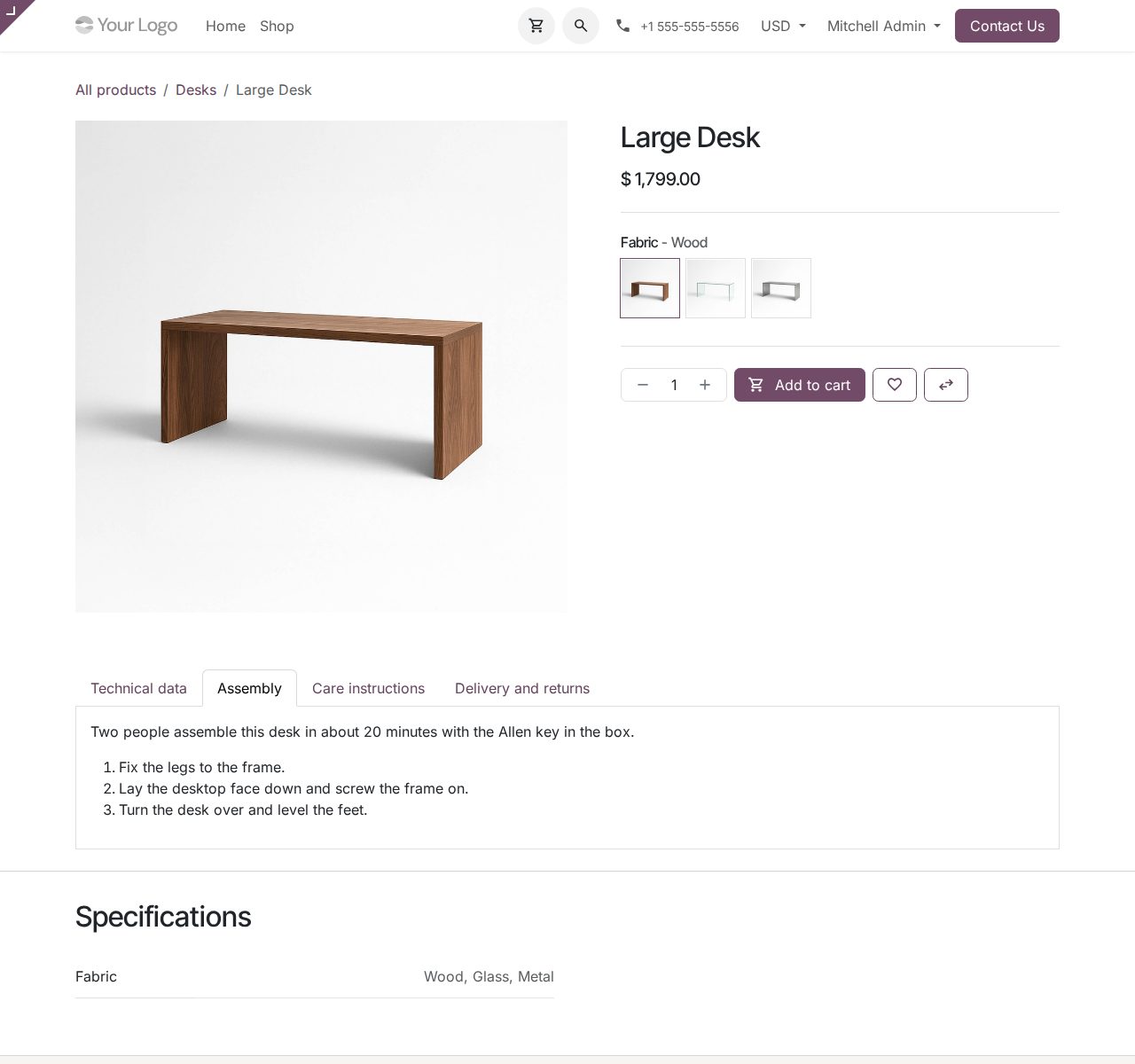
Each tab shows on all products, on eCommerce categories (their subcategories included) or on selected products, with exceptions for products that should not show it.
Limit a tab to one website, or to a period with Shown from and Shown until dates: handy for seasonal notices and temporary delivery terms.
Choose per website how the tabs look: tabs side by side, an accordion with the first one open, or all sections one below the other. No JavaScript of ours runs in the shop.
Start a tab from Specifications, Size guide, Care instructions, Warranty, Delivery and returns or Questions and answers, then fill in your own details.
The Preview page of the tab form shows the tab the way your shop will show it, in the website's layout.
Every product form lists the tabs that include the product, with their website and dates, and has a New Tab for This Product button.
Select products in the product list and add them to a tab, remove them from a tab (on tabs for all products or categories they become exceptions), or make a new tab for them.
Titles and texts are translatable for every language of your shop, and scripts are removed from the text when you save.
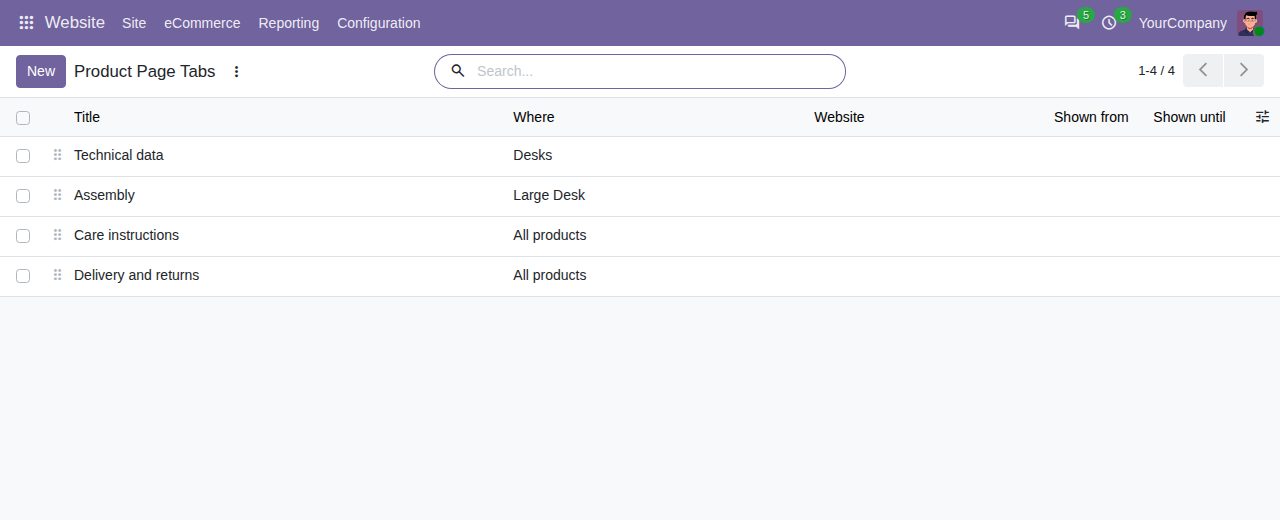
All tabs in one list, with where and when each one shows; drag the handle to change the order.
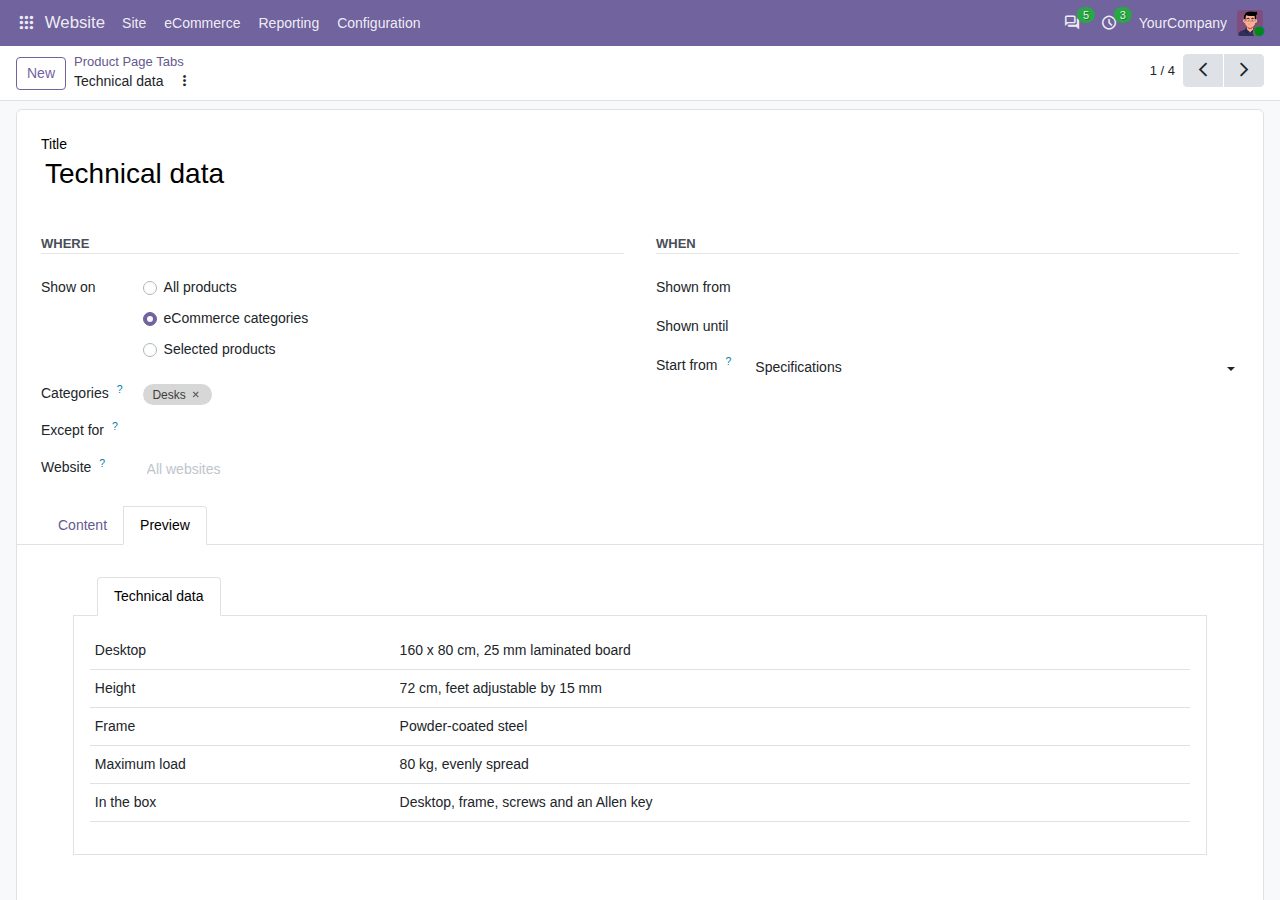
A tab's form: where and when it shows, and the preview in the shop's layout.
We build custom Odoo modules and changes to this one at a fixed price, from €950 excluding VAT. Small modules are usually delivered within five working days, tested on your Odoo version. Describe what you need to hello@bizzkitt.ai.
Bitwerf is a trade name of BizzKitt B.V., Frederikstraat 67, 3034 LD Rotterdam, the Netherlands (KvK 42149345, VAT NL869932354B01). Questions: hello@bizzkitt.ai · Support · Privacy · Terms