Find the products a customer needs by their properties and add them to the quotation together, each with its quantity.
Odoo's Catalog adds one product at a time. This module adds Find Products to the order lines of quotations: search by text, category, attribute values and conditions on the product fields you choose, set the quantities, and add the products you pick, or all of them, in one click.
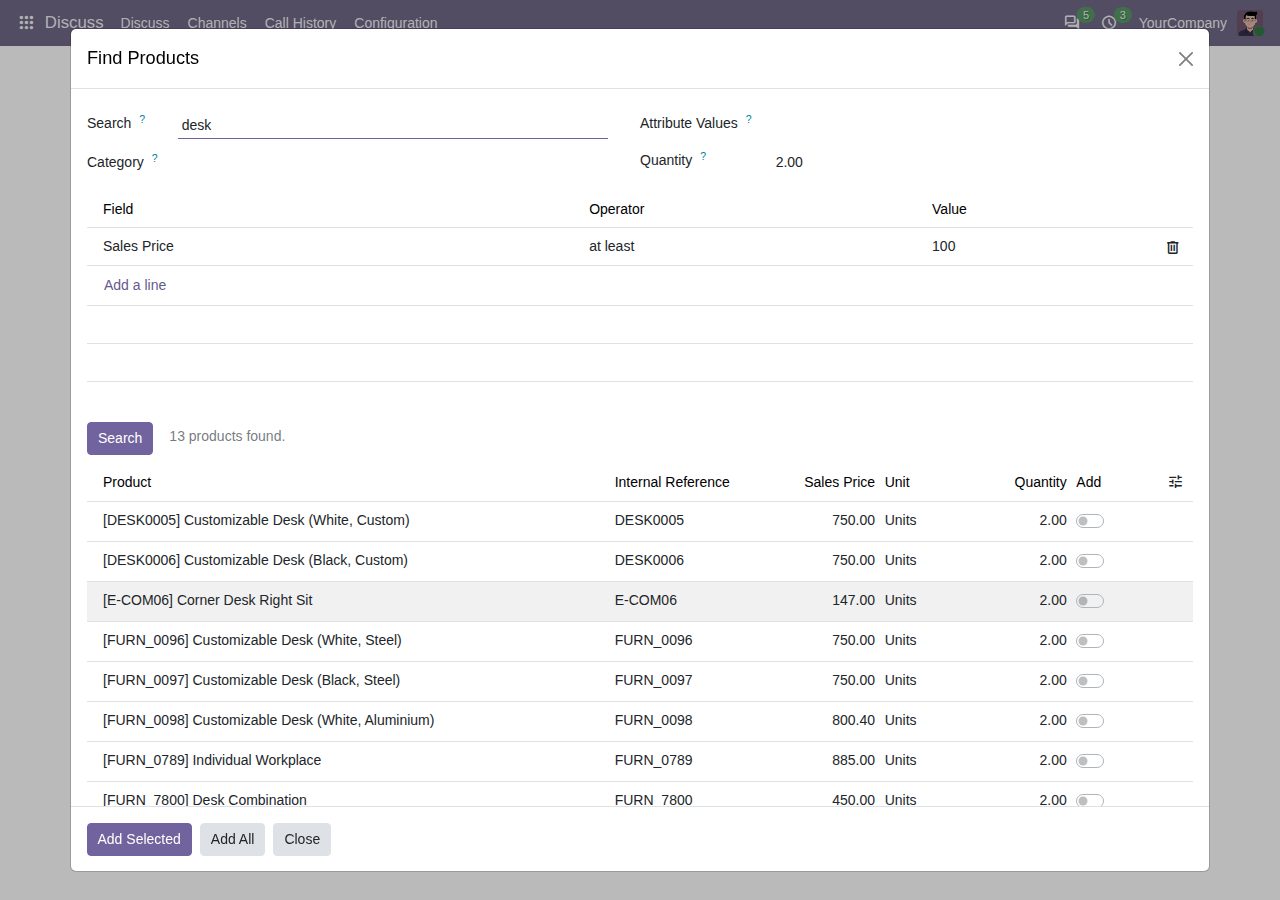
A Find Products button sits next to Catalog in the order lines of quotations and of confirmed sales orders that are not locked. It opens the finder for that order.
Type part of a name, internal reference, barcode or sales description, pick a category (subcategories included) and attribute values such as a size or a colour. Values of one attribute are alternatives; values of different attributes must all match.
Add conditions on the fields you choose: contains, does not contain, is, is not, starts with or matches a pattern for text; is, is not, greater than, at least, less than or at most for numbers (a decimal comma works); is set or is not set for yes/no fields, choices and related records such as tags. Every condition must match.
The quantity you enter is set on every product found, also after the search. Change it for single products in the list before you add them.
Switch on Add for the products you want and click Add Selected, or click Add All. The new lines go to the end of the order, and Odoo works out the description, price, taxes and unit as for a line you add yourself.
Archived products, products that cannot be sold, products of another company and combo products (Odoo 18 and later; they need their own choices) never appear. Up to 200 products are listed per search, and a notice says when more match.
Sales administrators choose the fields under Sales > Configuration > Product Finder Fields: text, number, yes/no, choice and related-record fields of the product, with their own label and order. Eight common fields are there after installation.
Everyone who works on quotations can use the finder on the orders they may edit. Only Sales administrators change the field list.
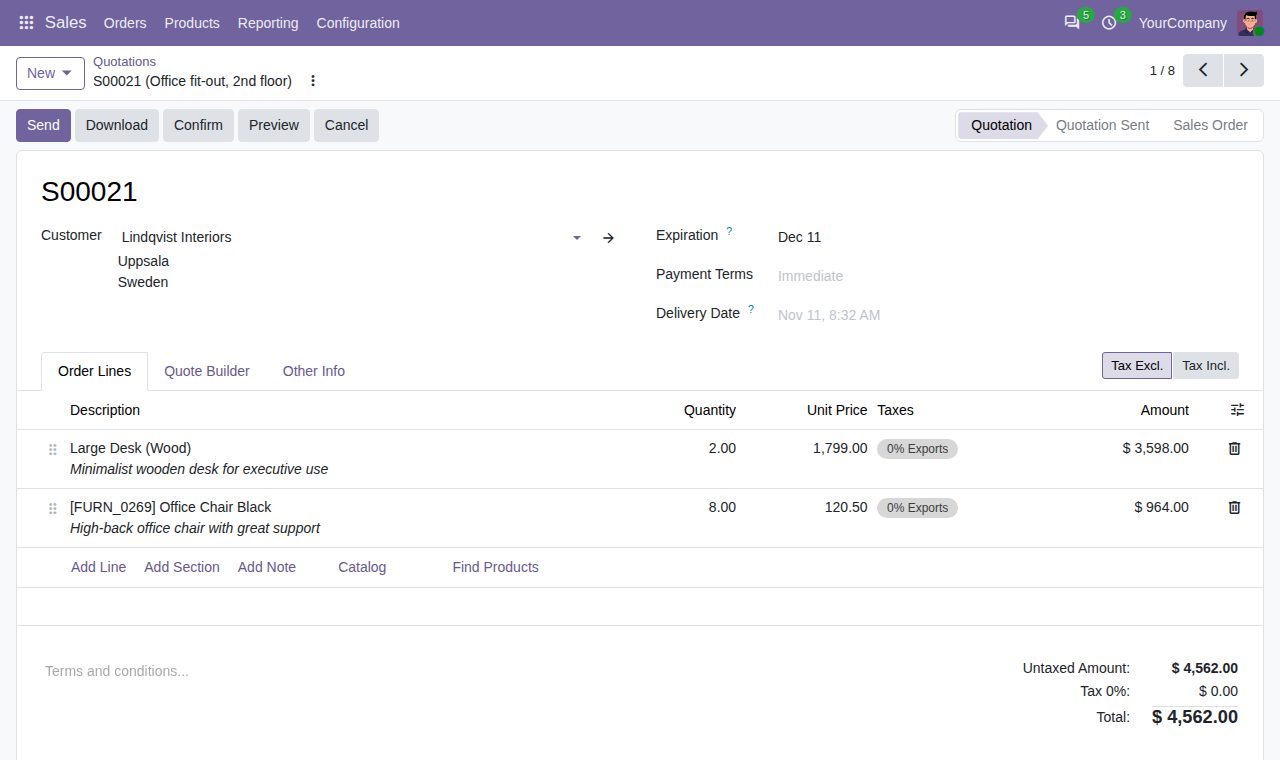
The Find Products button beside Catalog in the order lines
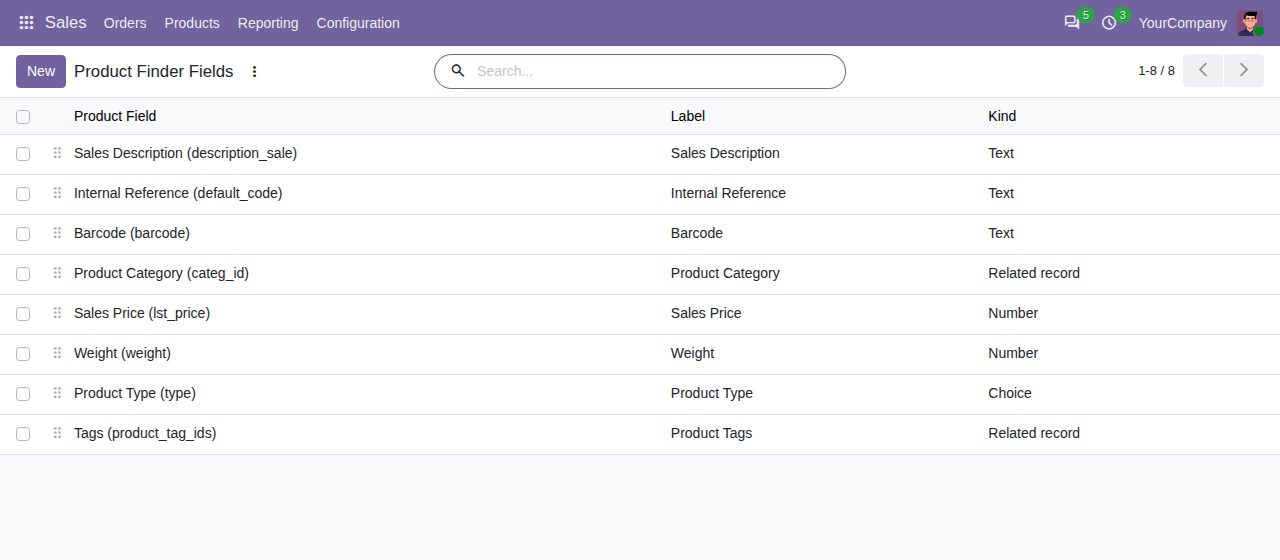
Product Finder Fields: the product fields salespeople can search by
We build custom Odoo modules and changes to this one at a fixed price, from €950 excluding VAT. Small modules are usually delivered within five working days, tested on your Odoo version. Describe what you need to hello@bizzkitt.ai.
Bitwerf is a trade name of BizzKitt B.V., Frederikstraat 67, 3034 LD Rotterdam, the Netherlands (KvK 42149345, VAT NL869932354B01). Questions: hello@bizzkitt.ai · Support · Privacy · Terms