One pricelist rule prices every product that carries a tag, so tagging a product is enough to give it the price.
Odoo pricelist rules apply to all products, a product category, a product or a variant. If you group products with tags such as Clearance, Wholesale or Premium, every product of the group needs a rule of its own. This module adds Product Tag as a rule target: one rule covers every product with one of its tags, and products follow as soon as you add or remove the tag.
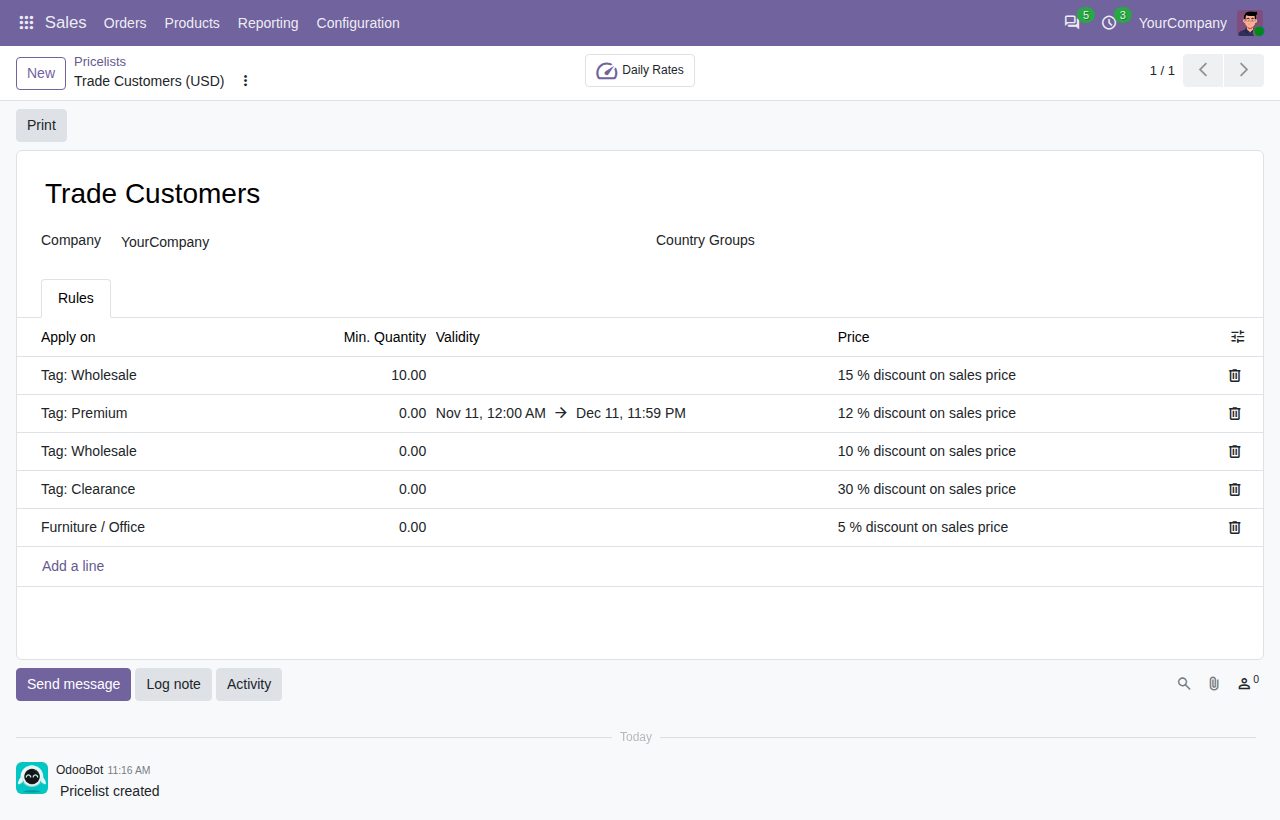
Choose Product Tag in a pricelist rule and pick one or more tags. The rule prices every product that carries one of them, in quotations and sales orders like any other rule.
A fixed price, a discount or a price computed from the sales price, the cost or another pricelist, with an extra fee: the same choices as on other rules.
Tags on a product count for all its variants. Tags added to one variant count for that variant only.
Rules for a variant or product come first, then tag rules, then category rules, then rules for all products. Minimum quantities and validity dates work as on any rule.
Add the tag to a product and it gets the tag prices at once. Remove the tag and the product goes back to its other rules. No rule needs editing.
Tag rules are named after their tags, such as "Tag: Clearance" or "Tags: Wholesale, Premium", and the rule list has a Tag Rules filter.
Each product tag shows how many pricelist rules use it. The button opens those rules, and a rule created there uses the tag.
A tag rule must name at least one tag, and one rule cannot mix tags with a category, product or variant.
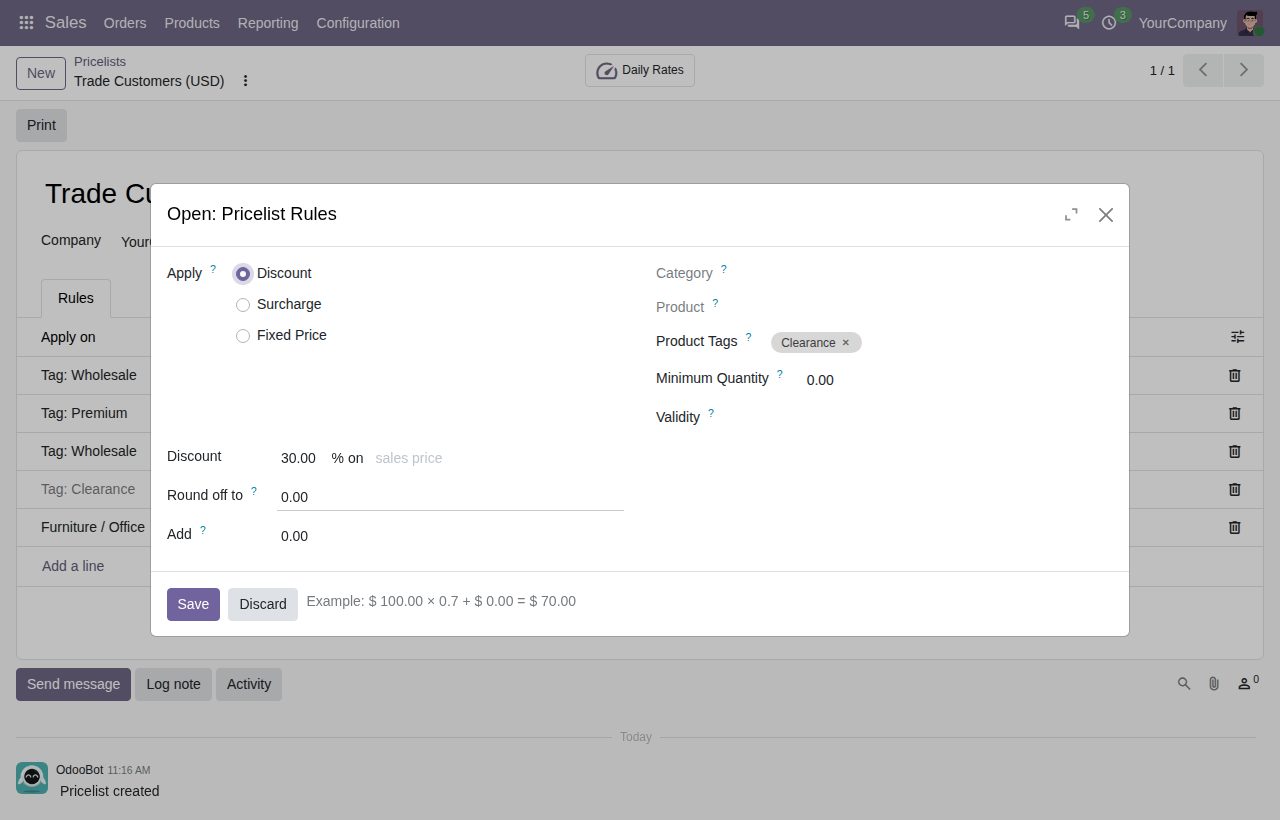
A tag rule: the tags and the price.
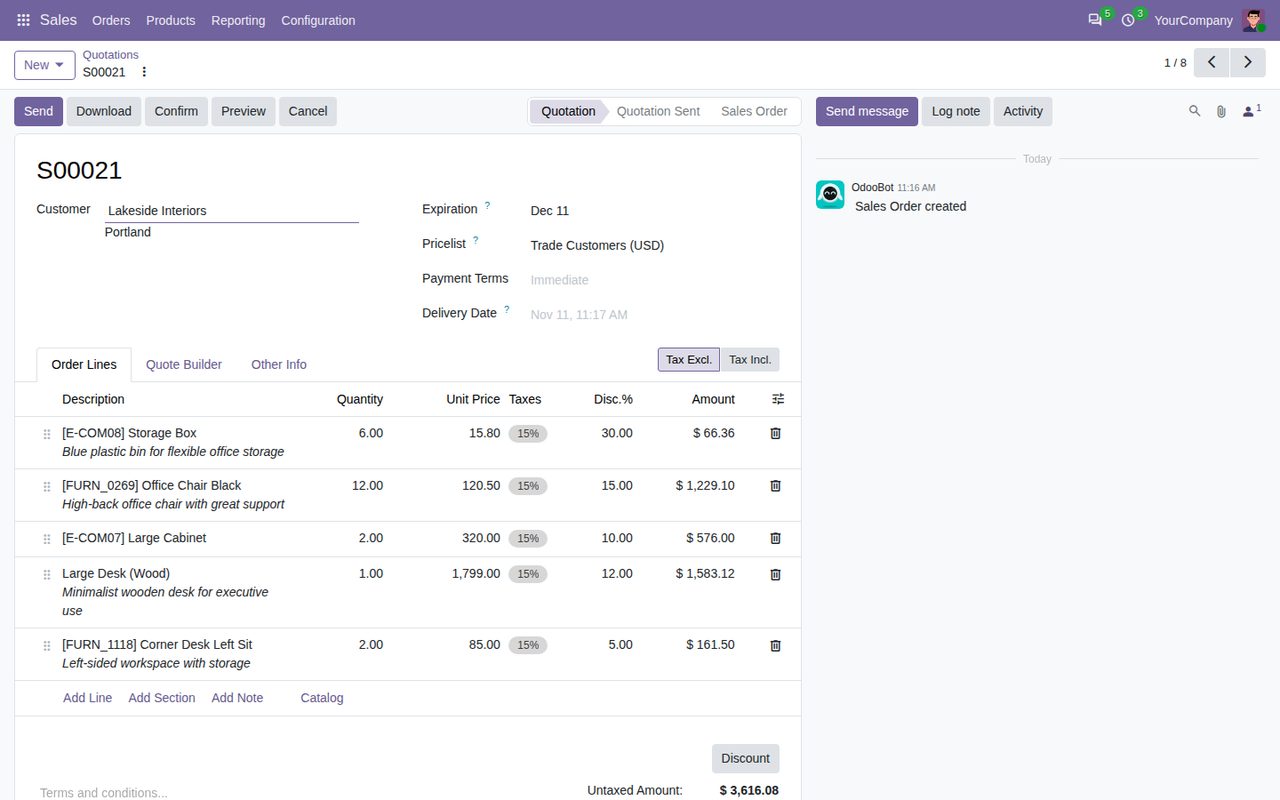
A quotation priced by tag rules, with a quantity tier and a dated rule.
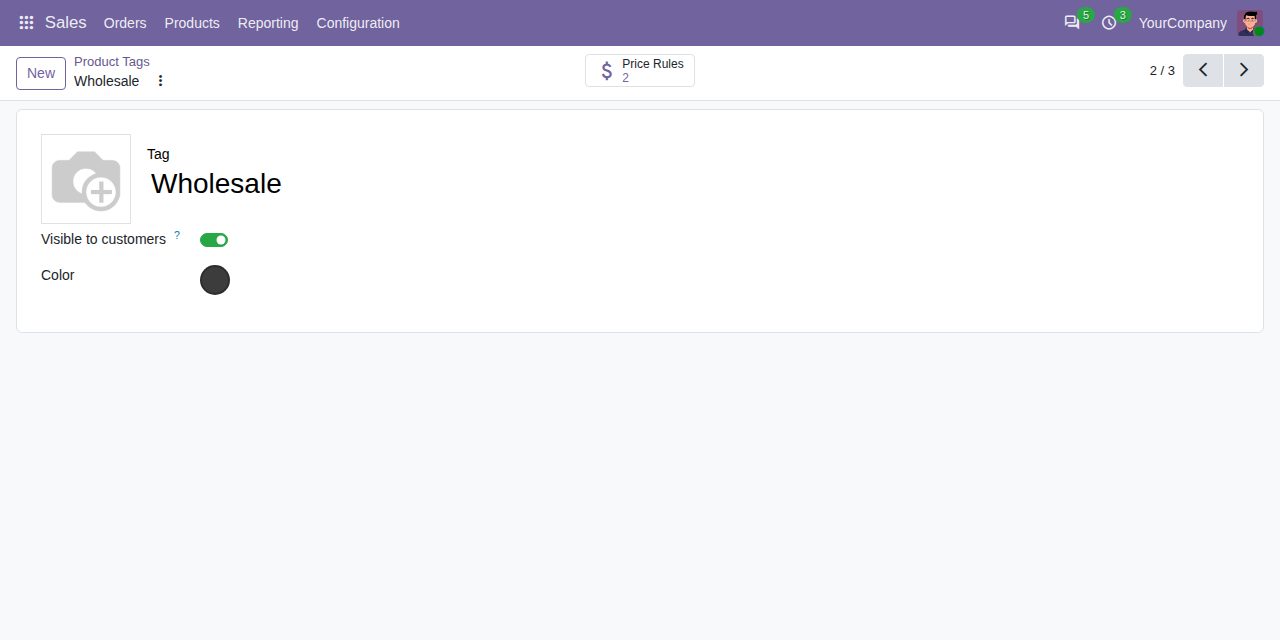
A product tag with the button to its price rules.
We build custom Odoo modules and changes to this one at a fixed price, from €950 excluding VAT. Small modules are usually delivered within five working days, tested on your Odoo version. Describe what you need to hello@bizzkitt.ai.
Bitwerf is a trade name of BizzKitt B.V., Frederikstraat 67, 3034 LD Rotterdam, the Netherlands (KvK 42149345, VAT NL869932354B01). Questions: hello@bizzkitt.ai · Support · Privacy · Terms