Customers enter their sizes and options on the product page and get the price from your own formula.
Blinds, glass, worktops, fabric, signs and other made-to-measure goods have no fixed price. This module puts a calculator on the product page: the customer enters the measurements and options, sees the price per piece and adds exactly that configuration to the cart. Your salespeople use the same formula on quotation lines.
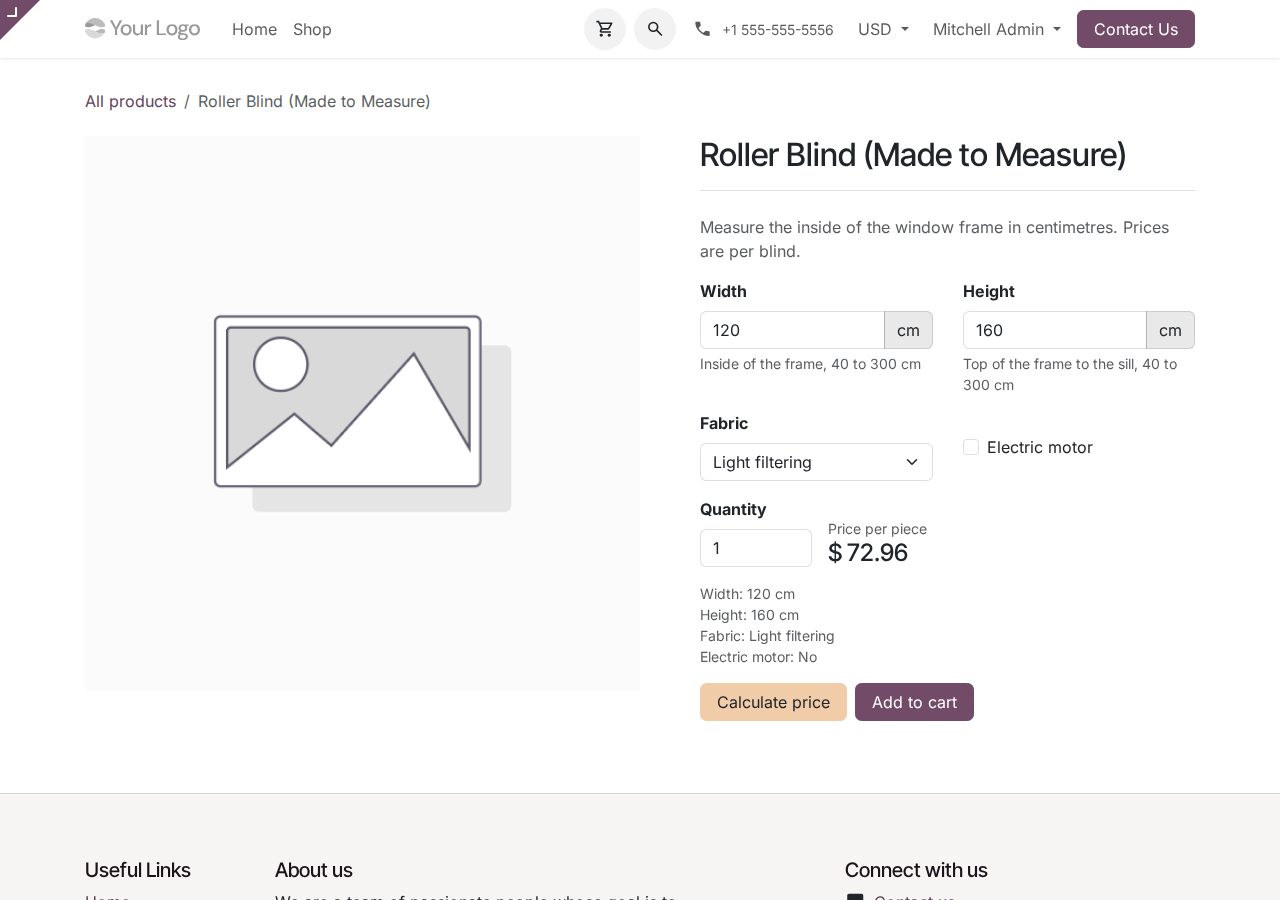
Number inputs with a unit, minimum, maximum, decimals and default; choice inputs whose options each carry a value; checkboxes with a value when ticked. Entries outside the limits get a clear message next to the input.
Formula products show the inputs, a quantity and a Calculate price button instead of the usual price and Add to Cart. The page shows the price per piece and the chosen values.
Add to cart checks the values again on the server and adds the product at the formula price, with the sizes and options in the line description. The same configuration adds up, another one gets its own line.
A formula product cannot be added to the cart without its values, also not from product lists or quick add buttons.
Quotation lines of formula products start with the default values. The Formula button on the line opens the values, shows the result and applies the price and the description.
The formula's result takes the place of the product's sales price, so pricelist discounts apply to it. Quantity changes keep the formula price.
Give a formula to product categories (subcategories included) or to single products; a product's own formula wins.
Use + - * / **, brackets, comparisons, and/or/not, MIN, MAX, ROUND, CEIL, FLOOR, ABS and IF, plus a minimum price and a rounding step. Typing errors and unknown names are refused on save, and the form shows a test price.
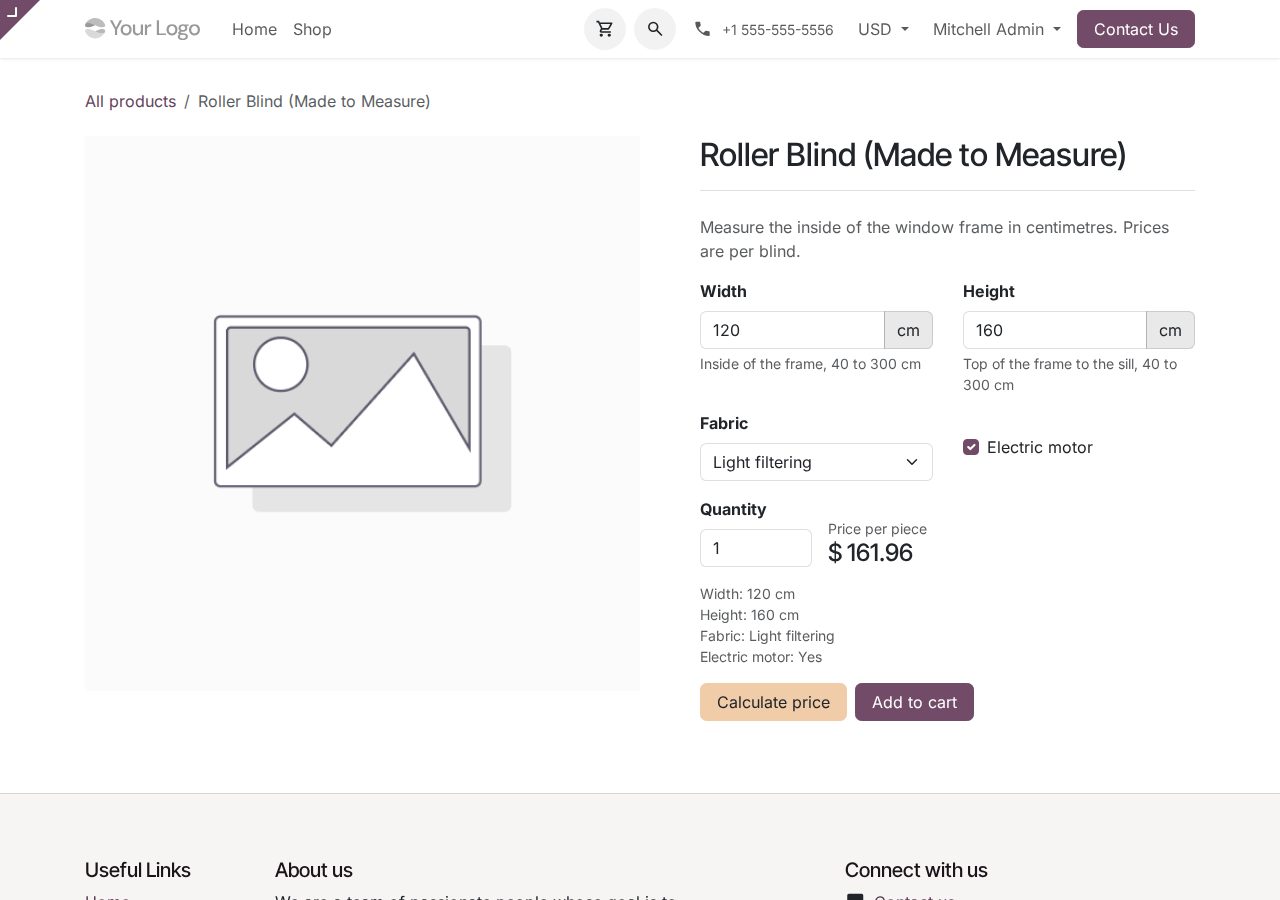
Price recalculated after the customer chose an option
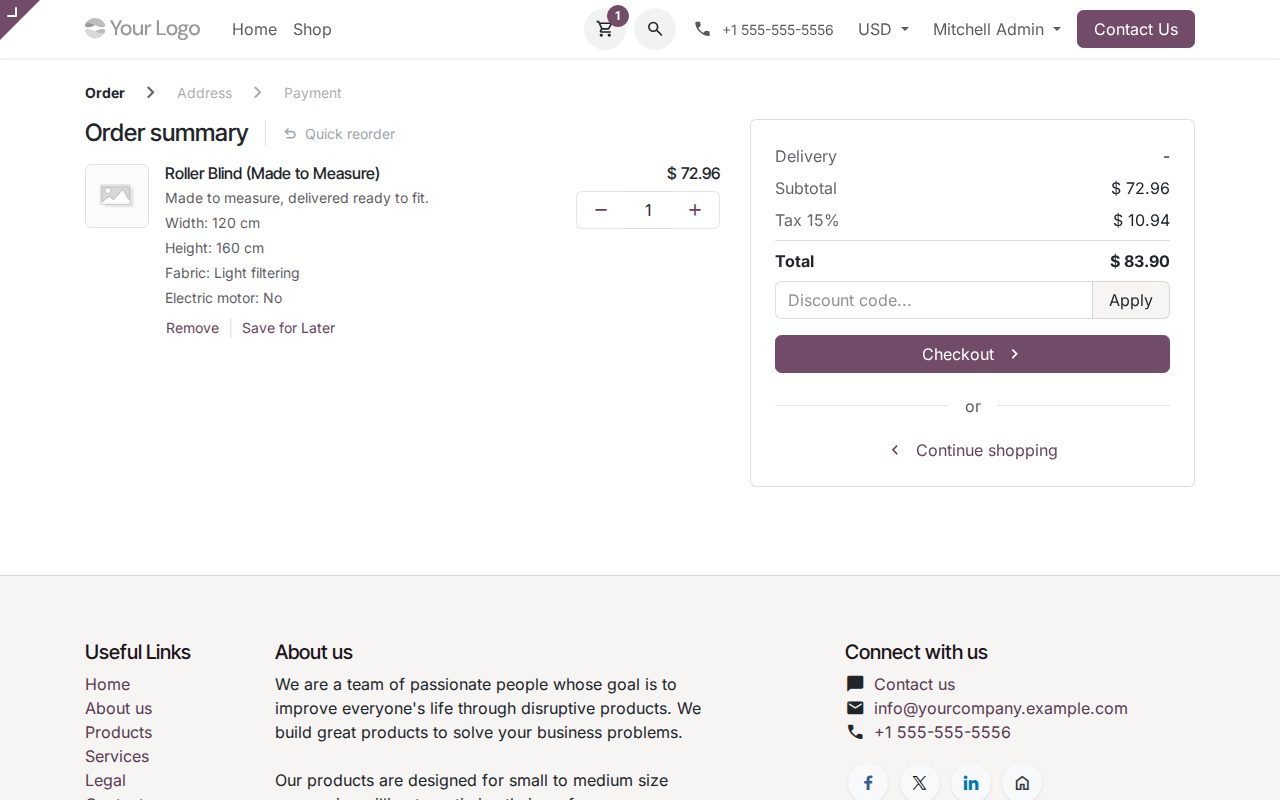
The configured blind in the cart, with its sizes and options
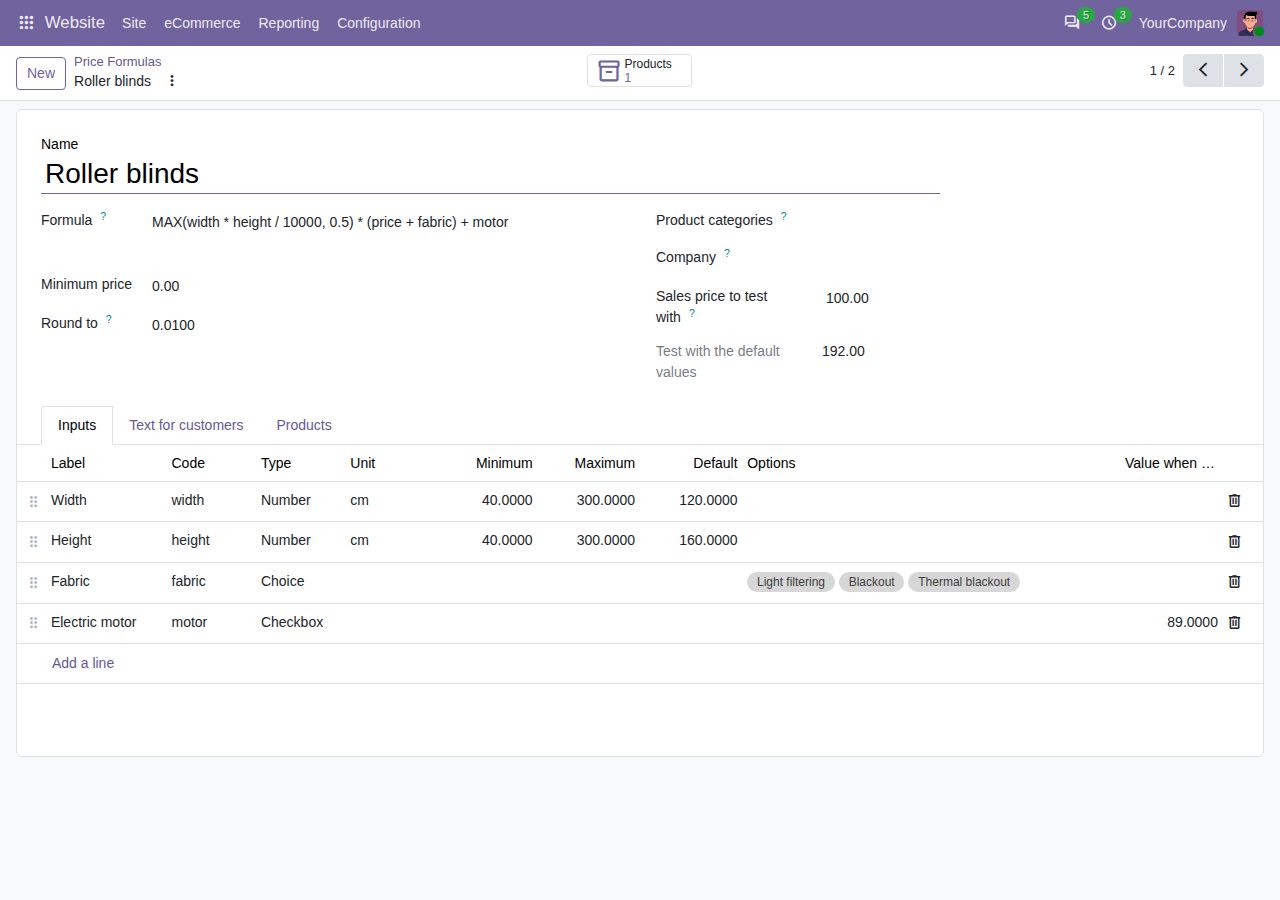
A price formula with its inputs and a test price
We build custom Odoo modules and changes to this one at a fixed price, from €950 excluding VAT. Small modules are usually delivered within five working days, tested on your Odoo version. Describe what you need to hello@bizzkitt.ai.
Bitwerf is a trade name of BizzKitt B.V., Frederikstraat 67, 3034 LD Rotterdam, the Netherlands (KvK 42149345, VAT NL869932354B01). Questions: hello@bizzkitt.ai · Support · Privacy · Terms