Book a foreign-currency payment at the rate your bank used or the rate you agreed, not only at the rate of the day.
Odoo converts a payment in a foreign currency at its rate for the payment date. When your bank converted at another rate, or you agreed a rate with the customer or vendor, the amounts in your company currency are off and need a correction entry. This module adds a manual exchange rate to payments and to Register Payment, so the journal entry is right the first time.
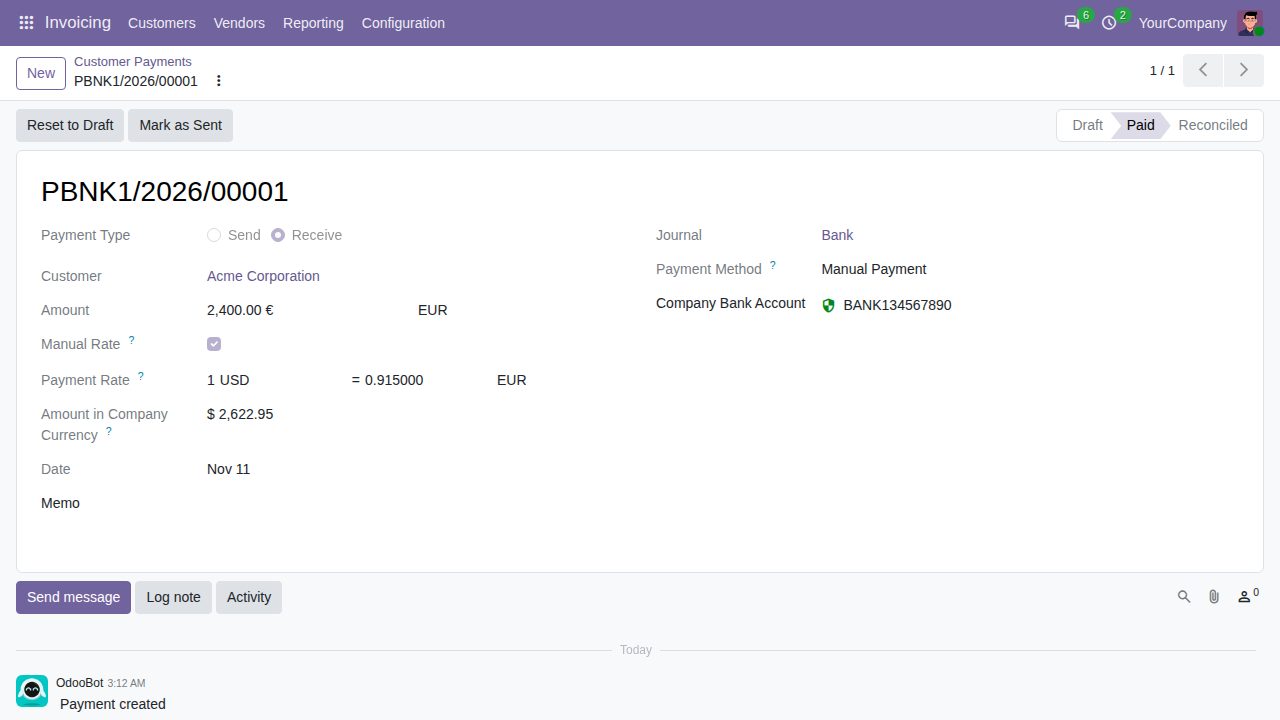
Tick Manual Rate on a customer or vendor payment in a foreign currency and enter the rate. The payment's journal entry is booked at that rate, in and out.
Ticking Manual Rate fills in Odoo's rate for the payment date, so you only adjust it. The form shows the amount in company currency at the rate you set.
The same option when you pay invoices or bills in their own foreign currency: one invoice, several invoices grouped in one payment, or one payment per invoice.
The invoice is paid in full in its currency. The difference between the invoice's rate and your payment rate is booked as an exchange difference when Odoo matches them.
When you pay less and mark the invoice as fully paid, the write-off line is converted at your manual rate too.
Change or remove the rate while the payment is in draft, also after Reset to Draft, and the journal entry follows. Posted payments refuse a rate change.
A Manual Rate filter and optional Manual Rate and Payment Rate columns in the payments list.
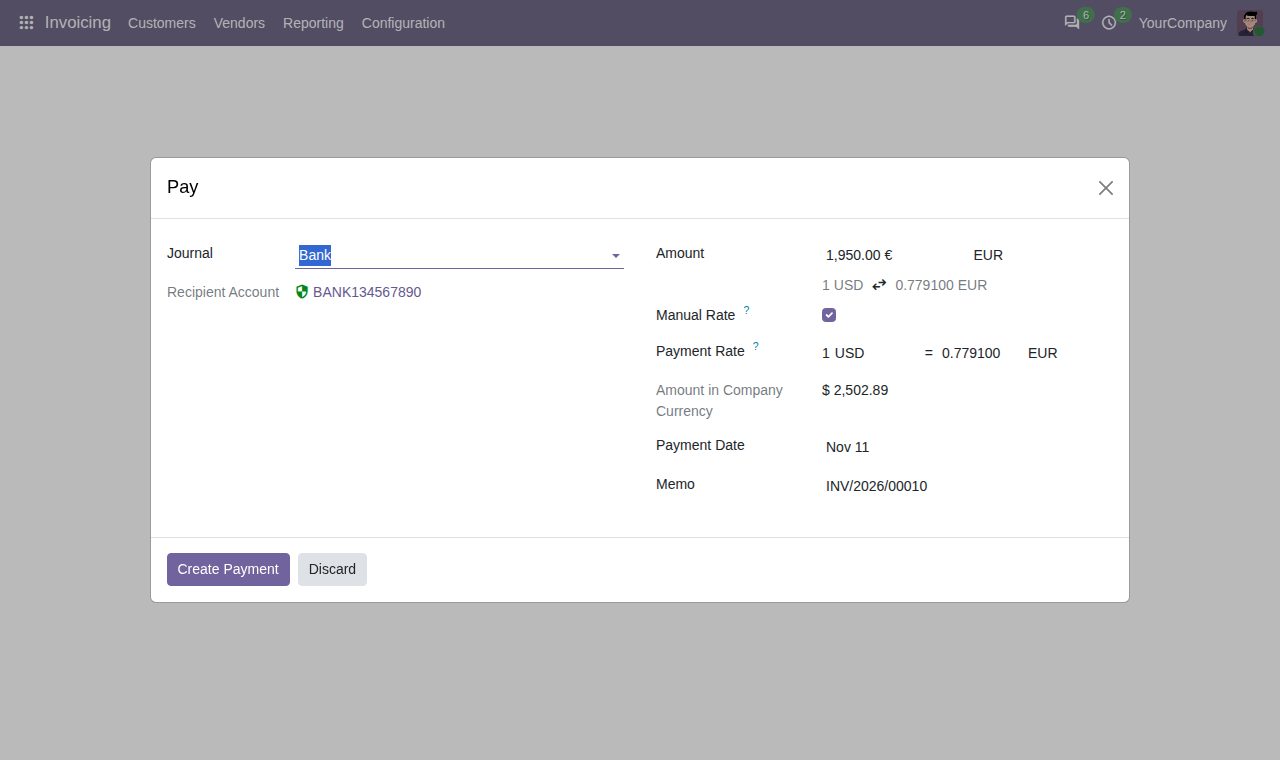
Register Payment on an invoice in EUR with a manual rate.
We build custom Odoo modules and changes to this one at a fixed price, from €950 excluding VAT. Small modules are usually delivered within five working days, tested on your Odoo version. Describe what you need to hello@bizzkitt.ai.
Bitwerf is a trade name of BizzKitt B.V., Frederikstraat 67, 3034 LD Rotterdam, the Netherlands (KvK 42149345, VAT NL869932354B01). Questions: hello@bizzkitt.ai · Support · Privacy · Terms