See what a customer or vendor ordered before, right on the quotation, and add those lines again in a few clicks; see the prices a product was sold and bought at.
Repeat customers order the same products again, and buyers reorder from the same vendors. Odoo shows a product's purchase history and a sales analysis, but not the earlier orders of the partner while you write a quotation or a request for quotation. This module adds an Order History button to both: tick the earlier lines you need, adjust the quantities and add them to the order, with the earlier prices or the current ones. Products get Sales History and Purchase History tabs with the prices per customer and vendor.
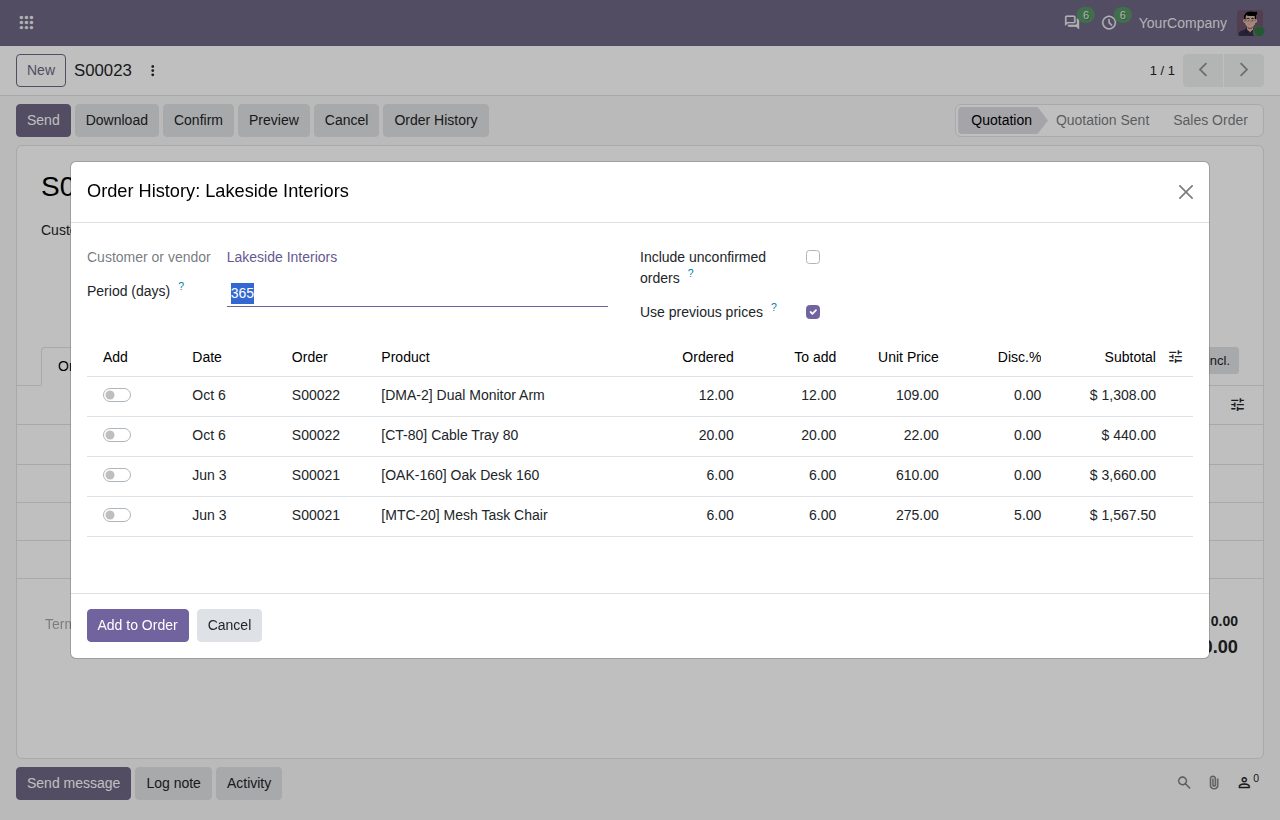
The Order History button on a quotation lists the lines of the customer's earlier orders, including orders of its contacts: date, order, product, quantity, unit price, discount and subtotal, newest first.
The same history on requests for quotation, with the lines of earlier purchase orders from that vendor.
Tick the lines, change the quantity to add and click Add to Order. Product, unit of measure and description are copied from the earlier line.
Keep the earlier unit price and discount (converted when the currency differs), or switch it off so the pricelist or the vendor price applies as for a line you add by hand.
Choose how many days back to look (0 shows everything) and whether to include unconfirmed quotations or requests for quotation. Cancelled orders never show.
The last confirmed sales order lines of the product with date, order, customer, salesperson, quantity, unit price, discount and subtotal. A variant shows its own lines only.
The last confirmed purchase order lines with date, order, vendor, quantity, unit price, discount and subtotal.
Salespeople who see only their own documents see only their own lines in the history and on product tabs; the tabs show for Sales or Purchase users only.
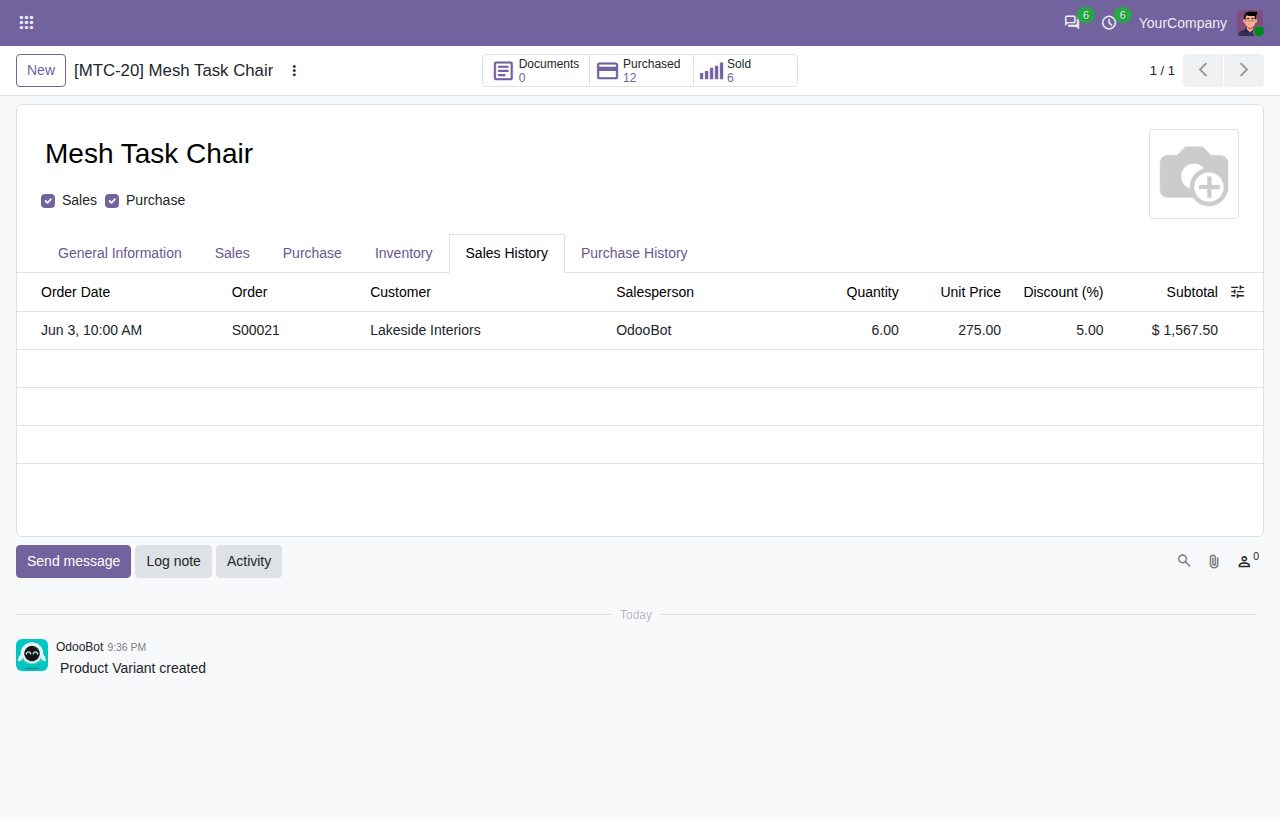
Sales History tab on a product: prices per customer and order
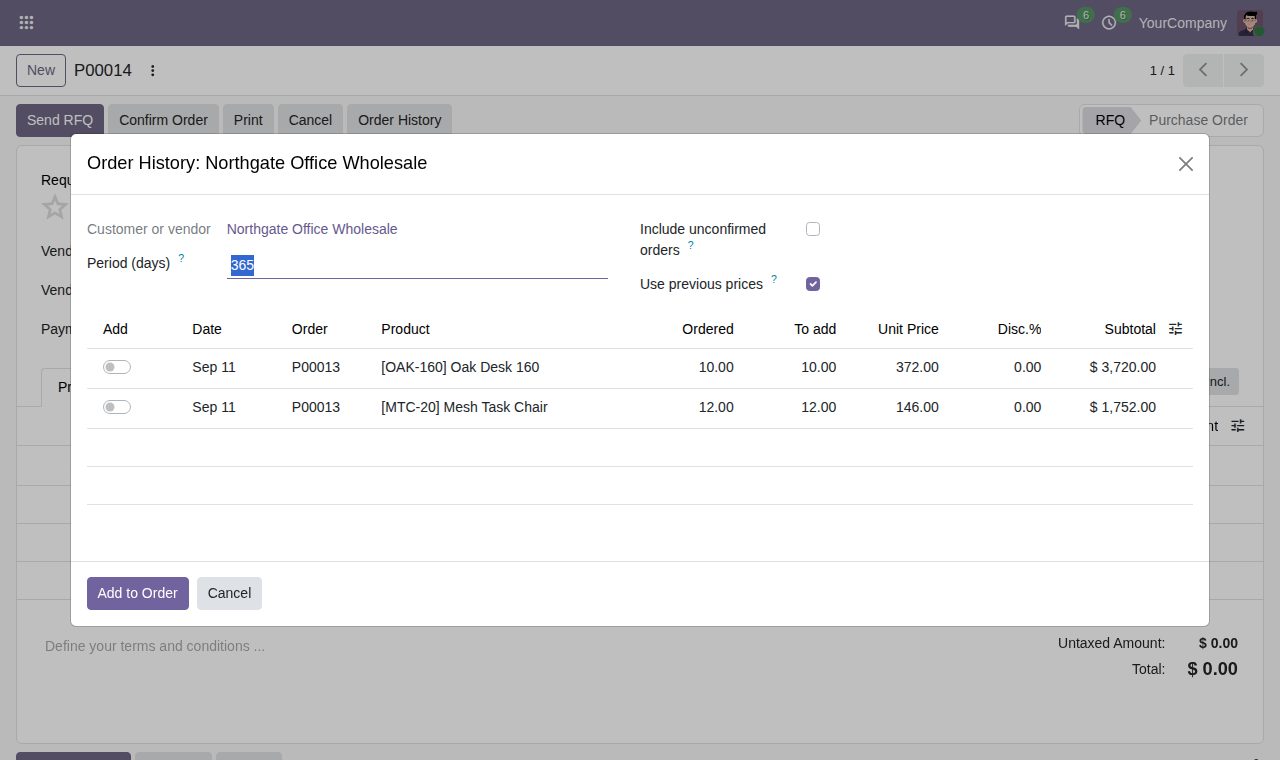
Order History on a request for quotation: earlier purchase order lines from the vendor
We build custom Odoo modules and changes to this one at a fixed price, from €950 excluding VAT. Small modules are usually delivered within five working days, tested on your Odoo version. Describe what you need to hello@bizzkitt.ai.
Bitwerf is a trade name of BizzKitt B.V., Frederikstraat 67, 3034 LD Rotterdam, the Netherlands (KvK 42149345, VAT NL869932354B01). Questions: hello@bizzkitt.ai · Support · Privacy · Terms