Print barcode labels for what you make and what you use, straight from manufacturing orders, on your own label stock.
Finished goods need a label the moment they come off the line, and components often need one when they are picked for production. Manufacturing Labels adds manufacturing orders to Inventory Barcode Labels: choose Print > Barcode Labels on one or more orders and get the label list for the finished products or the components, with lots and serial numbers, on the label sheets and rolls you describe once.
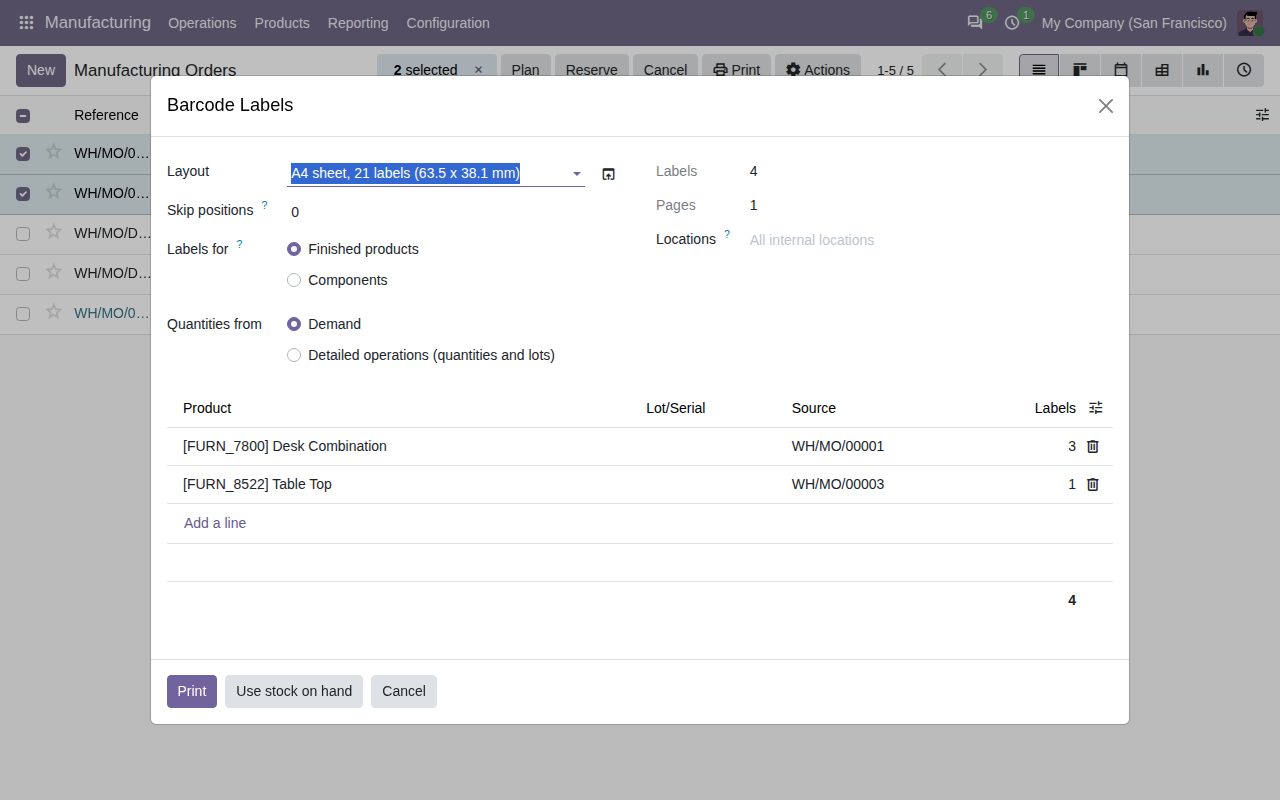
Print > Barcode Labels on the list and the form of manufacturing orders, for Manufacturing users. Select several orders to get one label list; every line names its order.
Labels for the product made and its by-products, from the quantity to produce. Products counted in Units get one label per unit; products in kg, litres or other units get one label per line.
Switch to Components to label the raw materials of the orders, with the same counting rule.
Detailed operations takes the order's detailed operation lines one by one, with their lots and serial numbers: on a done order, what was produced or consumed. Done orders start there; open orders start from the demand, and cancelled moves are left out.
Switching between finished products and components or between demand and detailed operations rebuilds the list. Change the number of labels of any line before printing.
Prints on the layouts of Inventory Barcode Labels, so labels land on your own sheets or rolls, with the order reference, the lot or serial number and its barcode when the layout shows them.
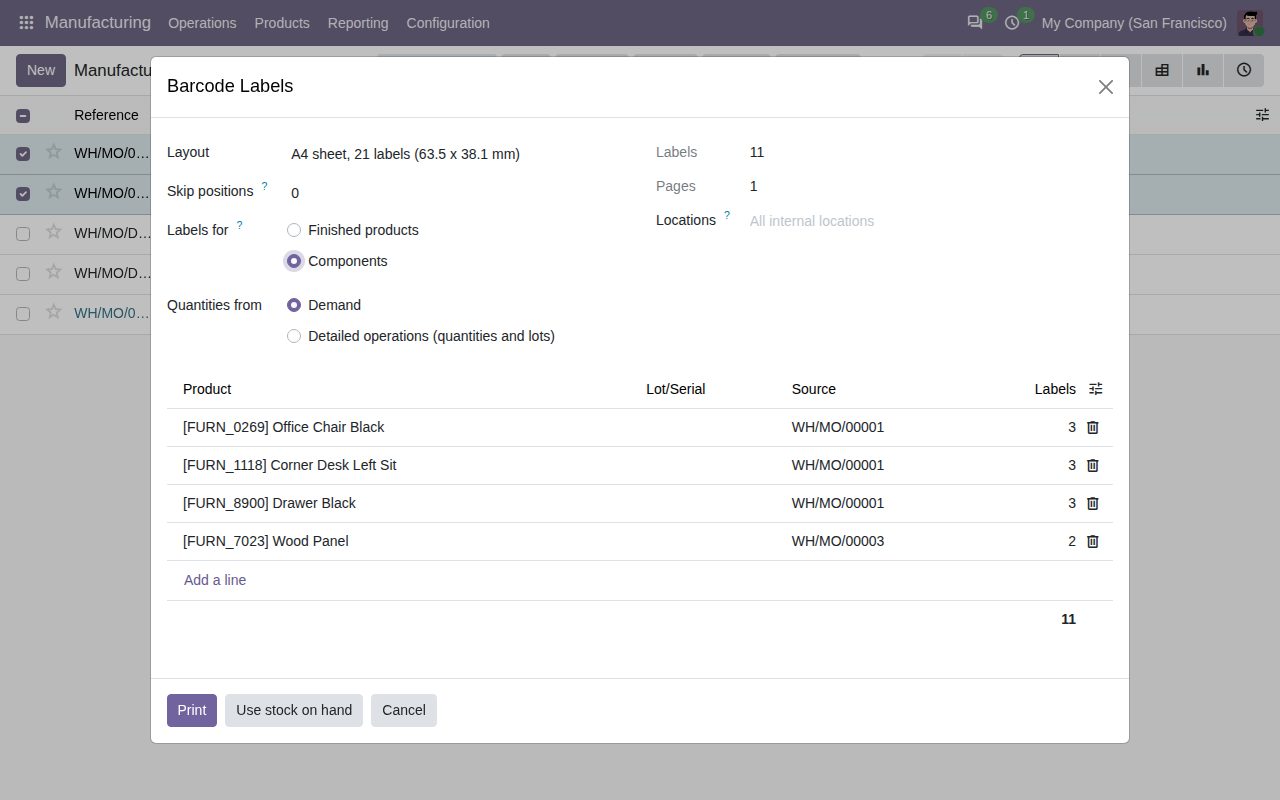
The same orders with Components: a label list for the raw materials.
We build custom Odoo modules and changes to this one at a fixed price, from €950 excluding VAT. Small modules are usually delivered within five working days, tested on your Odoo version. Describe what you need to hello@bizzkitt.ai.
Bitwerf is a trade name of BizzKitt B.V., Frederikstraat 67, 3034 LD Rotterdam, the Netherlands (KvK 42149345, VAT NL869932354B01). Questions: hello@bizzkitt.ai · Support · Privacy · Terms