Import the lot and serial numbers of a whole transfer from one CSV or Excel file, checked before anything changes.
Suppliers and scanners hand over lot and serial numbers as a file. Odoo's own import of lot and serial numbers works one product at a time and only where new lots are created. This module reads the whole file for a transfer, matches every row to a product of that transfer, shows each problem first, and then fills in the detailed operations in one step.
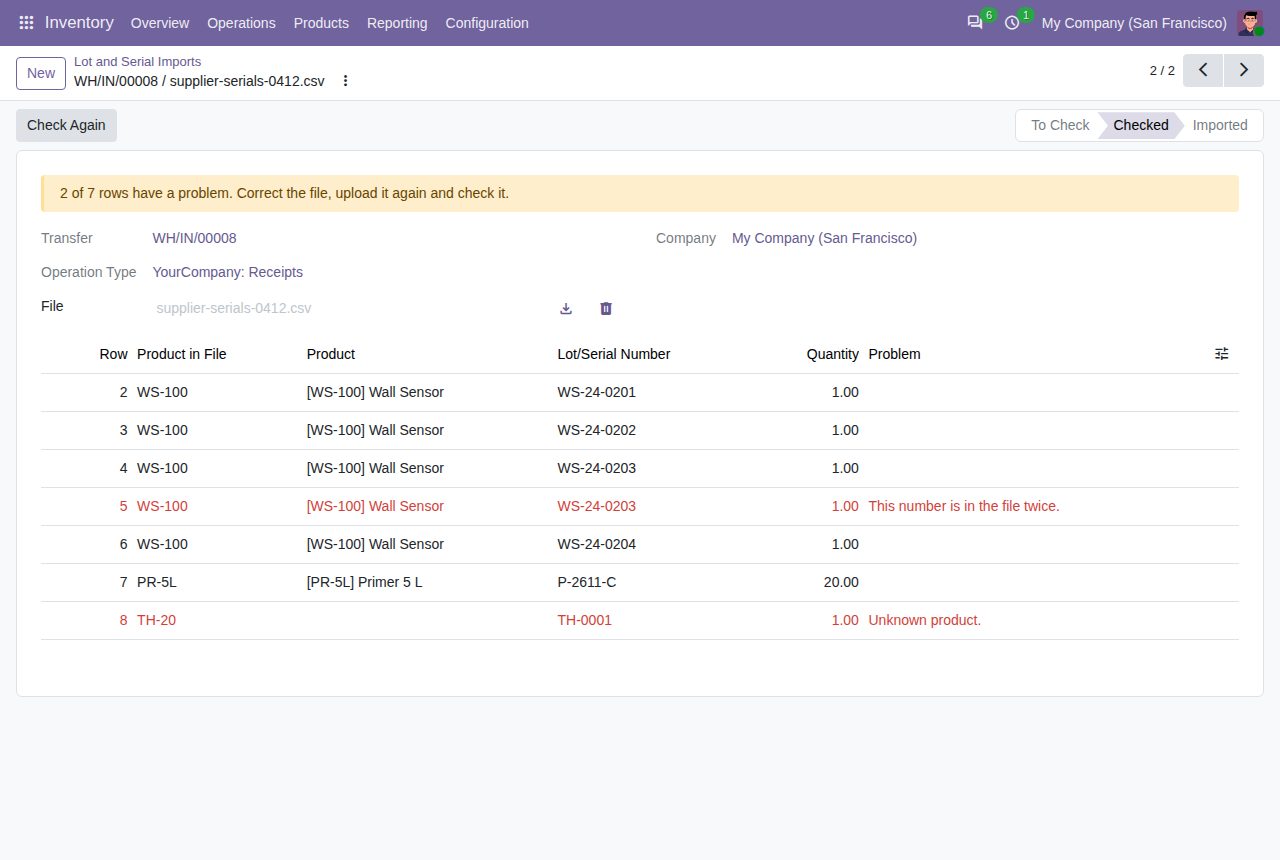
Upload a CSV file (comma, semicolon or tab separated) or an Excel workbook (.xlsx) on a receipt, delivery or other transfer with tracked products. Columns are found by their names: Product, Lot/Serial Number and Quantity.
Each row is matched to a product of the transfer by internal reference, barcode or name, in upper or lower case.
Every row shows its problem: unknown product, product not in the transfer, product without tracking, a number twice in the file, a serial number with a quantity other than 1, more than ordered. Nothing is imported while a row has a problem.
New lot and serial numbers are written on the receipt and created when you validate it. A number that exists without stock is reused; a serial number that is already in stock is refused.
On deliveries the file names lots and serial numbers in stock. They are taken from the locations that hold them, also below the source location, and each row is checked against the quantity there.
Import replaces the detailed operations of the products in the file. Other products of the transfer keep theirs.
Each import keeps its file, rows, user and date, and the transfer's chatter notes it. Inventory > Operations > Lot Imports lists them all.
A new file resets the check, Import checks the transfer again before it writes anything, and an imported file cannot be changed.
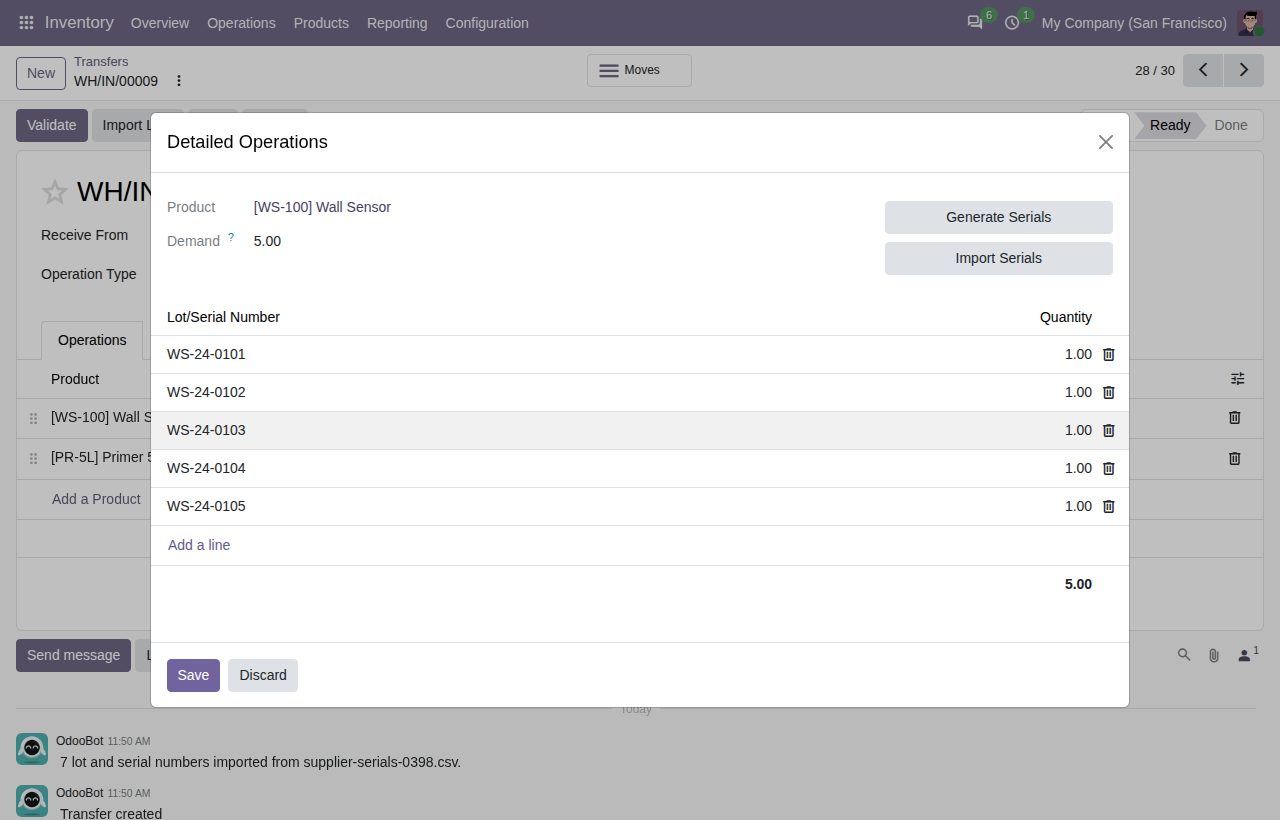
The imported serial numbers in the receipt's detailed operations.
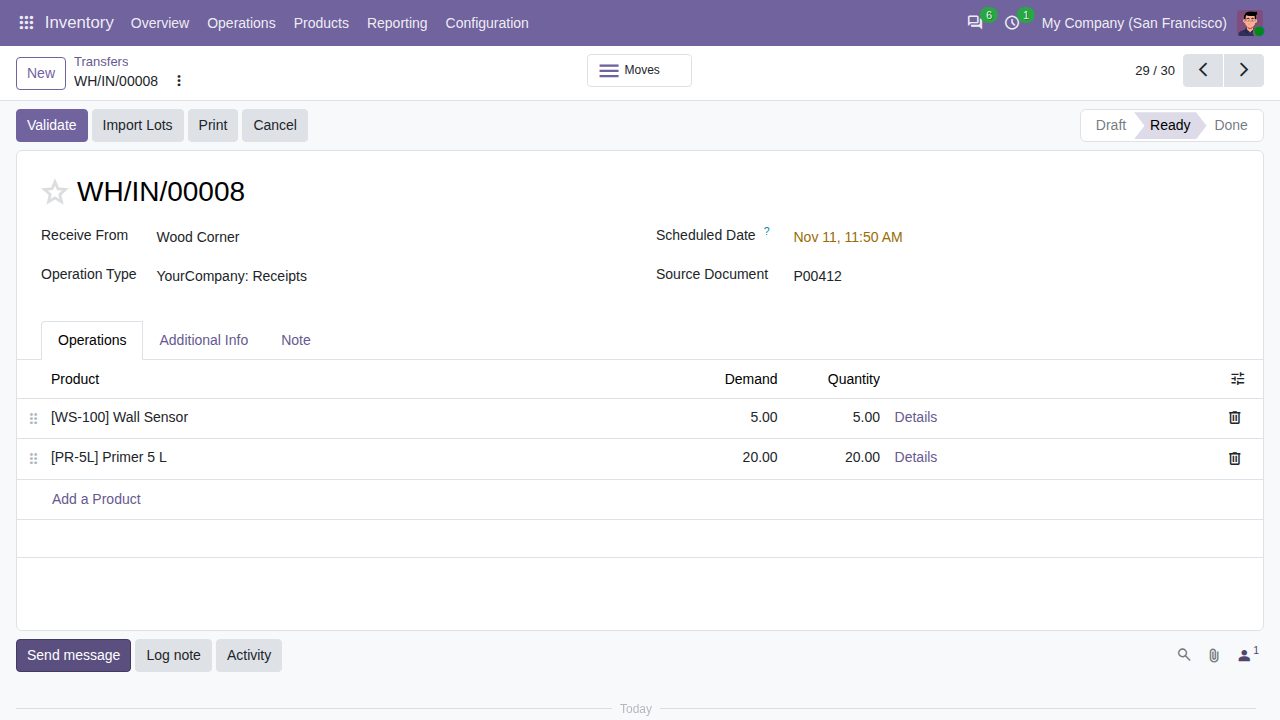
The Import Lots button on a receipt.
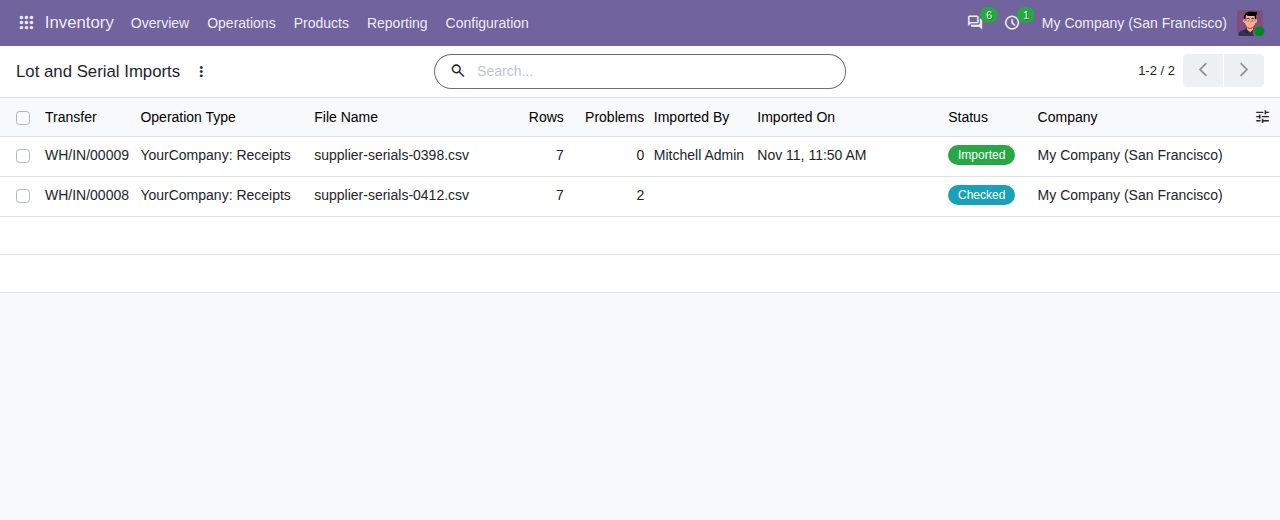
All imports with their transfer, file, rows and status.
We build custom Odoo modules and changes to this one at a fixed price, from €950 excluding VAT. Small modules are usually delivered within five working days, tested on your Odoo version. Describe what you need to hello@bizzkitt.ai.
Bitwerf is a trade name of BizzKitt B.V., Frederikstraat 67, 3034 LD Rotterdam, the Netherlands (KvK 42149345, VAT NL869932354B01). Questions: hello@bizzkitt.ai · Support · Privacy · Terms