Lot and serial numbers for a whole receipt in one click, or filled in by Validate, from the sequence you choose.
Odoo lets you validate a receipt of tracked products only when every line has a lot or serial number. Its own dialog makes them one product at a time. This module numbers every line of a transfer that still lacks one, in one click or when you validate, from the product's own sequence or the one set for your company.
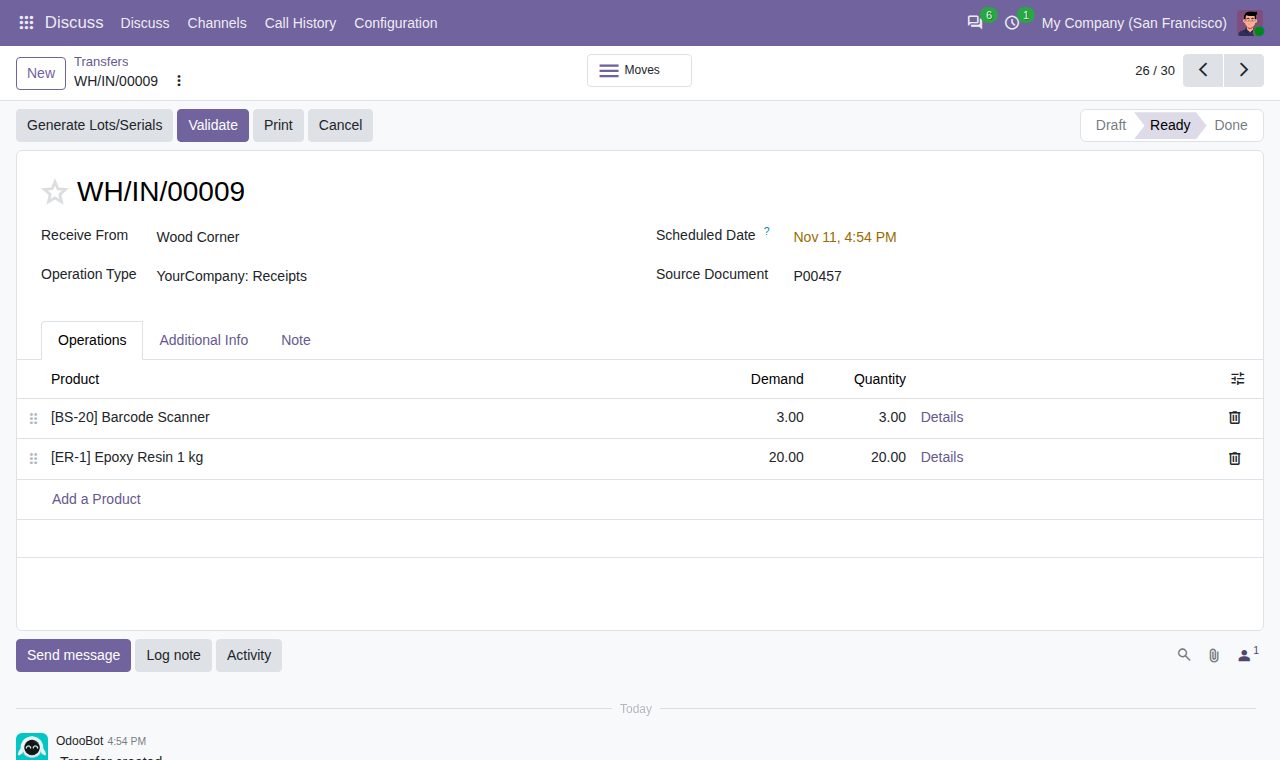
The Generate Lots/Serials button on a receipt gives every tracked line without a number a new one. Lines that already have a number keep it.
Products tracked by serial number get a number for each unit. A line of several units is split into lines of one unit.
Products tracked by lot get one lot per line, or one per Quantity per Lot set on the product: 100 units with 40 per lot become lots of 40, 40 and 20.
Tick Generate at Validation on an operation type and Validate fills in the missing numbers instead of asking for them. When some lines are marked as picked, only those get numbers, since only those are validated.
Numbers follow the product's own lot/serial sequence when it has one (Custom Lot/Serial on the product, from Odoo 19), otherwise the sequence chosen for the company in the Inventory settings, otherwise Odoo's standard one. Year and month codes in the prefix work as in any Odoo sequence.
A number the product already has, as a lot or on another open transfer, is skipped and the next one is taken.
Returns keep the numbers that went out, stock that leaves one of your own locations keeps its numbers, and operation types that only use existing lots are left alone.
The transfer's chatter lists the numbers made for each product, so you can see who generated what and when.
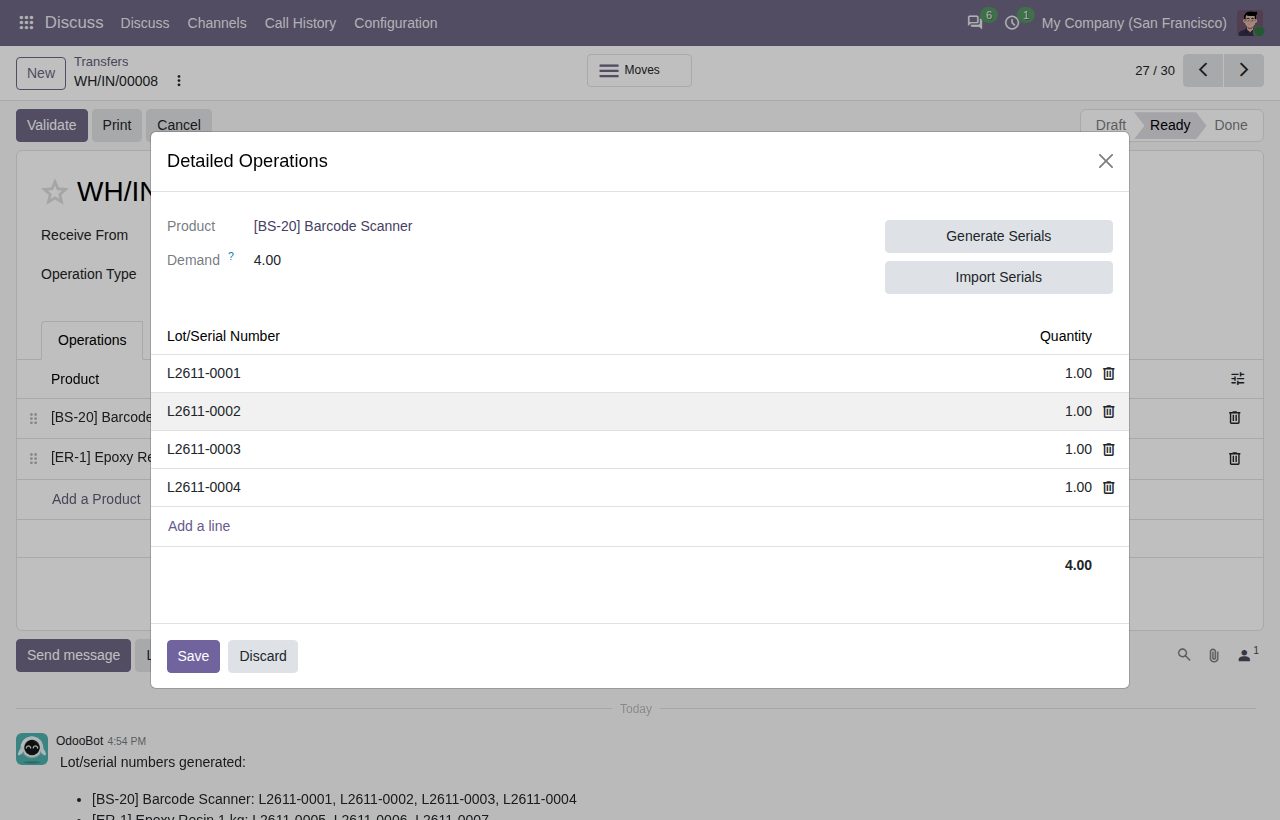
One serial number per unit, from the company's sequence with year and month.
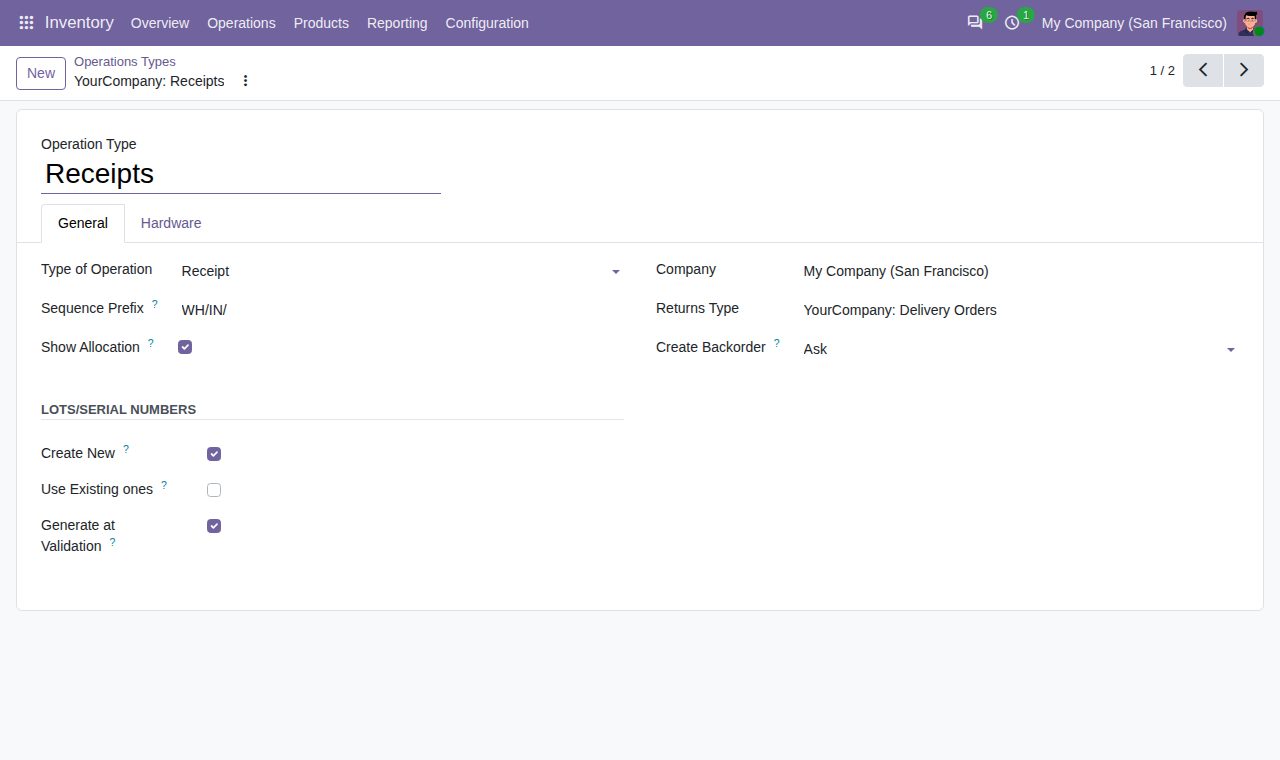
Generate at Validation on the Receipts operation type.
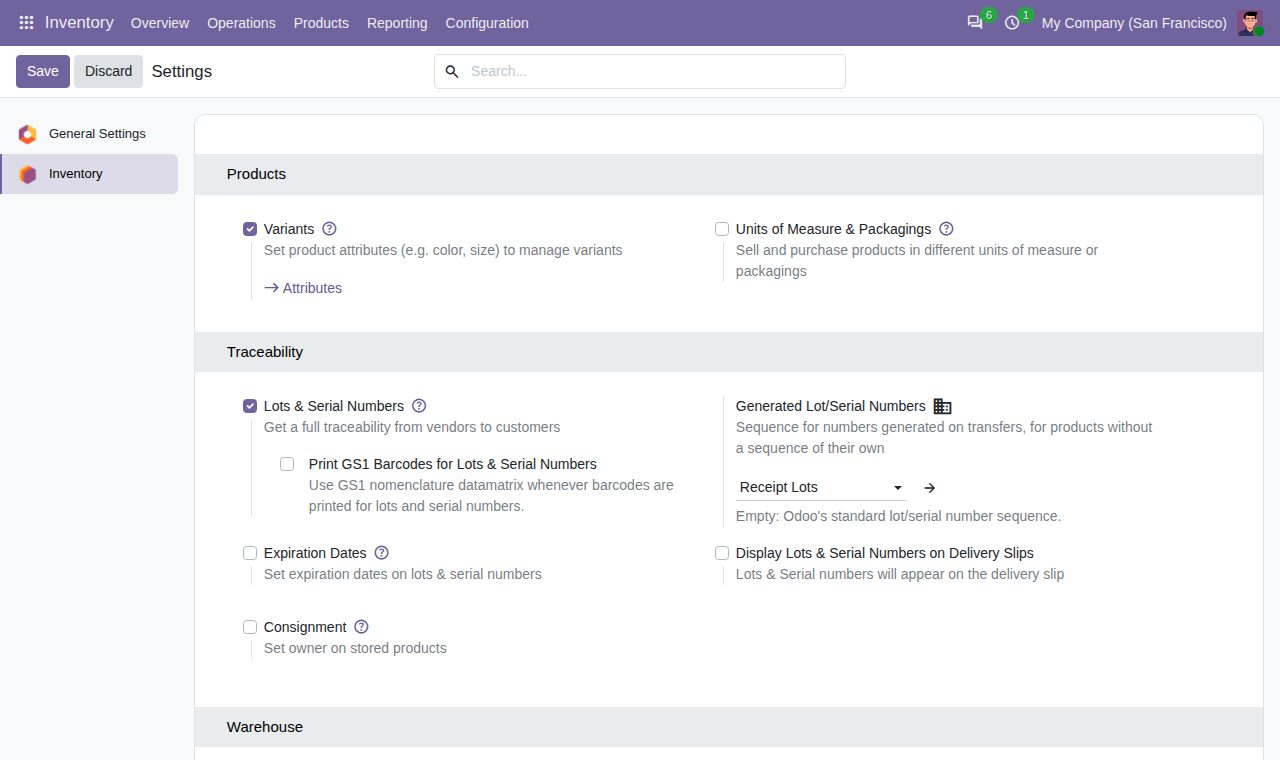
The sequence for generated numbers, per company, in the Inventory settings.
We build custom Odoo modules and changes to this one at a fixed price, from €950 excluding VAT. Small modules are usually delivered within five working days, tested on your Odoo version. Describe what you need to hello@bizzkitt.ai.
Bitwerf is a trade name of BizzKitt B.V., Frederikstraat 67, 3034 LD Rotterdam, the Netherlands (KvK 42149345, VAT NL869932354B01). Questions: hello@bizzkitt.ai · Support · Privacy · Terms