Incoming emails that match no alias or conversation wait in one queue until you attach them to the right record.
When an incoming email matches no alias and no conversation, Odoo's mail gateway cannot place it: it logs an error, skips the email and nobody ever reads it. Lost Email Recovery keeps each of these emails in a queue instead, with everything you need to see where it belongs, and lets you deliver it to the right record in a few clicks.
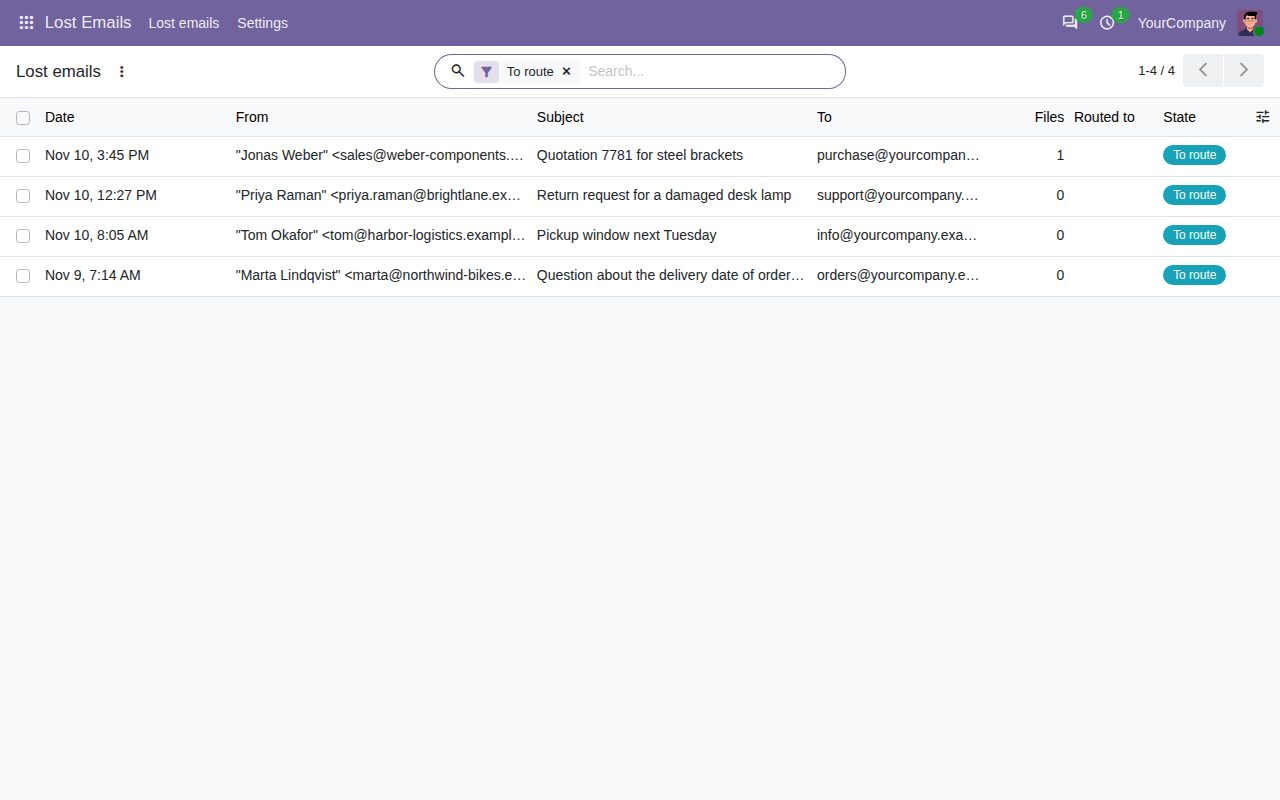
Emails that match no alias, no conversation and no fallback model are kept in the Lost Emails queue instead of failing in the mail gateway. The same email fetched twice is kept once.
Emails sent straight to the catchall address are still bounced to the sender as Odoo always does, and a copy is kept in the queue. A setting turns the copy off.
See the sender and the matching contact, the recipients, date, message and attachment list, the incoming mail server and the technical headers, and download the original email as an .eml file.
Route one email or a whole selection to any record with a chatter. It arrives as an incoming email, with its attachments and the right author, and the record's followers are notified.
Turn a lost email into a new record of any type that accepts incoming email, the same way an email alias would create it.
Sent an email to the wrong record? Route it again: the copy moves to the new record, attachments included.
Only Lost Emails managers see the queue (administrators are managers). Limit the types of records emails may go to, and Odoo's access rights on the target record always apply.
Choose users who are notified of every new lost email, by email or in Odoo, as each of them prefers.
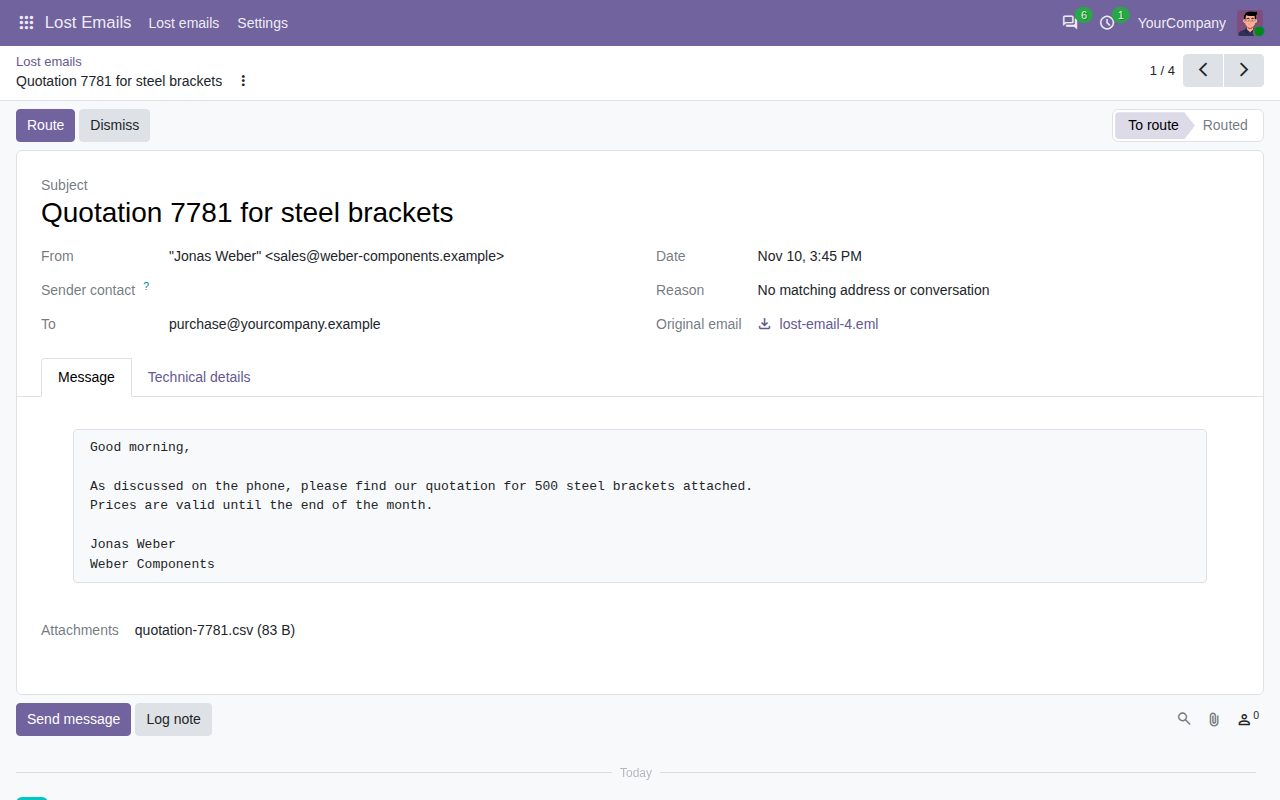
A lost email with its sender, the message, the attachment list and the original file.
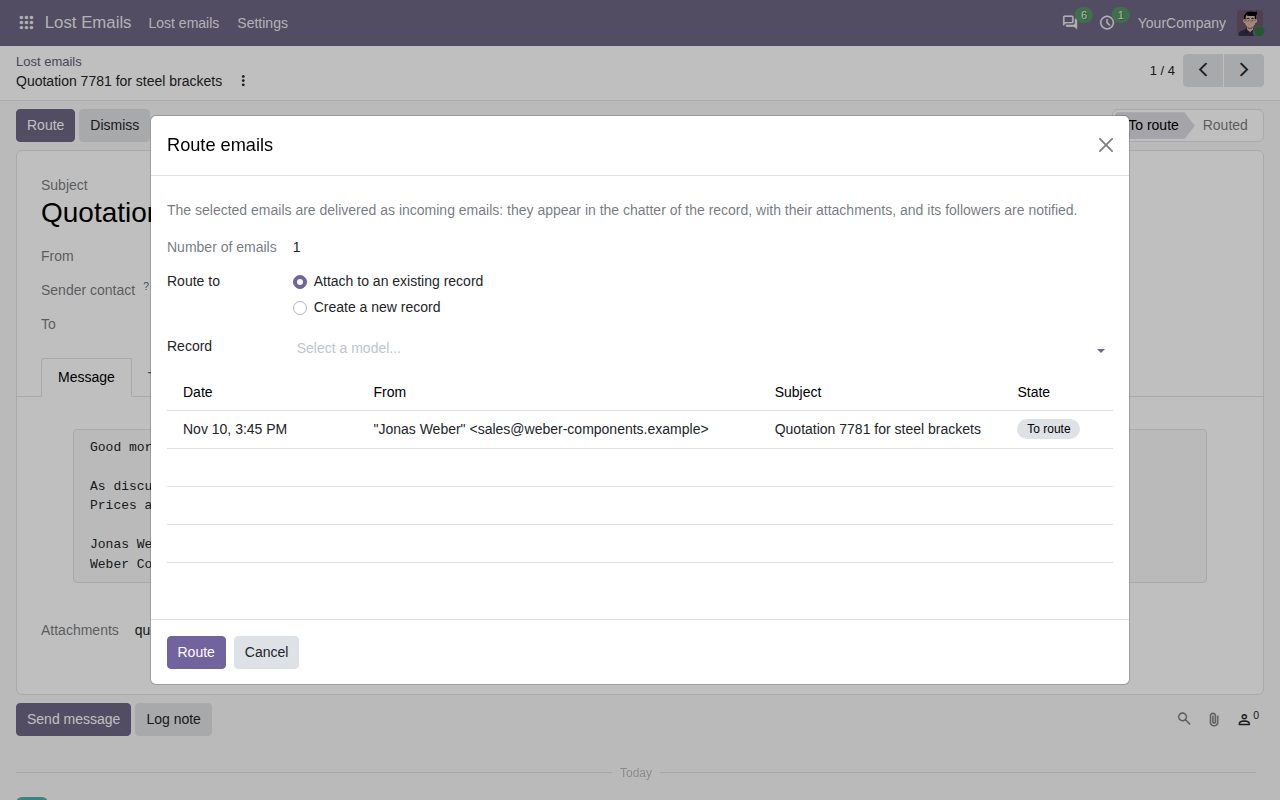
Route the email to an existing record or create a new one from it.
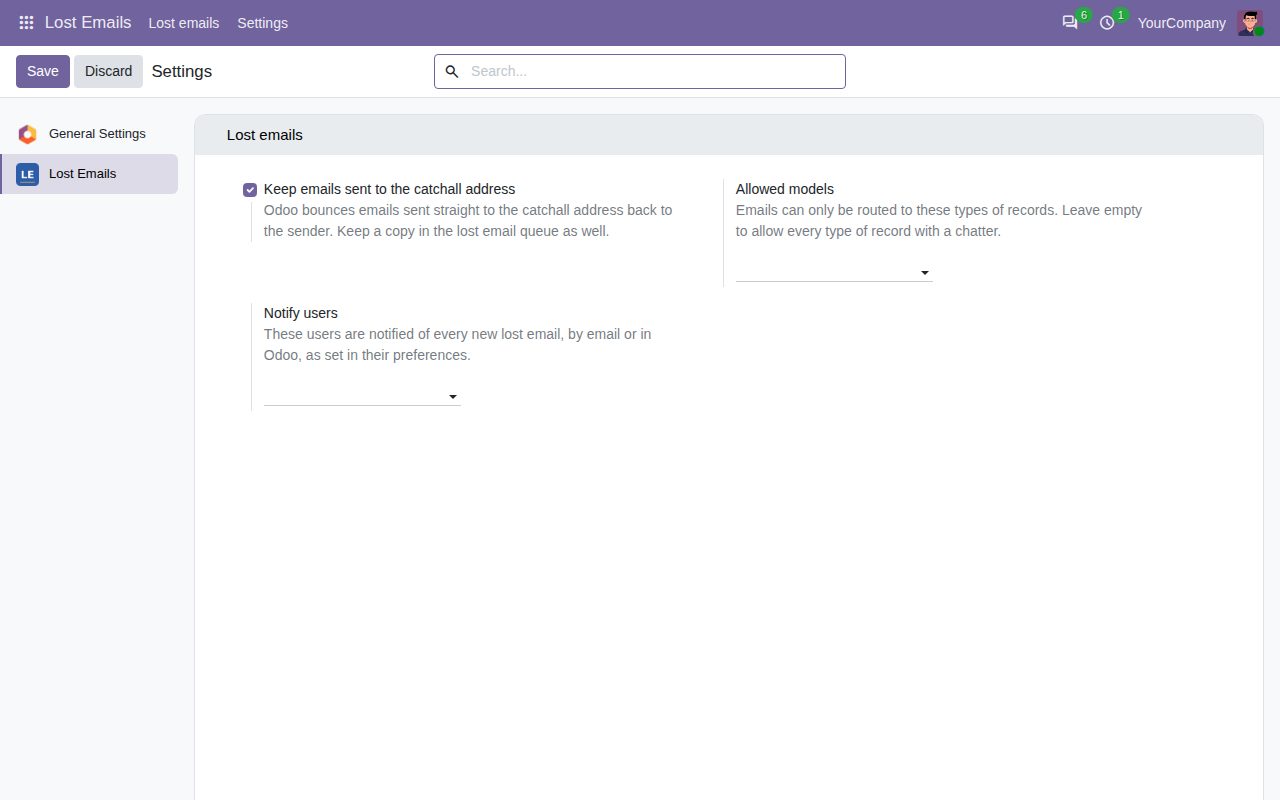
Settings: catchall copies, allowed record types and who is notified.
We build custom Odoo modules and changes to this one at a fixed price, from €950 excluding VAT. Small modules are usually delivered within five working days, tested on your Odoo version. Describe what you need to hello@bizzkitt.ai.
Bitwerf is a trade name of BizzKitt B.V., Frederikstraat 67, 3034 LD Rotterdam, the Netherlands (KvK 42149345, VAT NL869932354B01). Questions: hello@bizzkitt.ai · Support · Privacy · Terms