Invoice what you shipped: an invoice per delivery, a bill per receipt and a credit note per return, linked to the orders.
Odoo invoices sales and purchase orders as a whole, so the invoice for one delivery has to be put together from the order. This module adds a Create Invoice button to done delivery orders and a Create Bill button to done receipts, plus an Actions menu entry for many transfers at once. Every line holds the quantity that left or arrived with that transfer and is linked to its order line, so the order's invoiced quantities stay right and nothing is invoiced twice. Returns become credit notes and refunds, and transfers without an order can be invoiced too.
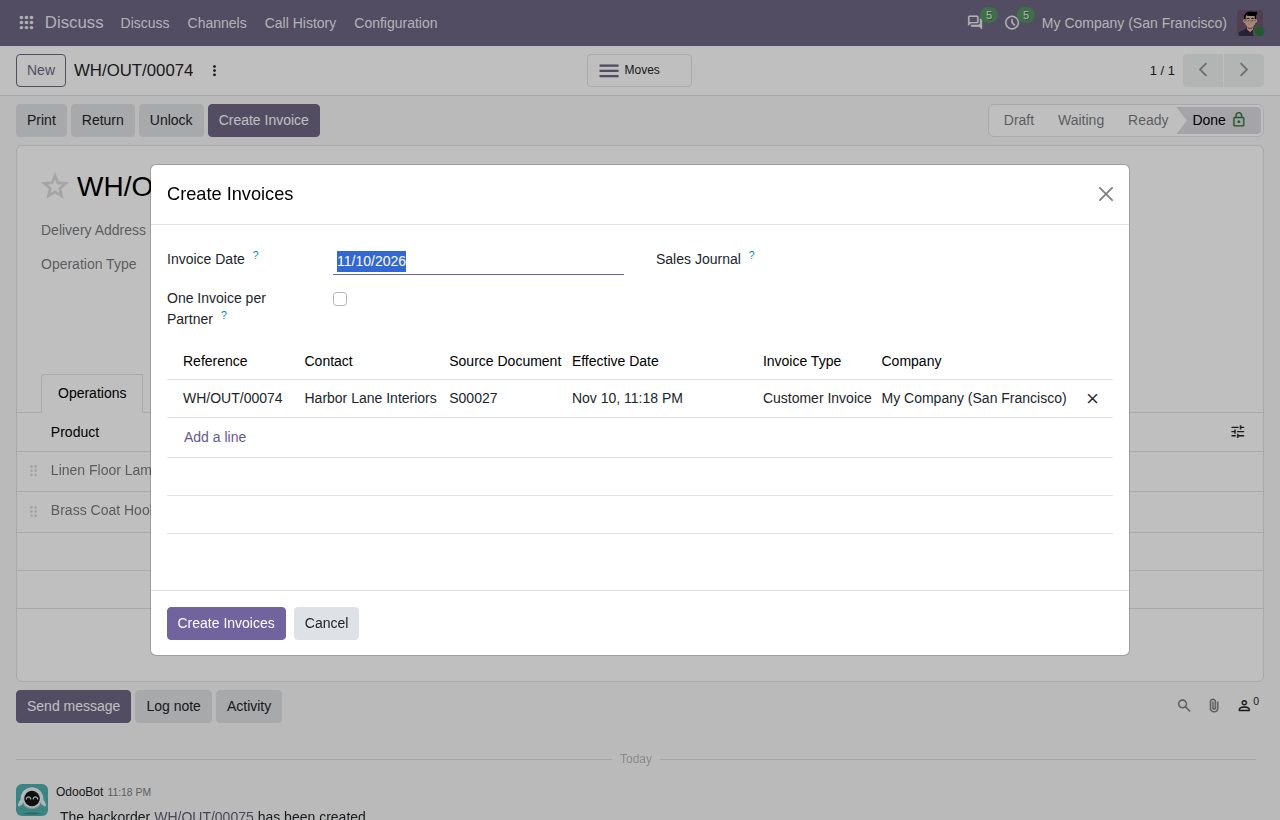
A Create Invoice button on done delivery orders and a Create Bill button on done receipts. The documents are created as drafts, so you check and confirm them as usual.
Returns from customers give a customer credit note and returns to vendors a vendor refund, for the returned quantities and at the order's price.
Lines take the price, discount, taxes and unit of measure from the sales or purchase order line and are linked to it, so the order shows the invoiced and billed quantities and its invoice status.
Each line holds only what was not invoiced from the transfer before, and never more than its order line still has to invoice, also when part of the order was invoiced from the order itself. A cancelled or deleted invoice frees the quantity again.
Select transfers in the list and choose Actions > Create Invoices: one document per transfer, or one per partner with a section line per transfer (reference and date).
Manual deliveries and receipts can be invoiced too: to the invoice address of the partner's company, with the product's price and taxes as for a line you add by hand.
Transfers show To Invoice or Invoiced in the list, with filters and a group by. An Invoices button on the transfer and a Transfers button on the invoice link both ways.
Set the invoice date and pick the sales or purchase journal in the dialog. Only users with invoicing rights (Billing or higher) see the buttons.
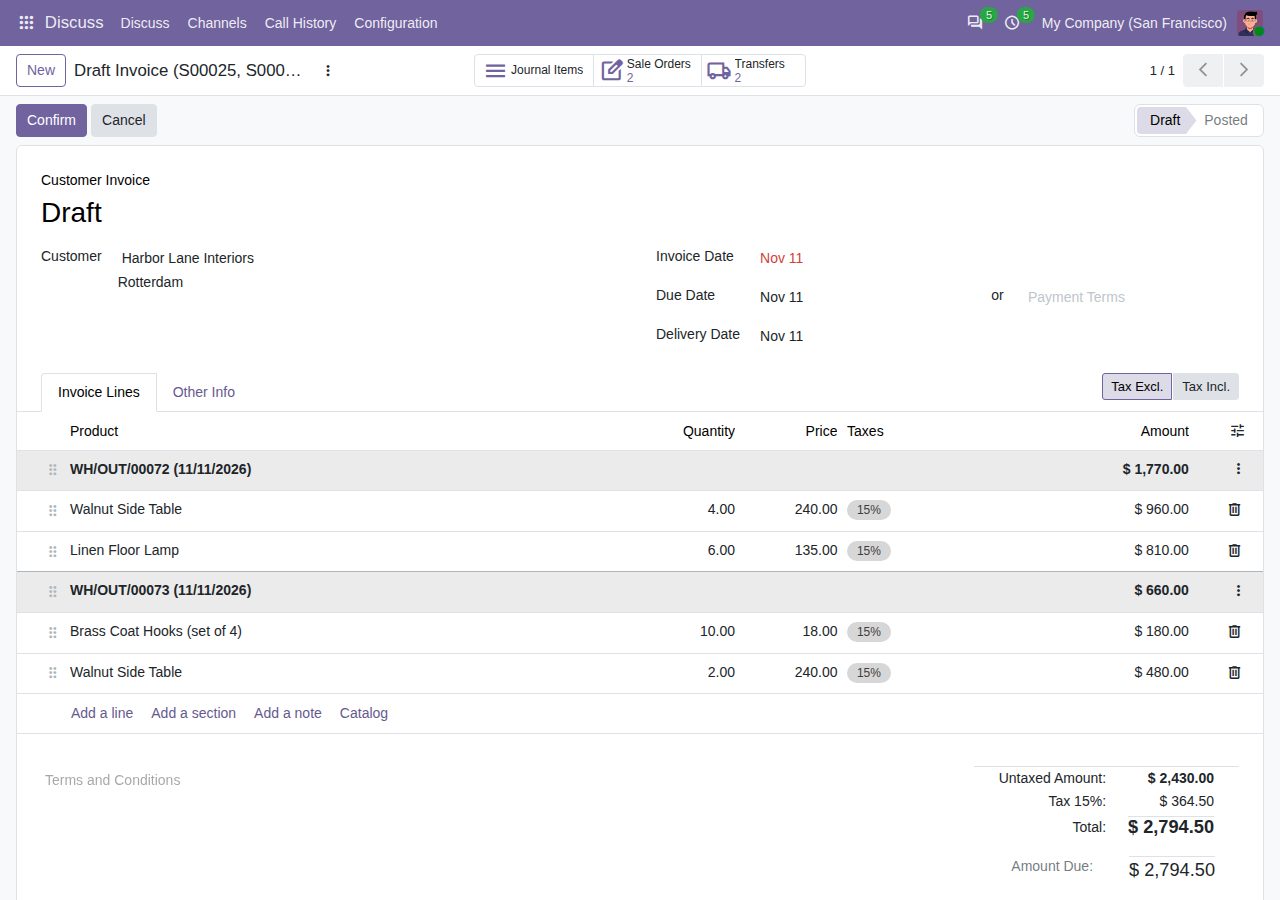
One invoice for two deliveries, with a section line per delivery and the Transfers button
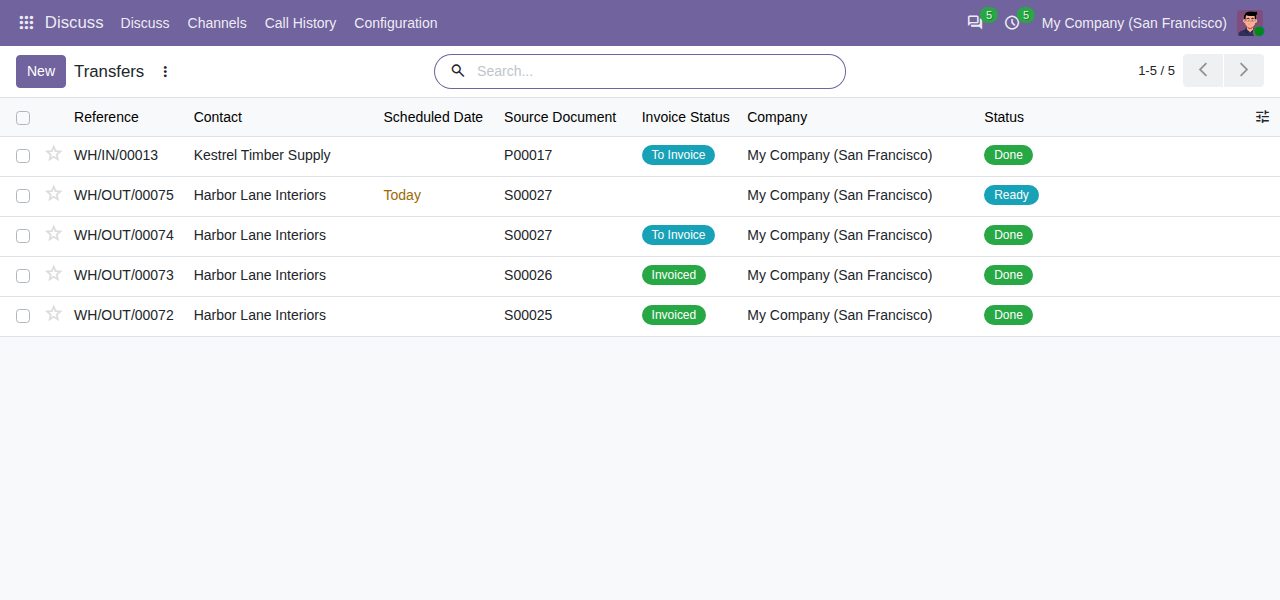
Invoice status of deliveries and receipts in the transfer list
We build custom Odoo modules and changes to this one at a fixed price, from €950 excluding VAT. Small modules are usually delivered within five working days, tested on your Odoo version. Describe what you need to hello@bizzkitt.ai.
Bitwerf is a trade name of BizzKitt B.V., Frederikstraat 67, 3034 LD Rotterdam, the Netherlands (KvK 42149345, VAT NL869932354B01). Questions: hello@bizzkitt.ai · Support · Privacy · Terms