Print product and lot barcode labels on the label sheets and rolls you already have, in the right numbers.
Labelling goods on receipt, after a count or per lot only works when the labels land exactly on your label stock and you get one label for every item. Inventory Barcode Labels lets you describe your own sheets and rolls once, then prints barcode labels from transfers, stock, lots and products, with a list you can check and change before printing.
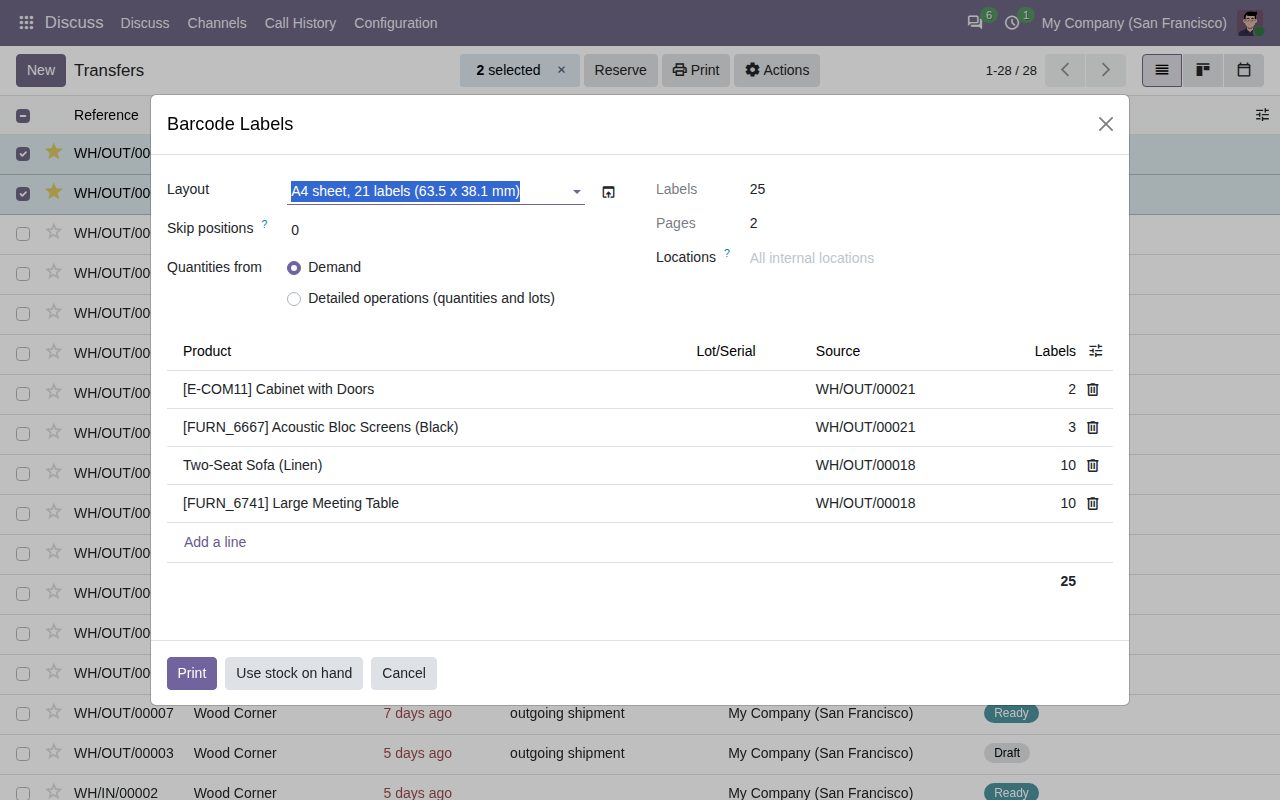
Describe any sheet (A4 or US Letter: label size, columns, rows, margins and gaps) or roll (one label per page). Each layout prints on its own paper format without margins, so labels land where your stock has them. Six common layouts are included.
Print > Barcode Labels on receipts and other transfers counts labels from the demand or from the detailed operations, lots and serial numbers included. Done transfers start from what was processed.
The same Print > Barcode Labels on the stock list (quantity on hand per location), on detailed operations, on lots and serial numbers, and on products and product variants.
Change the number of labels, add a product or pick a lot before printing. Products counted in Units get one label per unit; products in kg, litres or other units get one label per line.
Use stock on hand sets every line to the quantity in stock in the locations you choose (all internal locations when you choose none), per lot when the line has a lot.
Skip the positions already used on the first sheet: printing starts at the first free label.
Product name, internal reference, lot or serial number, sales price and source document, each on or off, with your font size. Barcode: automatic (EAN-13 or EAN-8 by length, else Code 128), Code 128 or QR, from the product barcode or the lot or serial number.
A layout whose labels do not fit on the page is refused, and the layout form shows a drawing of the page with every label position.
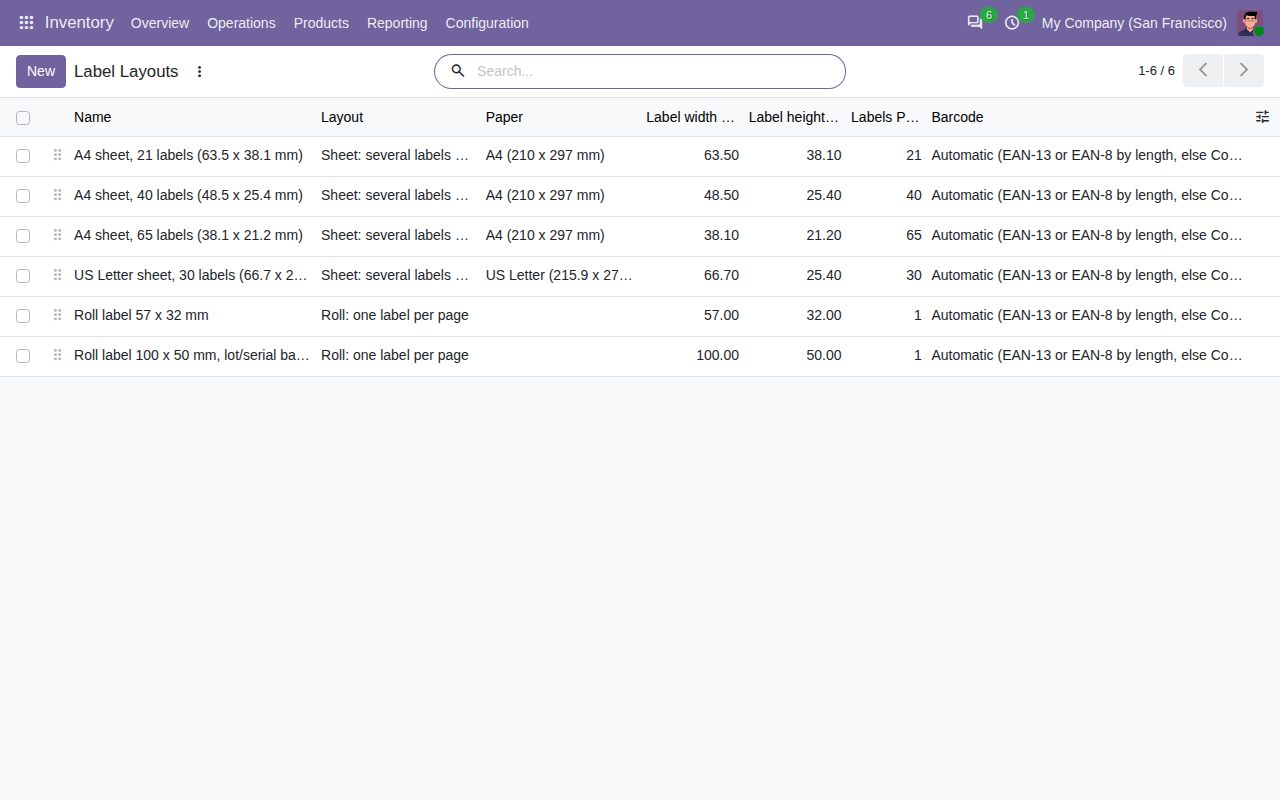
Label layouts for sheets and rolls.
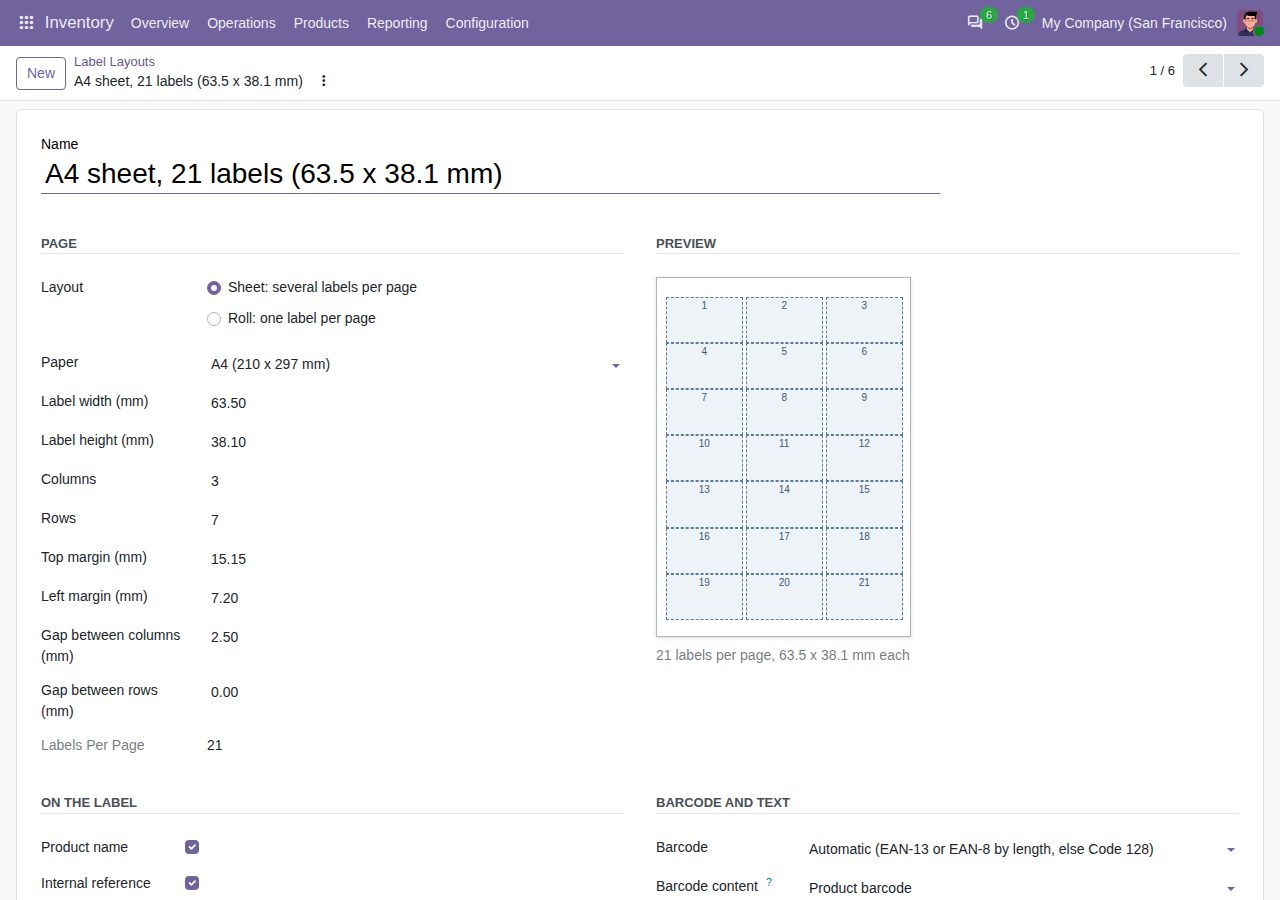
A layout with the drawing of its page and the content of the label.
We build custom Odoo modules and changes to this one at a fixed price, from €950 excluding VAT. Small modules are usually delivered within five working days, tested on your Odoo version. Describe what you need to hello@bizzkitt.ai.
Bitwerf is a trade name of BizzKitt B.V., Frederikstraat 67, 3034 LD Rotterdam, the Netherlands (KvK 42149345, VAT NL869932354B01). Questions: hello@bizzkitt.ai · Support · Privacy · Terms