Move money between your own bank and cash journals from Payments: the receiving payment is created, posted and matched for you.
Since Odoo 18, payments have no Internal Transfer option, so moving money from the bank to the cash box or to a savings account means two payments or a manual journal entry, and someone has to match them. This module brings the option back with a To Journal. Confirm the transfer and the receiving payment is created in the other journal, both payments are posted through the company's internal transfer account and matched there at once. The two payments then stay in step: reset, cancel or delete one and the other follows.
Switch on Internal Transfer on a payment and choose the To Journal: any other bank or cash journal of the same company. The payment becomes a Send payment of your own company.
Confirming creates and posts the receiving payment in the To Journal with the same amount, currency, date and memo. Both payments link to each other through a button on the form.
Both payments use the company's internal transfer account as counterpart and the company as partner. The two transfer lines are reconciled as soon as the transfer is confirmed, so that account stays at zero.
Reset to draft, cancel or delete either payment and the other one follows. Confirming the receiving payment confirms its transfer.
Change the amount, date or memo of a transfer in draft: the next confirm gives the receiving payment the same values and matches both again, without a second receiving payment.
A transfer without To Journal, to the same journal, to a journal that is not bank or cash, with a zero amount, or in a company without an internal transfer account stops with a message. Journals are fixed once the receiving payment exists.
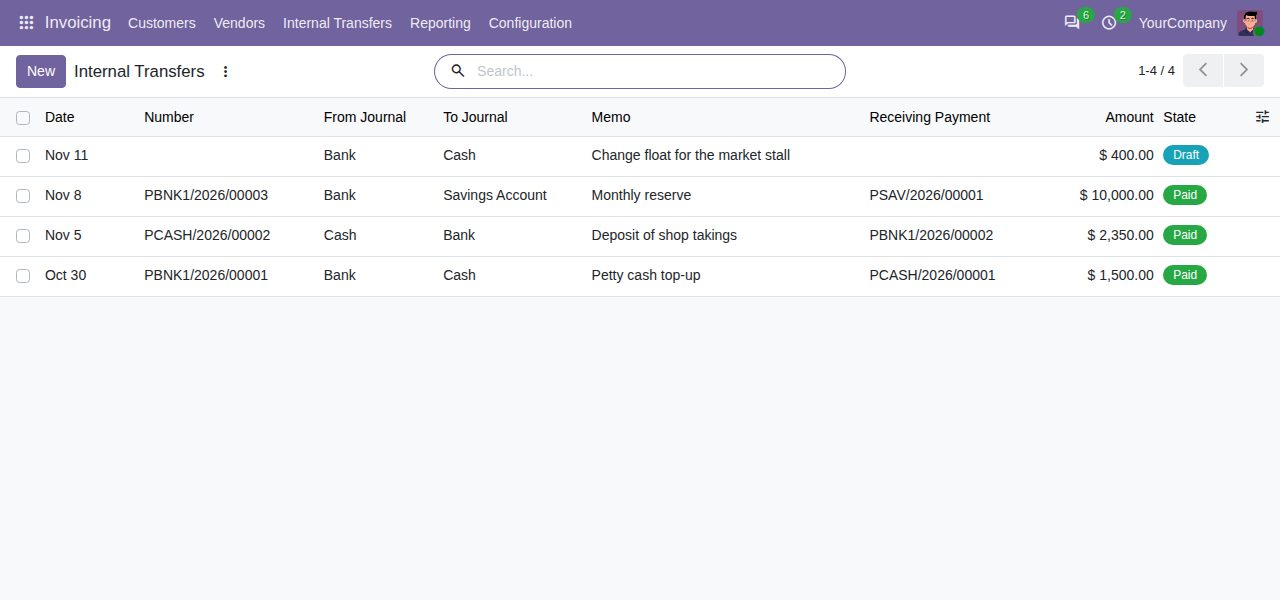
Invoicing > Internal Transfers lists one line per transfer with date, number, From and To journal, memo, receiving payment, amount and status. Payment lists get an Internal Transfers filter.
Invoicing settings get an Internal Transfers section with the company's internal transfer account, also for users without the full accounting features.
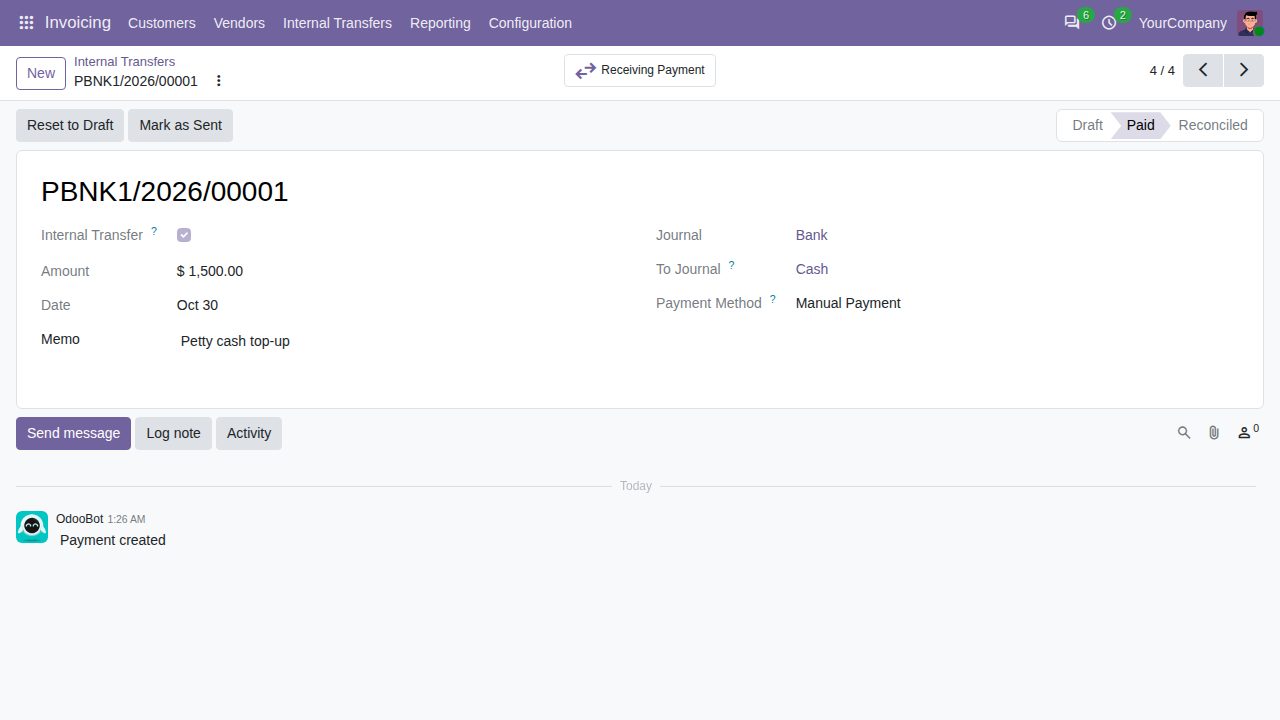
A confirmed transfer from the bank to the cash journal
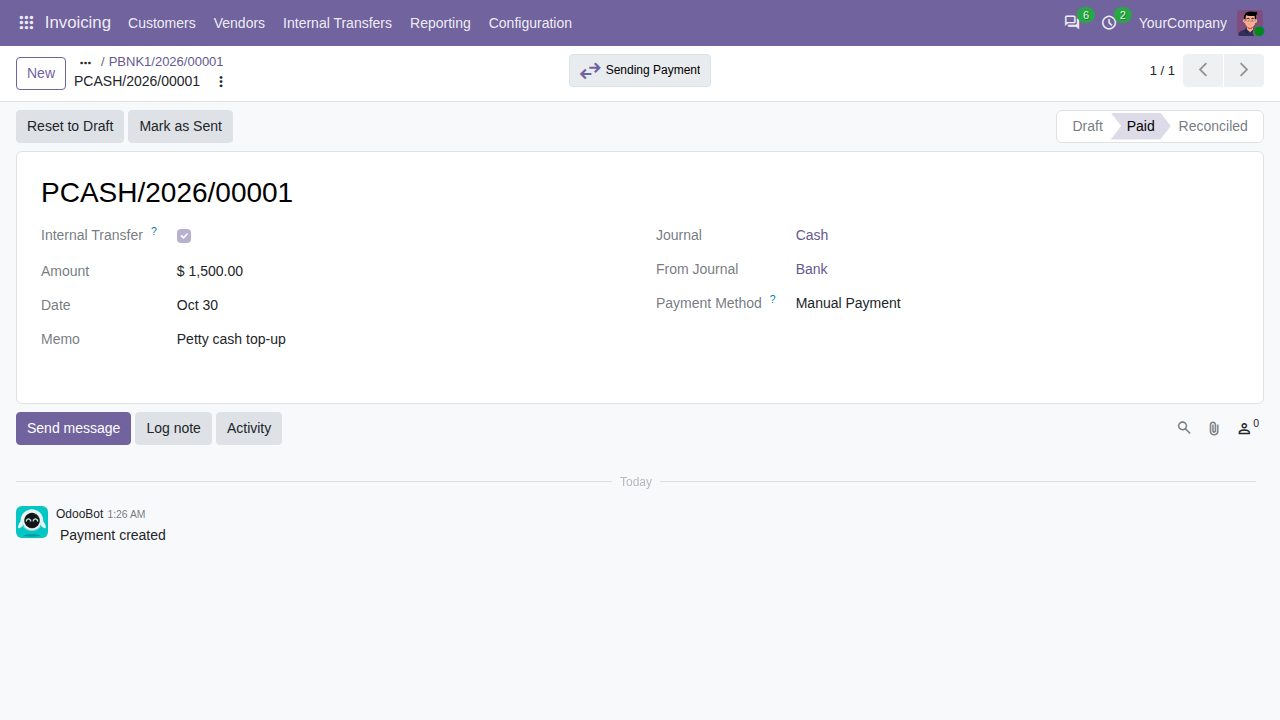
The receiving payment in the cash journal, created and posted on confirm
We build custom Odoo modules and changes to this one at a fixed price, from €950 excluding VAT. Small modules are usually delivered within five working days, tested on your Odoo version. Describe what you need to hello@bizzkitt.ai.
Bitwerf is a trade name of BizzKitt B.V., Frederikstraat 67, 3034 LD Rotterdam, the Netherlands (KvK 42149345, VAT NL869932354B01). Questions: hello@bizzkitt.ai · Support · Privacy · Terms