Product photos, logos and contact pictures appear as pictures in your Excel exports, not as unreadable base64 text.
Odoo's standard export writes image fields to Excel as long base64 text that nobody can read. With this module the same export puts the pictures themselves in the cells: add an image field in the Export dialog, download the XLSX file, and every record shows its picture, in a row sized to fit it.
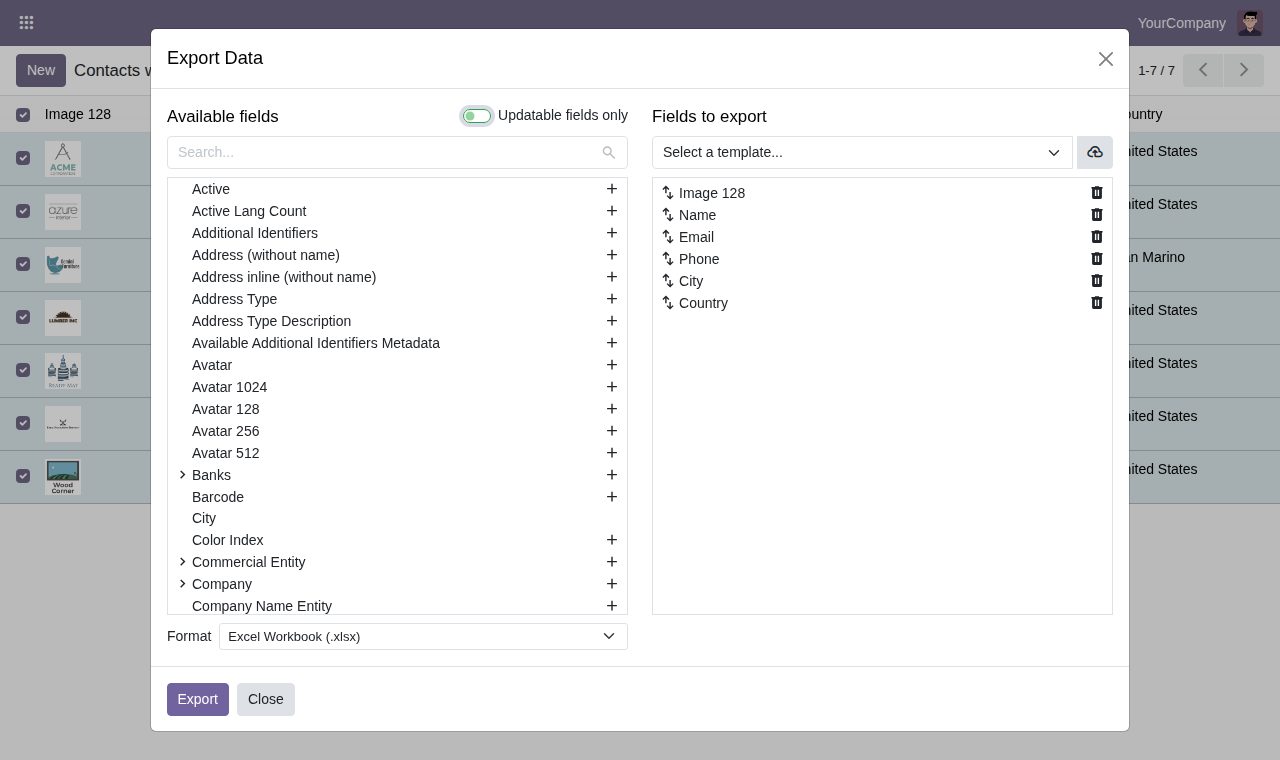
Image fields of any model, such as product images, contact pictures or employee photos, are drawn in the cell of their record. The row grows to the height of its picture; records without a picture keep a normal row.
Export pictures of related records as well, for example the logo of each contact's company next to the contact.
Pictures are scaled down before they go into the workbook, so exporting a full-size image field gives a light file instead of megabytes of original photos.
Small (48 px), medium (80 px), large (140 px) or extra large (200 px). Pictures keep their proportions; wide ones are limited to the column width and small ones keep their own size.
Export a grouped list and the pictures land in the record rows under each group heading.
Import-compatible exports keep Odoo's base64 text, so a file made to update data can still be imported back.
File fields that hold no picture, such as PDF documents, text files or SVG drawings, are exported exactly as before. CSV exports do not change.
Prefer the standard text for a while? Switch images back to text in General Settings and the export behaves as in plain Odoo.
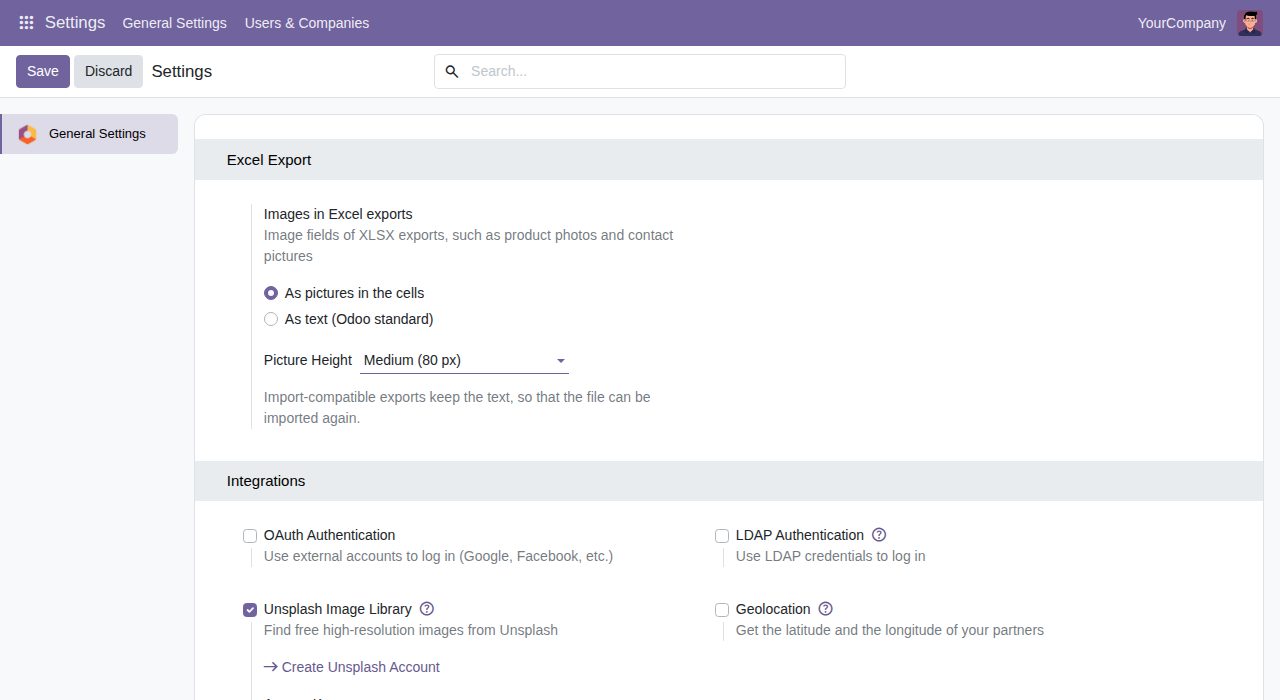
Settings > General Settings > Excel Export: pictures or text, and the picture height.
We build custom Odoo modules and changes to this one at a fixed price, from €950 excluding VAT. Small modules are usually delivered within five working days, tested on your Odoo version. Describe what you need to hello@bizzkitt.ai.
Bitwerf is a trade name of BizzKitt B.V., Frederikstraat 67, 3034 LD Rotterdam, the Netherlands (KvK 42149345, VAT NL869932354B01). Questions: hello@bizzkitt.ai · Support · Privacy · Terms