Keep each customer's own codes and names for your products, and show them on their quotations, orders and invoices.
Business customers often order with their own part numbers. Customer Product Codes keeps each customer's code and name for your products, fills them in on sales order lines, finds products by the customer's code while you type, and prints the code under your line description on quotations, orders and invoices.
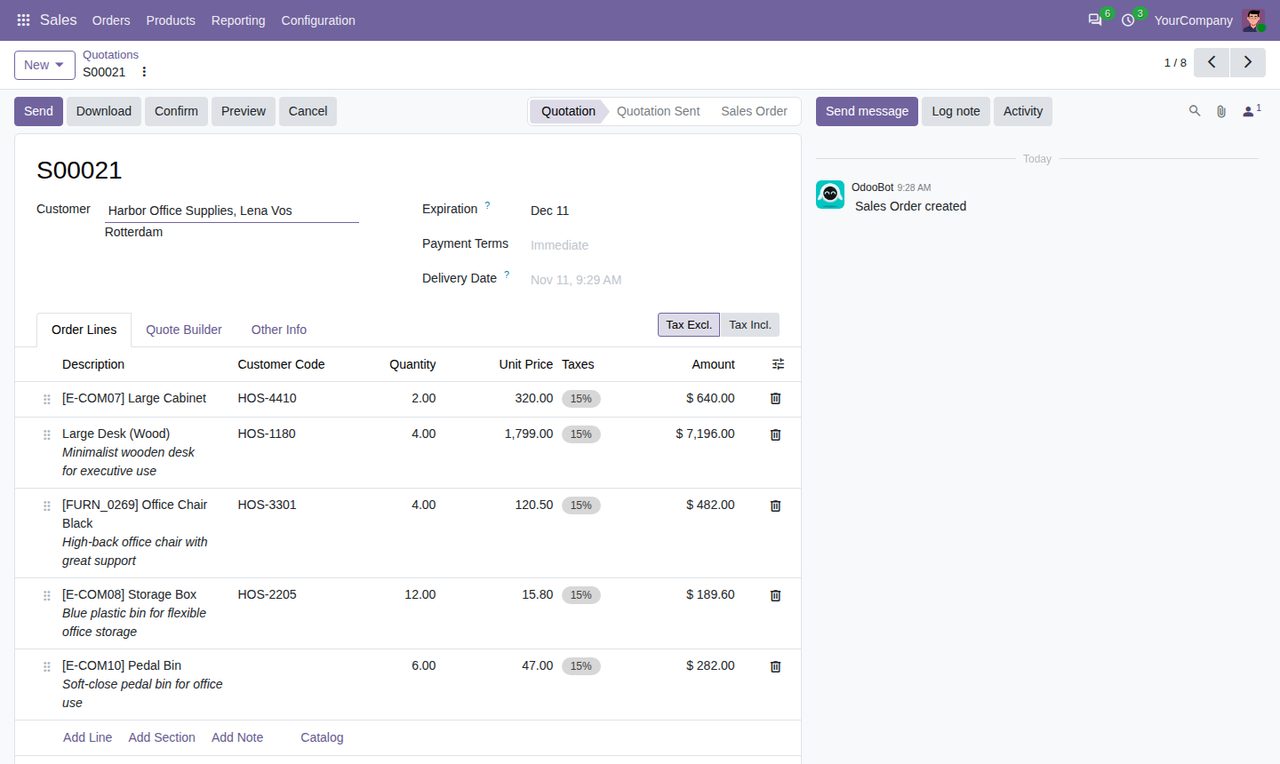
Save the customer's code and, if you like, their name for the product. A code covers all variants of a product or one variant, and a variant's own code wins. Codes are kept on the company, so all its contacts and addresses use them.
A customer cannot use one code for two products or have two codes for one product; letter case does not count. A code can belong to one company or be shared by all companies.
A Customer Code column on order lines fills in when you choose a product and follows a change of customer. Type a code on a line that has none and it is saved for that customer.
Type the customer's code or product name in the product field of an order line to find the product. In the product list, search on any customer's code.
Customer invoices and credit notes show the code on their lines, also when made from a sales order. Vendor bills are left alone.
Quotations, sales orders and invoices print the customer's code and name under your description, and the customer portal shows them on quotations and orders.
When you change or delete a code, quotations that are not confirmed and draft invoices take the change. Confirmed orders and posted invoices keep the code they had.
Manage codes per product (Customer Codes tab), per customer (Product Codes button) or in one list under Sales > Products, grouped by customer or product, and import them from a spreadsheet.
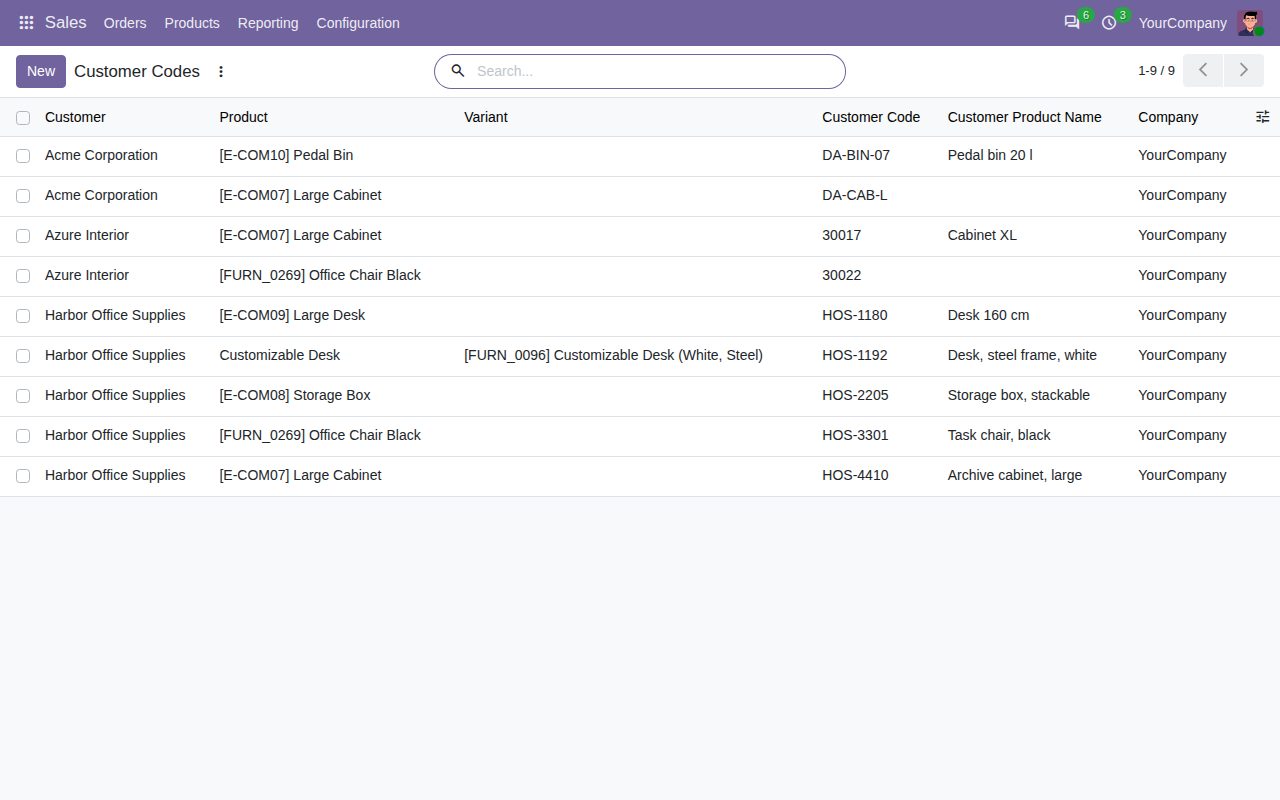
All customer codes in one list under Sales > Products.
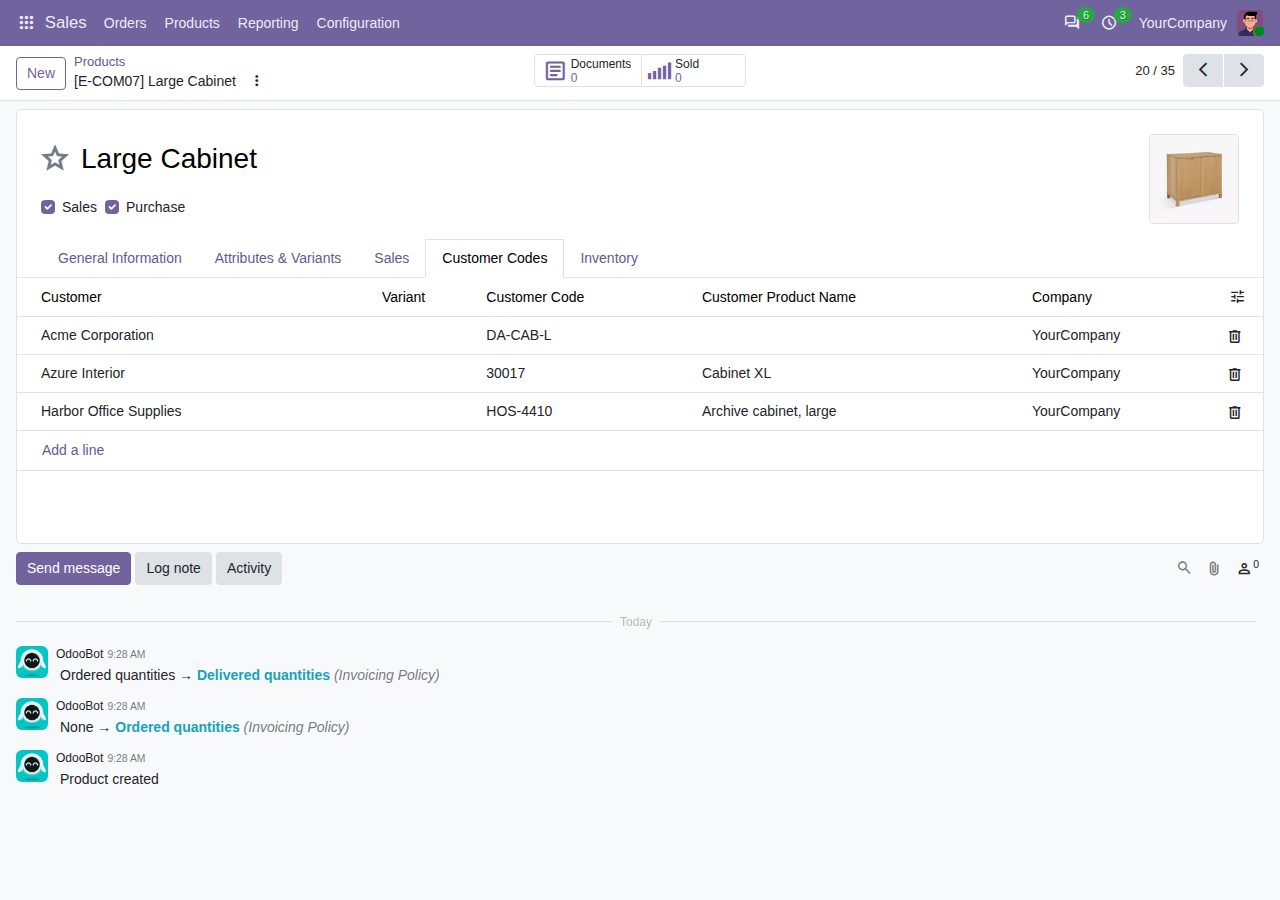
The Customer Codes tab of a product: each customer's code and name for it.
We build custom Odoo modules and changes to this one at a fixed price, from €950 excluding VAT. Small modules are usually delivered within five working days, tested on your Odoo version. Describe what you need to hello@bizzkitt.ai.
Bitwerf is a trade name of BizzKitt B.V., Frederikstraat 67, 3034 LD Rotterdam, the Netherlands (KvK 42149345, VAT NL869932354B01). Questions: hello@bizzkitt.ai · Support · Privacy · Terms